AI Providers
The AI Providers component is an upcoming feature in the next release of Reveal. It serves as a centralized page for managing preferred AI model providers and configurations, allowing teams to easily connect to and manage different AI models within the platform.
This feature is designed to give organizations more flexibility in how they use AI, enabling them to choose from multiple providers and configure them for specific use cases.
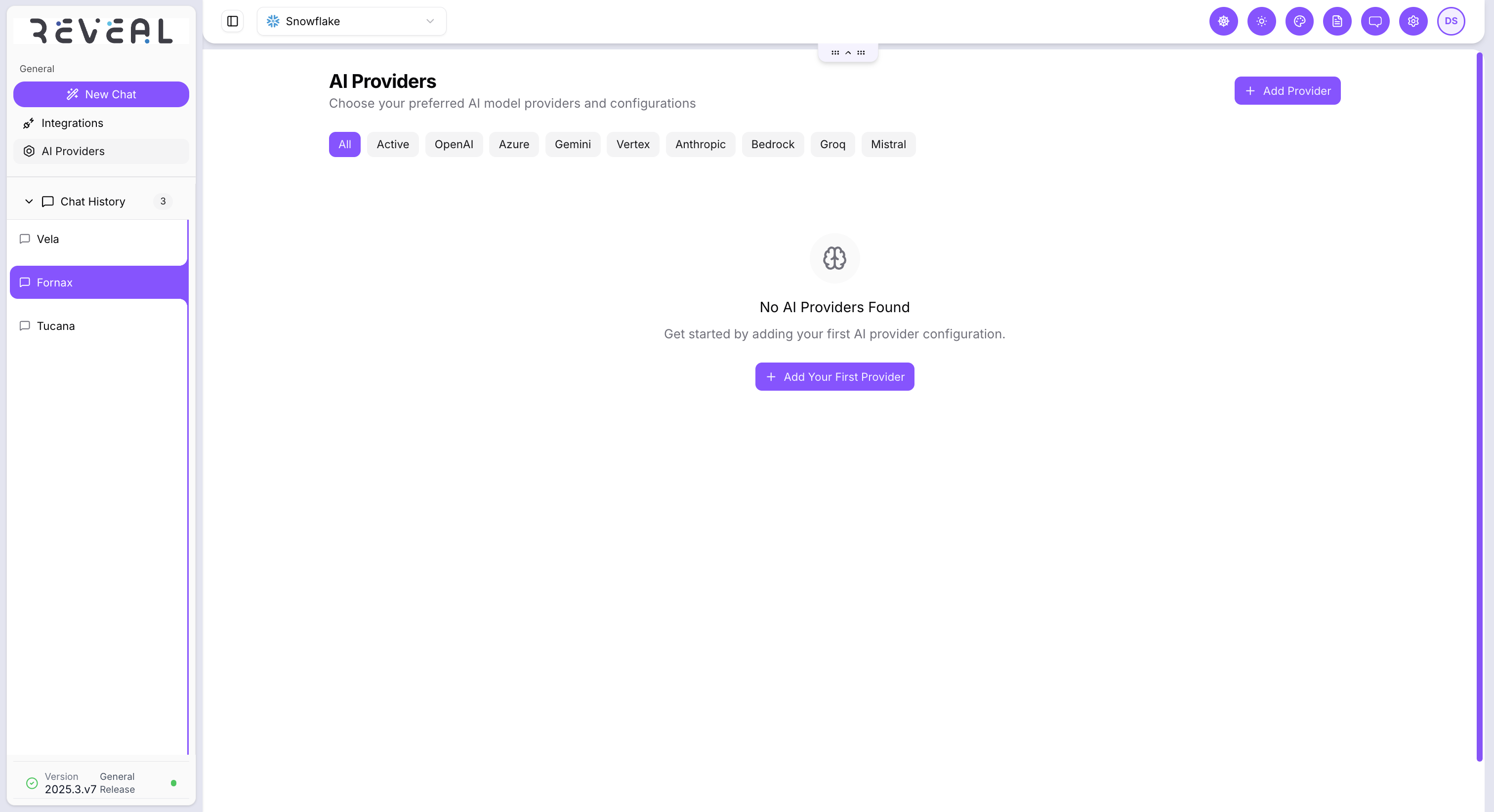
Provider List
- The AI Providers page lists all supported model providers, allowing users to configure and manage their preferred LLM integrations. Users can add a new provider of any type by selecting Add Provider. If no providers are configured yet, the page will display an empty state prompting the user to create their first provider.
- Currently supported providers include OpenAI, Azure, Gemini, Vertex, Anthropic, Bedrock, Groq, and Mistral.
- Filters at the top of the page allow users to view:
- All providers
- Active providers
- Individual providers by name
- Each card displays:
- Provider name
- Type (e.g., OpenAI)
- Status (Active/Inactive)
- Available models or capabilities (e.g., GPT Models, DALL-E)
Adding a New Provider
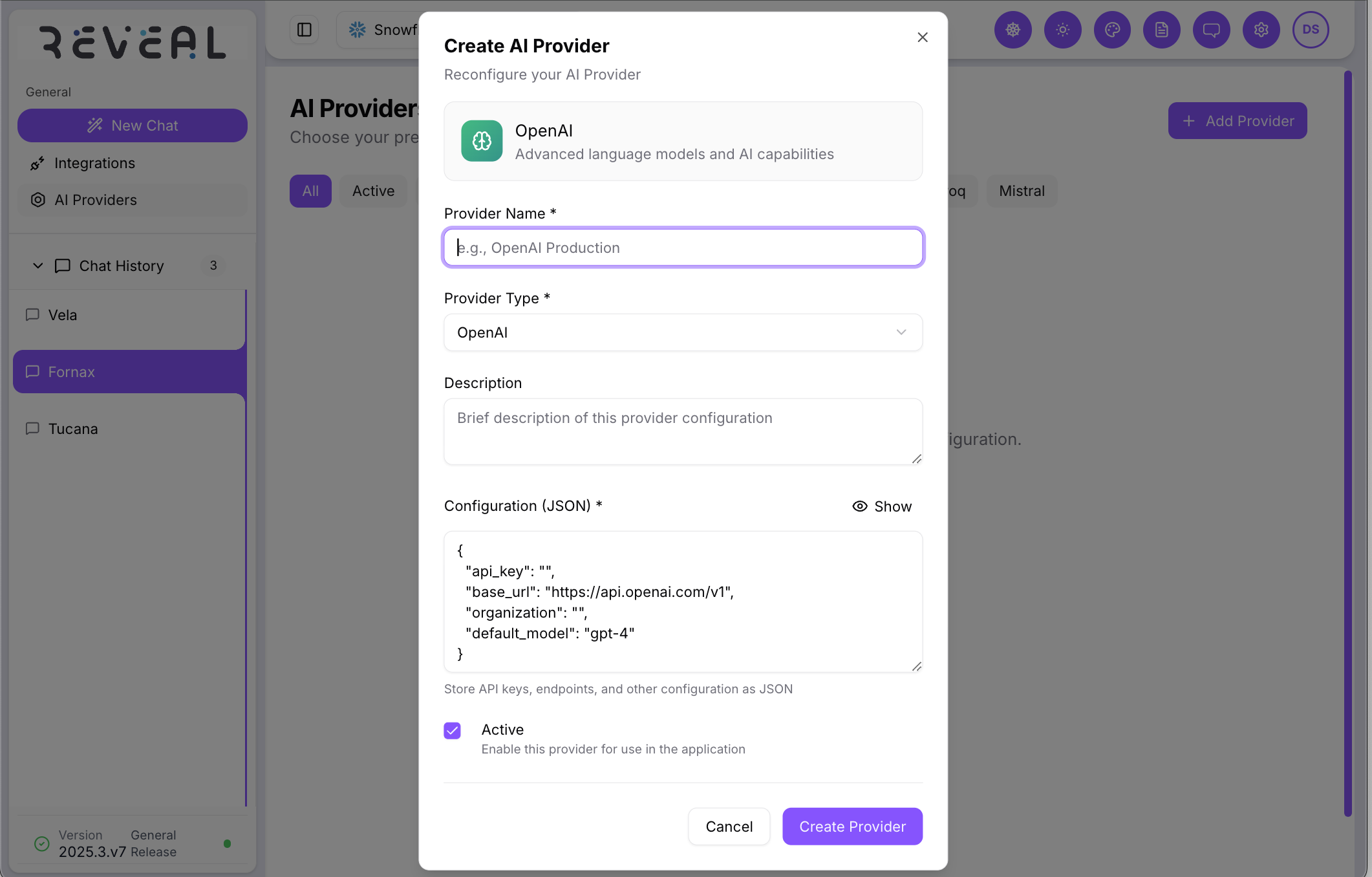
- Click the Add Provider button to configure a new AI provider.
- Fill in the required fields:
- Provider Name – A unique identifier for the provider.
- Provider Type – Choose from supported options such as OpenAI or Azure.
- Description – A brief note about the provider configuration.
- Configuration (JSON) – Add required authentication and model configuration details such as API key, base URL, organization ID, and default model.
- Enable the Active checkbox to make the provider available for use.
- Click Create Provider to save the configuration.
Managing Providers
- Once added, all providers appear as cards on the AI Providers page.
- Each provider can be reconfigured as needed or deleted if it's no longer required.
- This enables teams to maintain multiple provider setups and switch between them for different use cases.
Troubleshooting
- Provider not appearing after creation
- Refresh the page and confirm that all required fields were completed.
- Ensure the configuration is valid JSON.
- Authentication errors
- Verify the API key, base URL, and organization details.
- Ensure the provider account is active and has the correct permissions.
If issues persist, contact your administrator or platform support team for assistance.