Prompt Configurations
The Prompt Configurations component allows users to manage tone-based prompt templates, feature flags, and role access to tones and domains. These configurations determine how queries are processed and how responses are structured across different use cases.
When no specific configuration exists, the baseline configuration acts as the default fallback.
Accessing Prompt Configurations
The Prompt Configurations icon is located in the top navigation bar of the Reveal interface. Clicking this icon directs users to the Prompt Configurations homepage where configurations can be created, edited, or assigned.

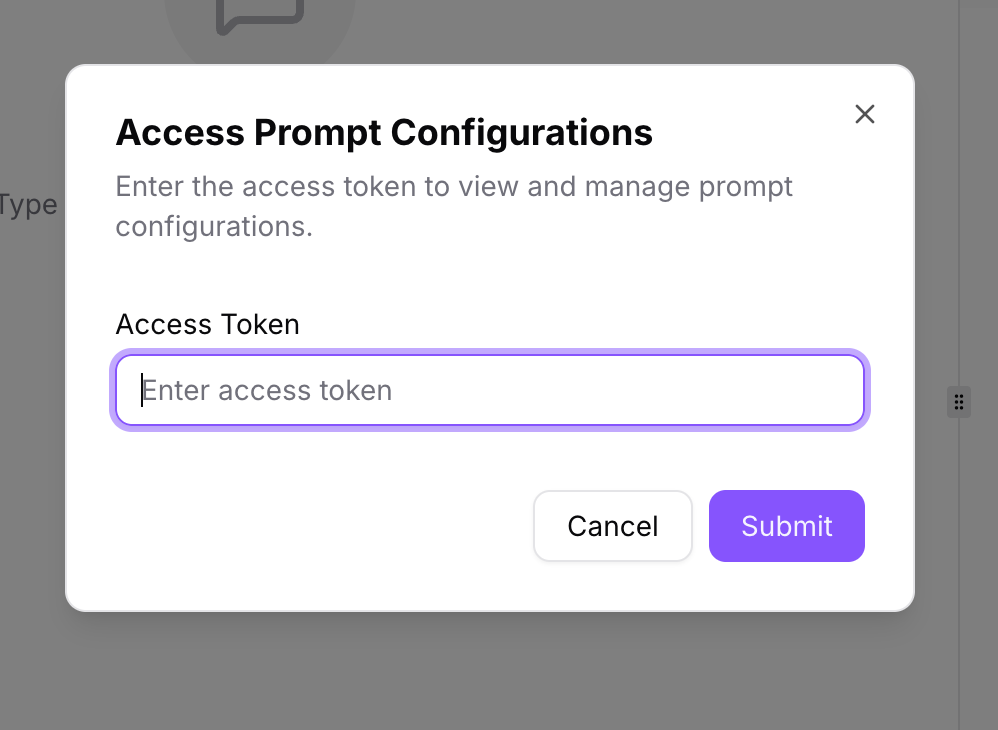
To access the Prompt Configurations page, enter the required Access Token in the prompt and click Submit.
Prompt Configurations Homepage
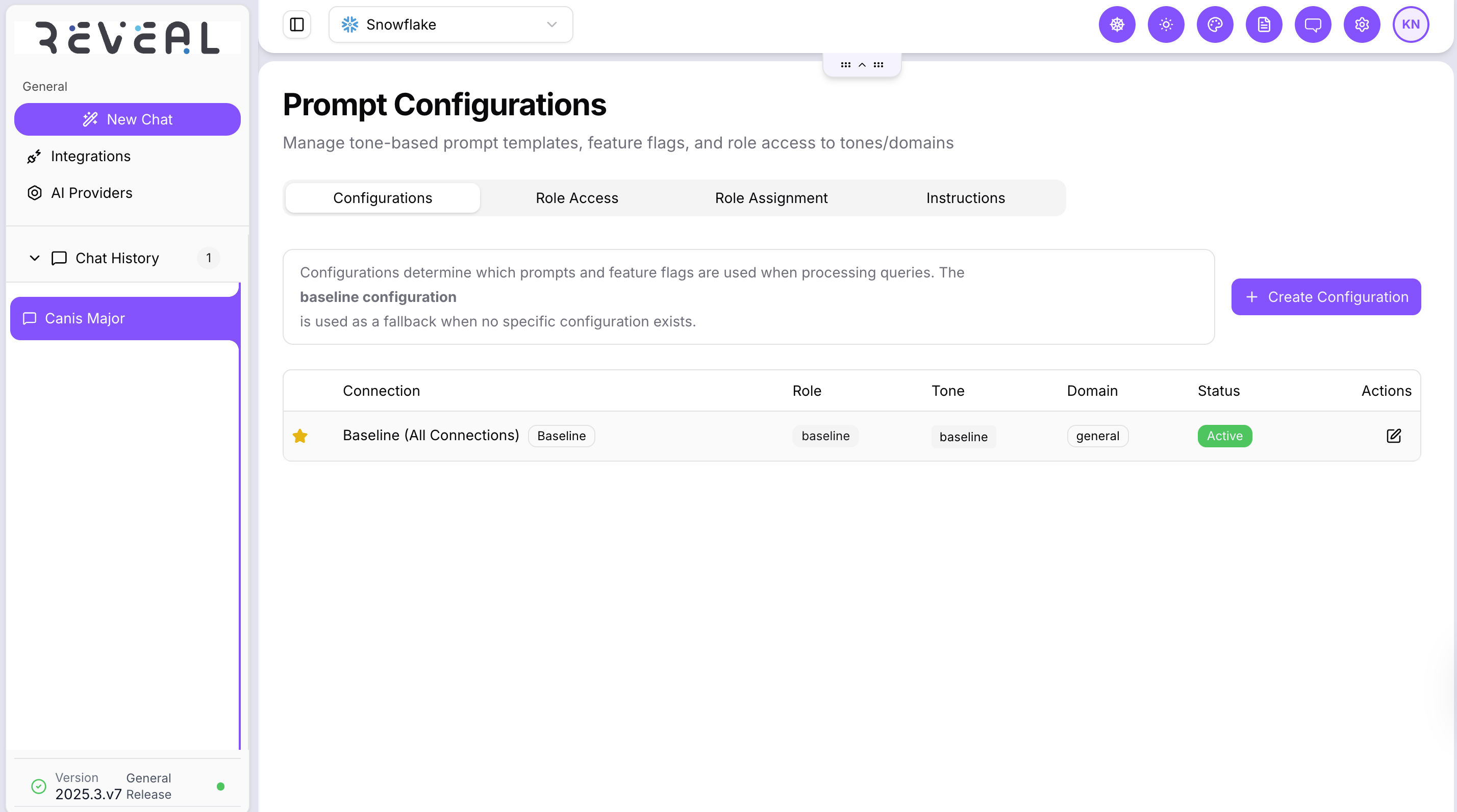
The Prompt Configurations homepage serves as the central control panel for managing prompt behavior, tone, domain instructions, and role access.
At the top of the page, there are four key tabs that organize configuration functions:
Configurations: Manage existing configurations
Role Access: Assign tones and domains to specific roles
Role Assignment: Manage role-based access to configurations
Instructions: Add tone, domain, or keyword instructions
This page displays a comprehensive list of all active configurations in a structured table format, making it easy to monitor and maintain prompt settings. The table includes the following columns:
- Connection – The data source associated with the configuration.
- Role – The assigned role for which the configuration is active.
- Tone – The selected tone applied to the model’s responses.
- Domain – The contextual domain used to refine prompts.
- Status – Indicates whether the configuration is active or inactive.
- Actions – Provides options to edit or delete configurations.
Create New Configuration
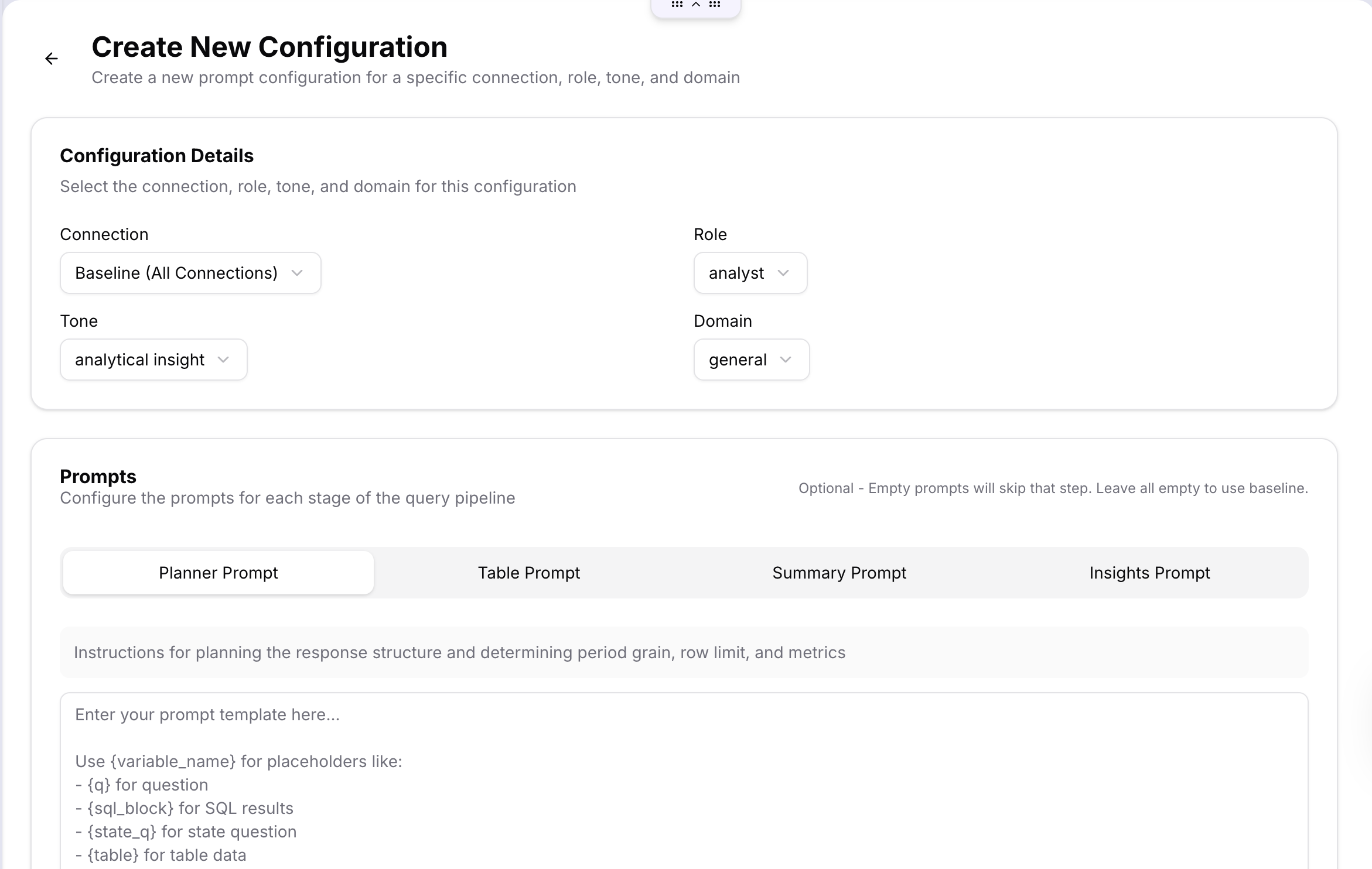
The Create Configuration option allows users to define new prompt configurations tailored to specific data sources, roles, and use cases.
Each configuration determines how the model processes queries and formats its output.
The following options can be defined:
- Connection – Choose the data source that the configuration applies to.
- Role – Assign a user role (e.g., analyst, admin, viewer) to control access and behavior.
- Tone – Select the tone of the model’s response (e.g., analytical, direct, exploratory).
- Domain – Specify the context area or business domain relevant to the configuration.
In addition, this section provides configuration fields for defining prompt behavior across four stages of the query pipeline:
- Planner Prompt – Defines structure, logic, and analytical approach for processing queries.
- Table Prompt – Controls formatting and presentation of SQL or tabular data output.
- Summary Prompt – Generates a clear, concise executive summary.
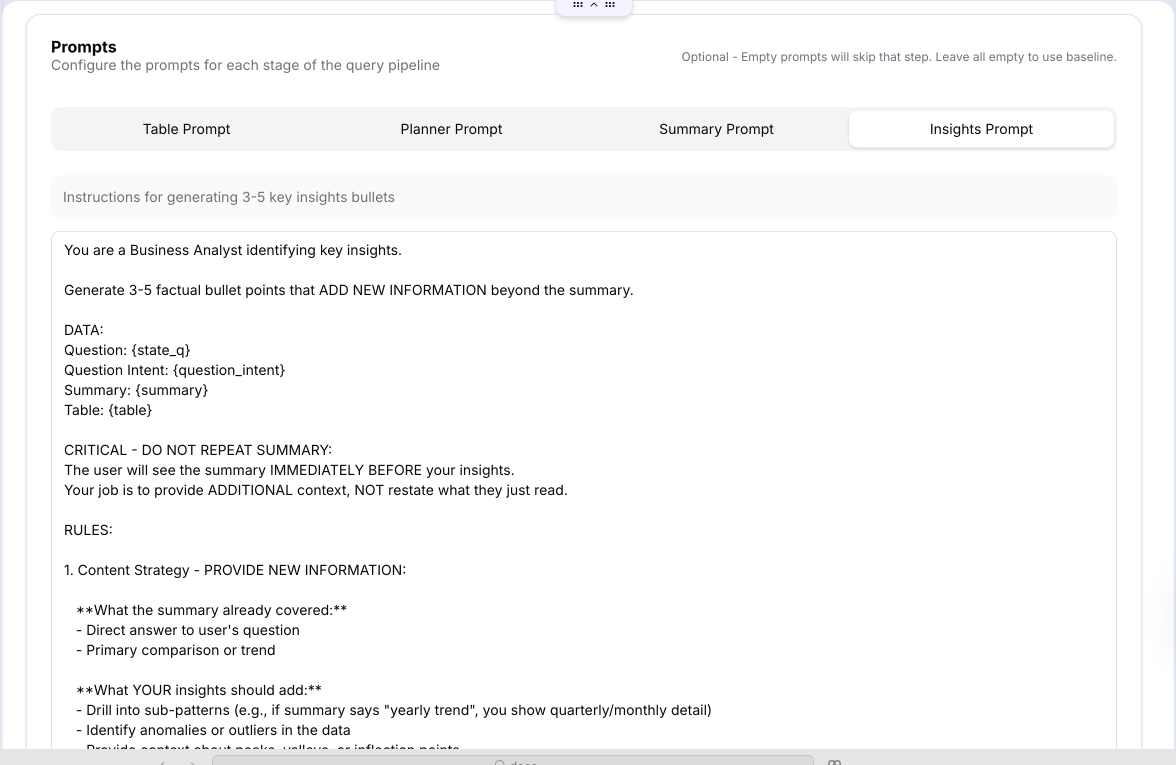
- Insights Prompt – Extracts and presents 3–5 key insights from the analysis.
Edit Configuration
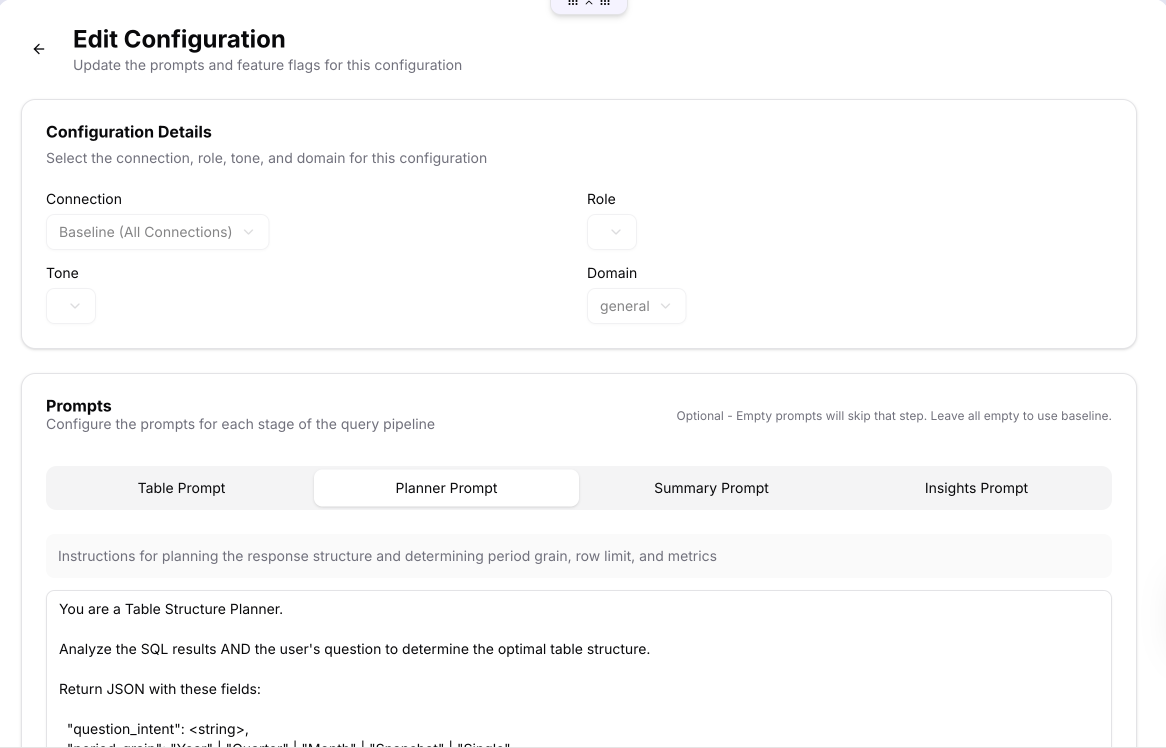
Users can update existing prompt templates to refine how queries are processed and responses are generated. This feature allows adjustments to the content, structure, and tone of responses without needing to create a new configuration.
Edits can be made across the four prompt stages — Planner, Table, Summary, and Insights — to align output with specific tones, domains, or business requirements.
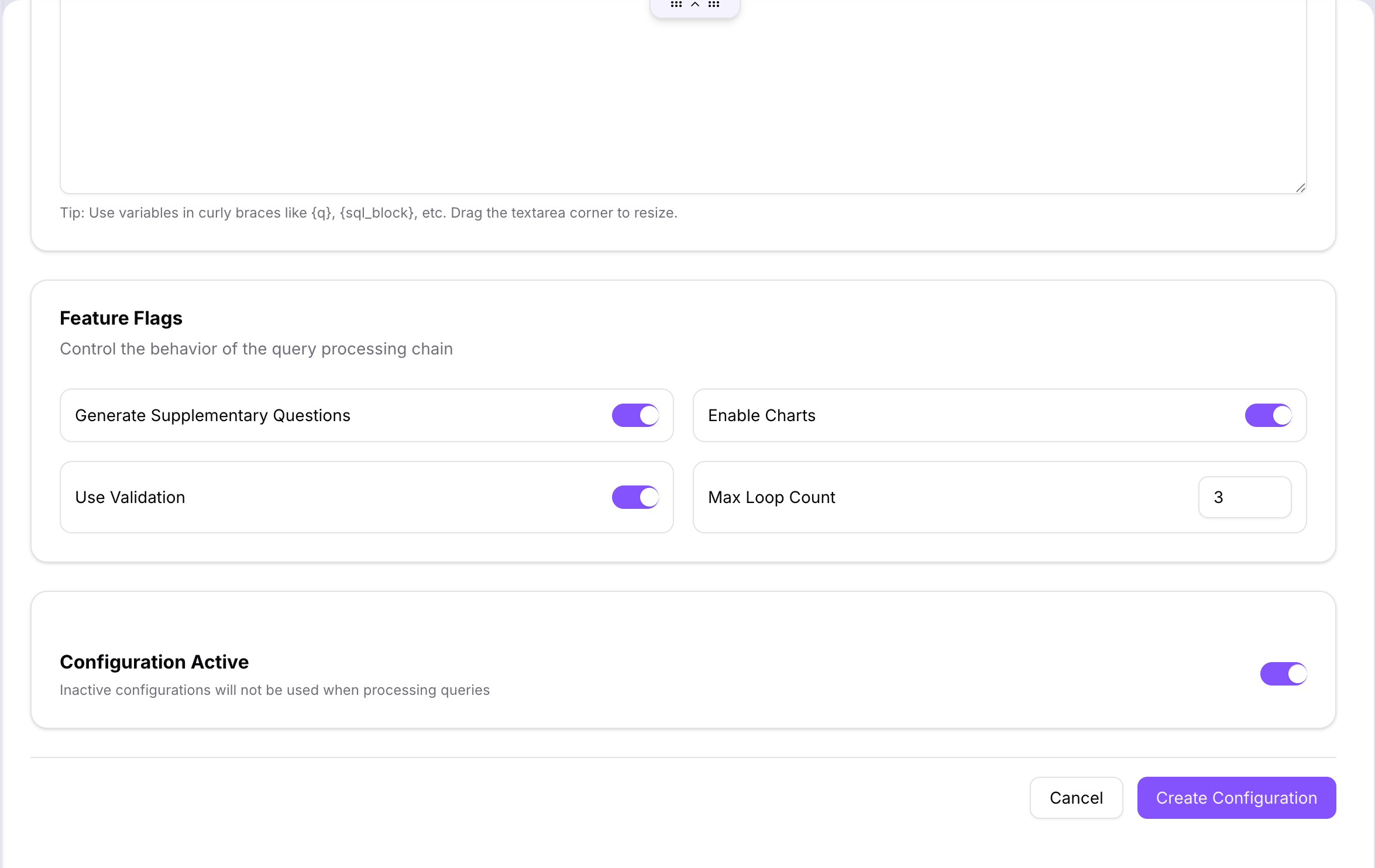
In addition to editing prompt content, users can manage Feature Flags to control query processing behavior.
This includes toggling options such as:
- Generate Supplementary Questions – to enable follow-up queries
- Enable Charts – to allow visual outputs
- Use Validation – to enforce response checks
- Max Loop Count – to define iteration limits during query processing
Configurations can also be activated or deactivated to control whether they are applied during query execution.
Planner Prompt
Defines how the system interprets user queries, plans the analytical approach, and structures the overall response logic.
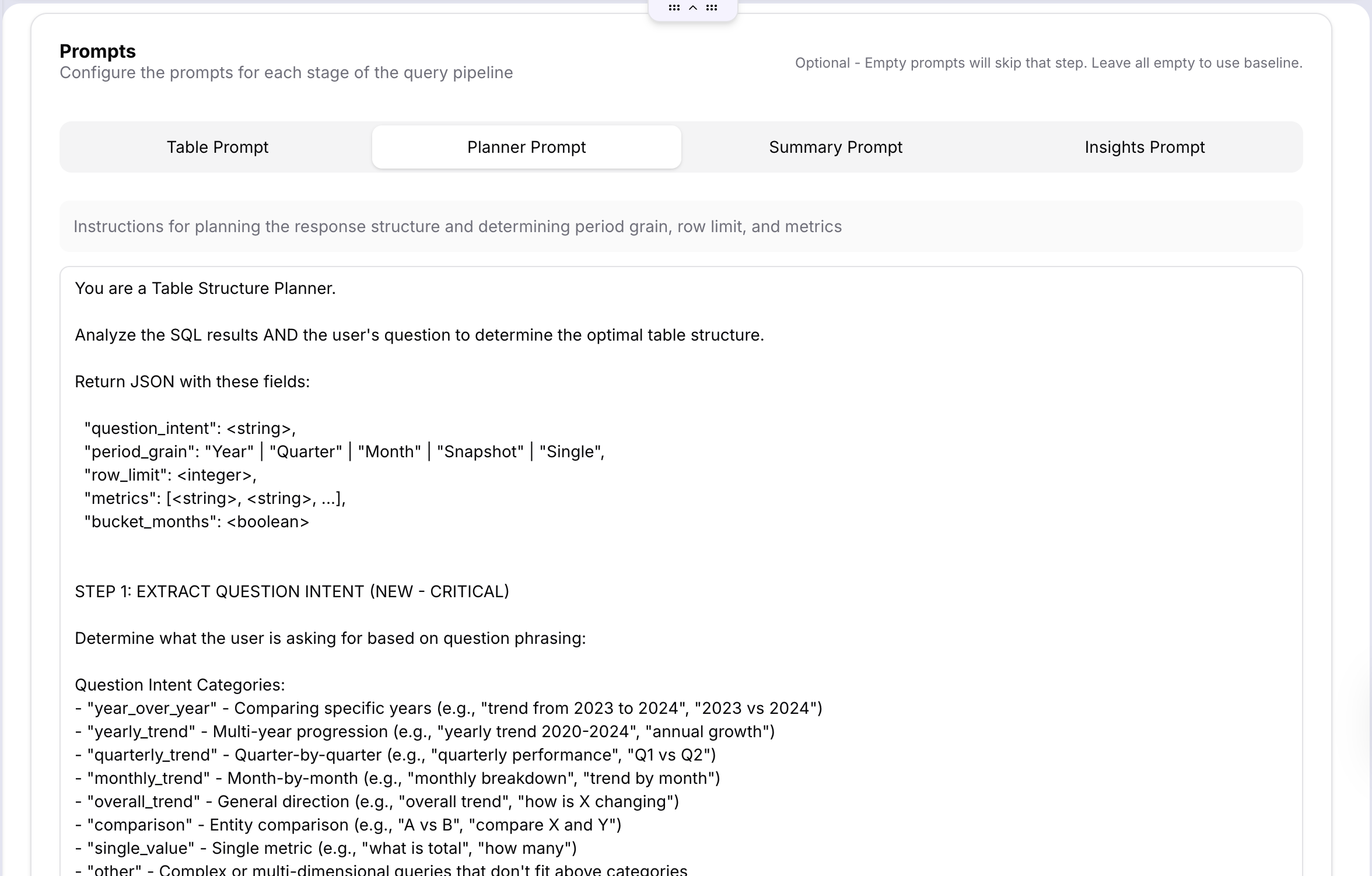
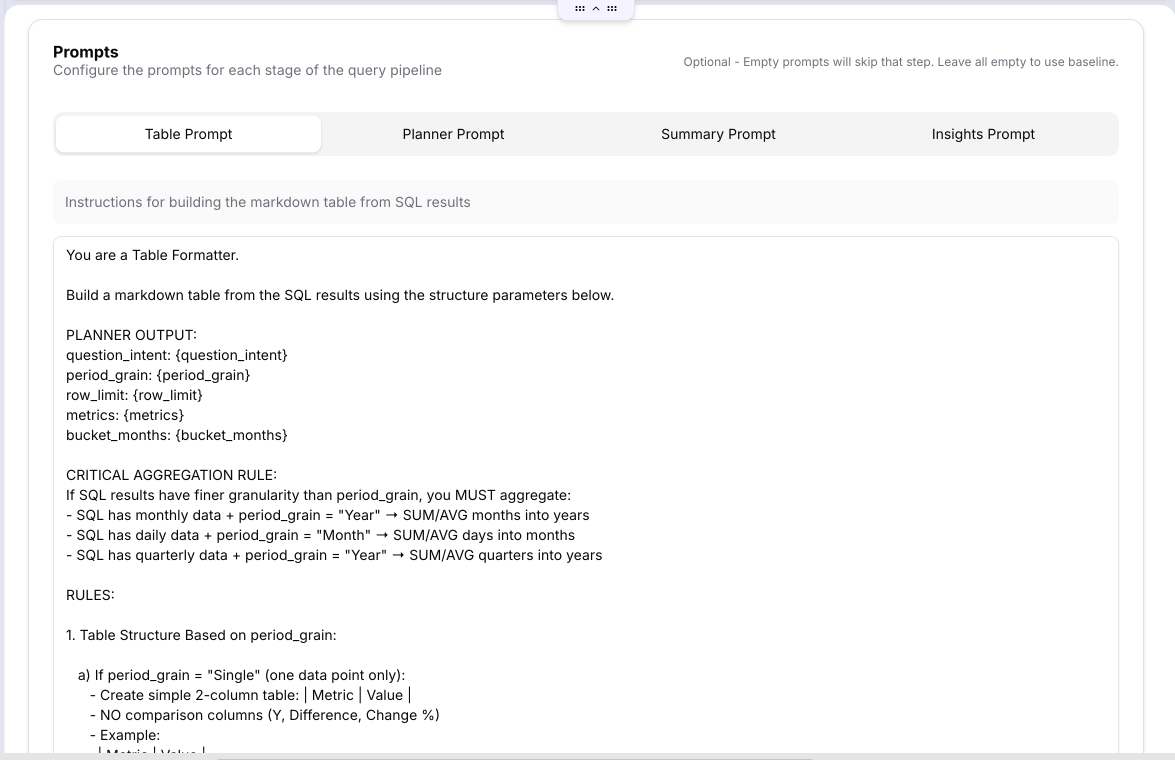
Table Prompt
Determines how tabular data is formatted and presented.
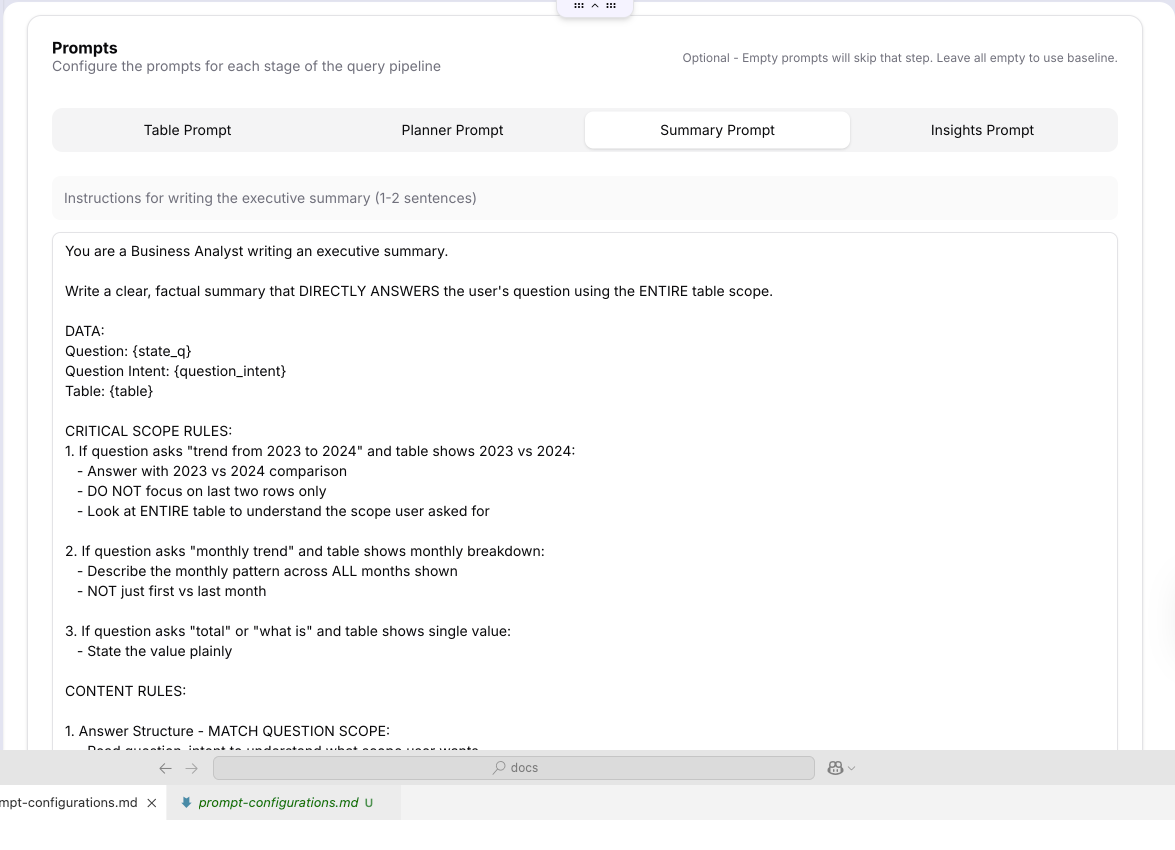
Summary Prompt
Generates a concise, high-level summary of the query results.
Insights Prompt
Extracts and presents the most meaningful insights from the underlying data.
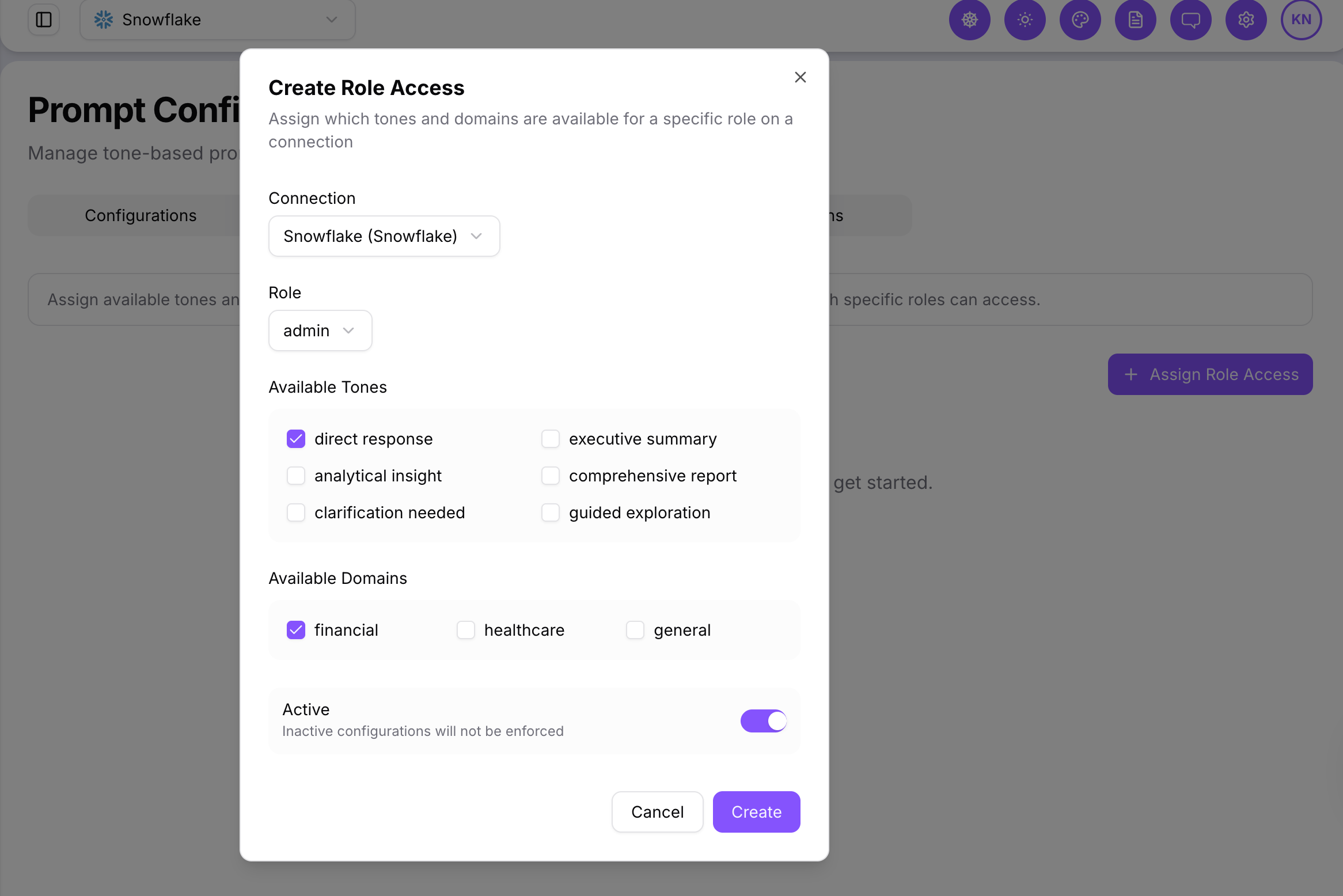
Role Access
The Role Access tab allows users to assign which tones and domains are available to specific user roles on a given connection.
Role Assignment
The Role Assignment tab is used to map prompt configuration roles to authentication system roles.
Adding Role Assignments
- Prompt Role: Select from existing prompt configuration roles (e.g., admin, analyst, sales, viewer).
- Auth System Role: Map the selected prompt role to one of the available authentication system roles (e.g., ADMIN, SUPER_ADMIN, USER).
- Add Mapping: Save the assignment so that the mapping applies to users with the corresponding system role.
Instructions
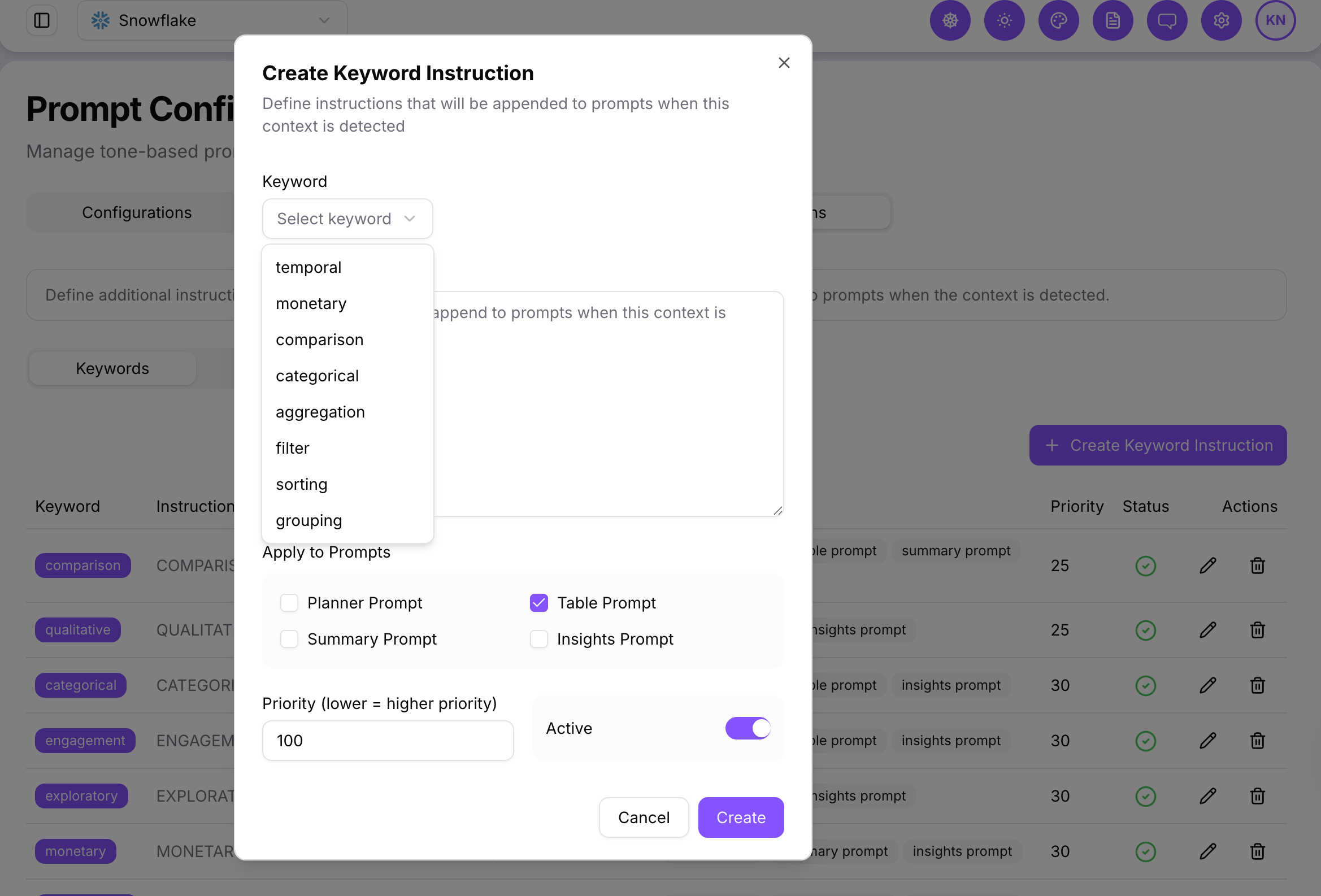
Keyword Instructions
- Select a keyword trigger.
- Provide the instruction text to append when the keyword is detected.
- Choose the prompt stage and set priority.
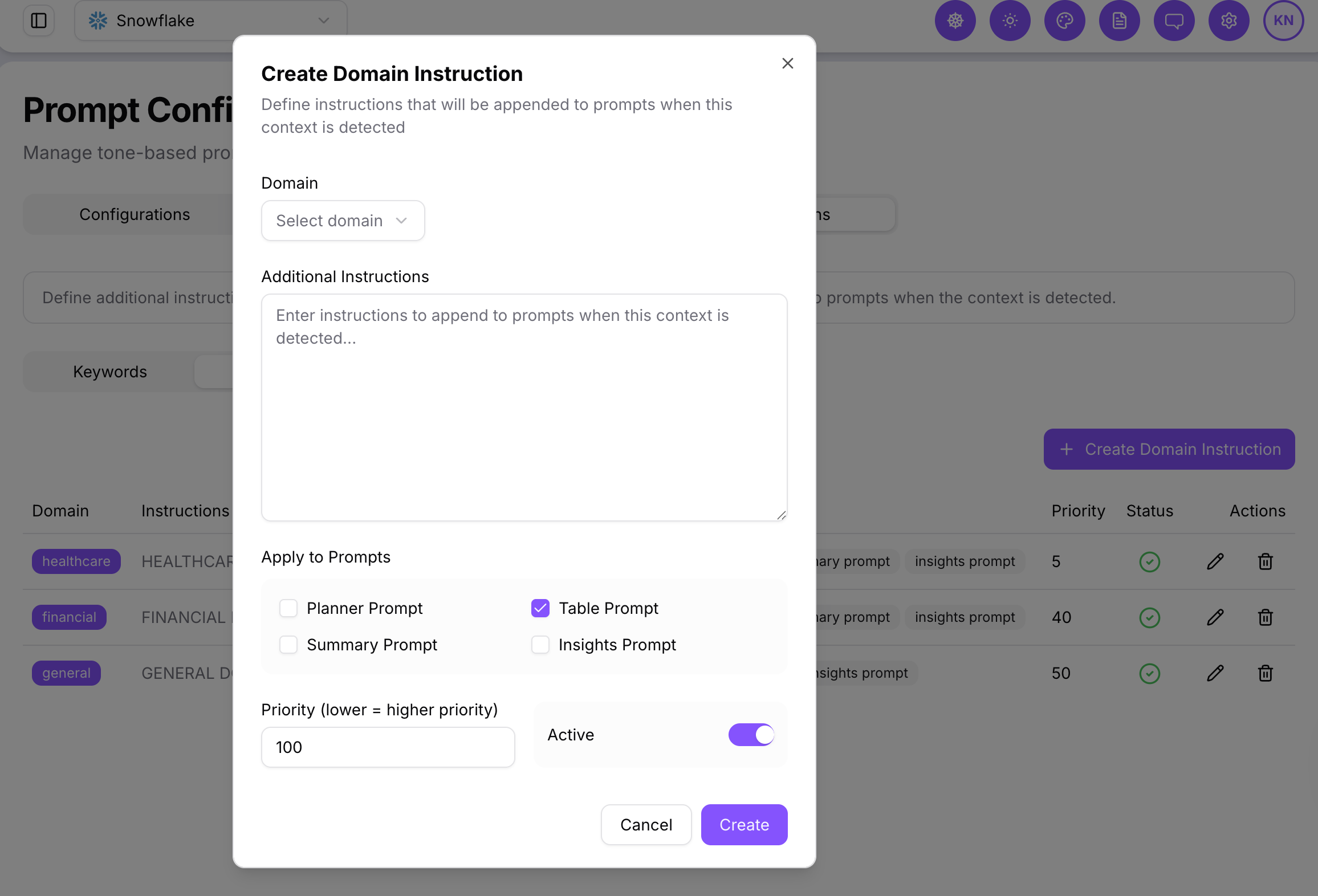
Domain Instructions
- Select a domain.
- Add additional instructions.
- Choose which prompt stages the instruction should apply to.
- Set priority to determine execution order.
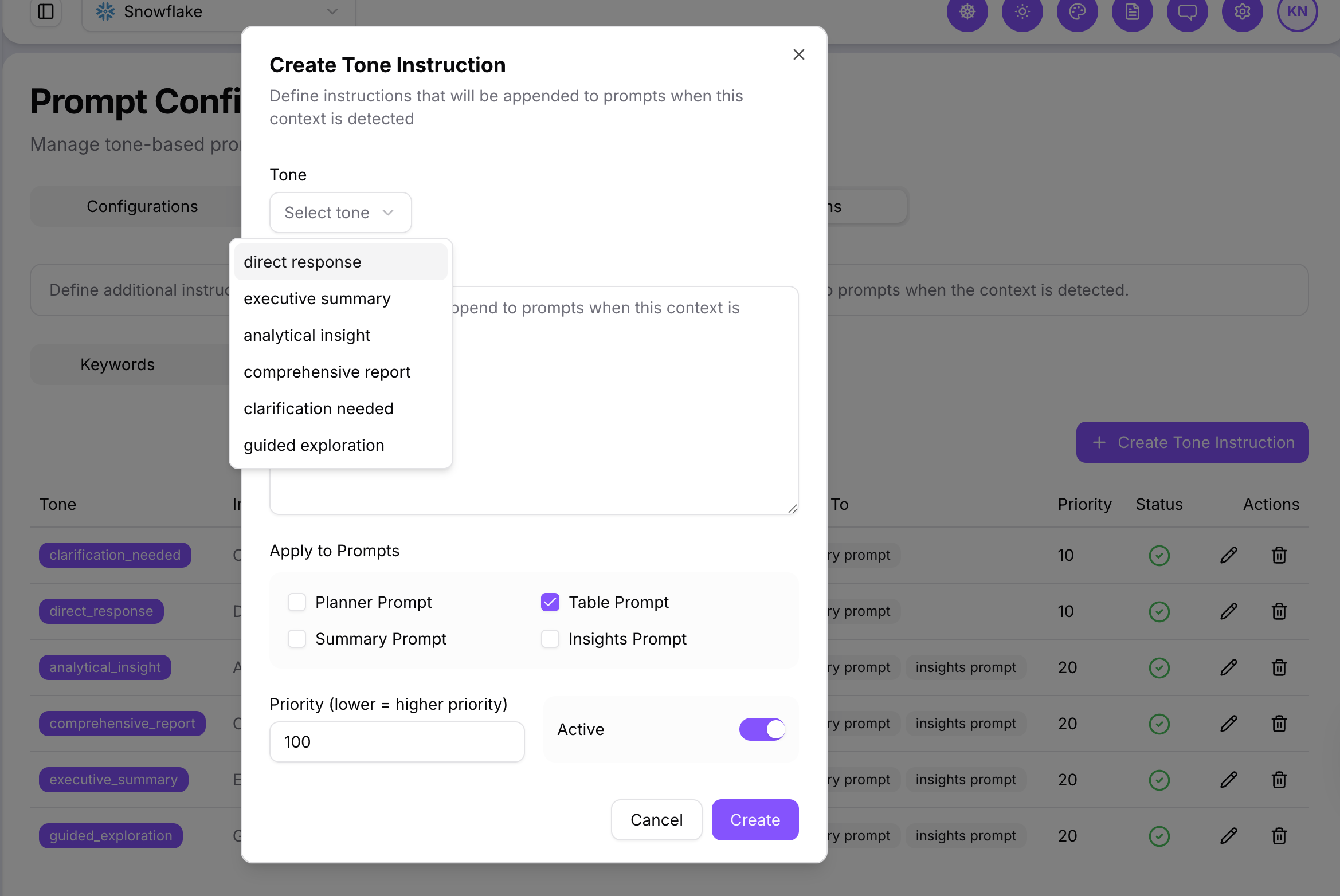
Tone Instructions
- Select a tone from the available list.
- Add additional instructions to refine tone behavior.
- Choose prompt stages and set priority.
Troubleshooting
- Configuration not applying
- Refresh the page to ensure the latest configuration changes are loaded.
- Check if the configuration is set to Active. Inactive configurations will not be applied when processing queries.
- If the configuration is newly created, verify that it was saved correctly and is visible in the configurations list.
- Confirm that the configuration is associated with the correct connection and role.
- Prompts not triggering correctly
- Ensure the correct tone and domain are assigned to the configuration.
- Review instruction priority order to confirm the right prompt is being applied at the correct stage.
- Check if the prompt text was modified or left blank as incomplete templates may cause prompts to fail.
- Test the configuration with a different query to rule out prompt content issues.
- Role access issues
- Verify that the correct role and domain combinations are mapped in the Role Access or Role Assignment tabs.
- Check if the role-to-auth mapping is active and correctly assigned to the user’s profile.
- Ensure the role has permission to access the connection associated with the configuration.
- Keyword or tone instructions not working
- Confirm that the instructions are active and mapped to the correct prompt stages (Planner, Table, Summary, or Insights).
- Check for conflicting instructions with the same keyword or tone; higher priority instructions may override others.
- Make sure the keyword or tone is spelled and formatted correctly, matching the configuration settings.
- Deactivate and reapply the instruction if it was recently edited.
If the issue persists after following these steps, contact your platform administrator or support team with the configuration name, role details, and a screenshot of the error.
Providing this information helps the support team resolve the issue more quickly.