Chat
The Chat component is the core interaction interface in Reveal. It allows users to query connected data sources in plain English and receive real-time insights, summaries, and visualizations. The chat panel is designed for simplicity and speed, enabling users to explore data, refine prompts, and collaborate efficiently.
Key Features of the Chat Component in Reveal:
- Query data in plain English without needing SQL
- View real-time summaries and visualizations alongside the conversation
- Switch between integrations seamlessly within the same chat
- Maintain persistent chat history for easy reference
- Access insights, catalogs, and dashboards in one interface
Accessing the Chat Window
- When you sign in, Reveal automatically opens your most recent chat session.
- You can create a New Chat from the side navigation pane.
- You can switch between existing conversations from the Chat History menu on the side navigation pane.
Chat Interface Overview
- Left Pane (Chat): Displays the chat input field and conversation history, allowing users to ask questions in plain language and review previous interactions.
- Right Pane (Analyzer): Shows real-time insights, summaries, and visualizations generated in response to user queries.
- Integration Dropdown: Enables quick switching between connected integrations without leaving the current chat session.
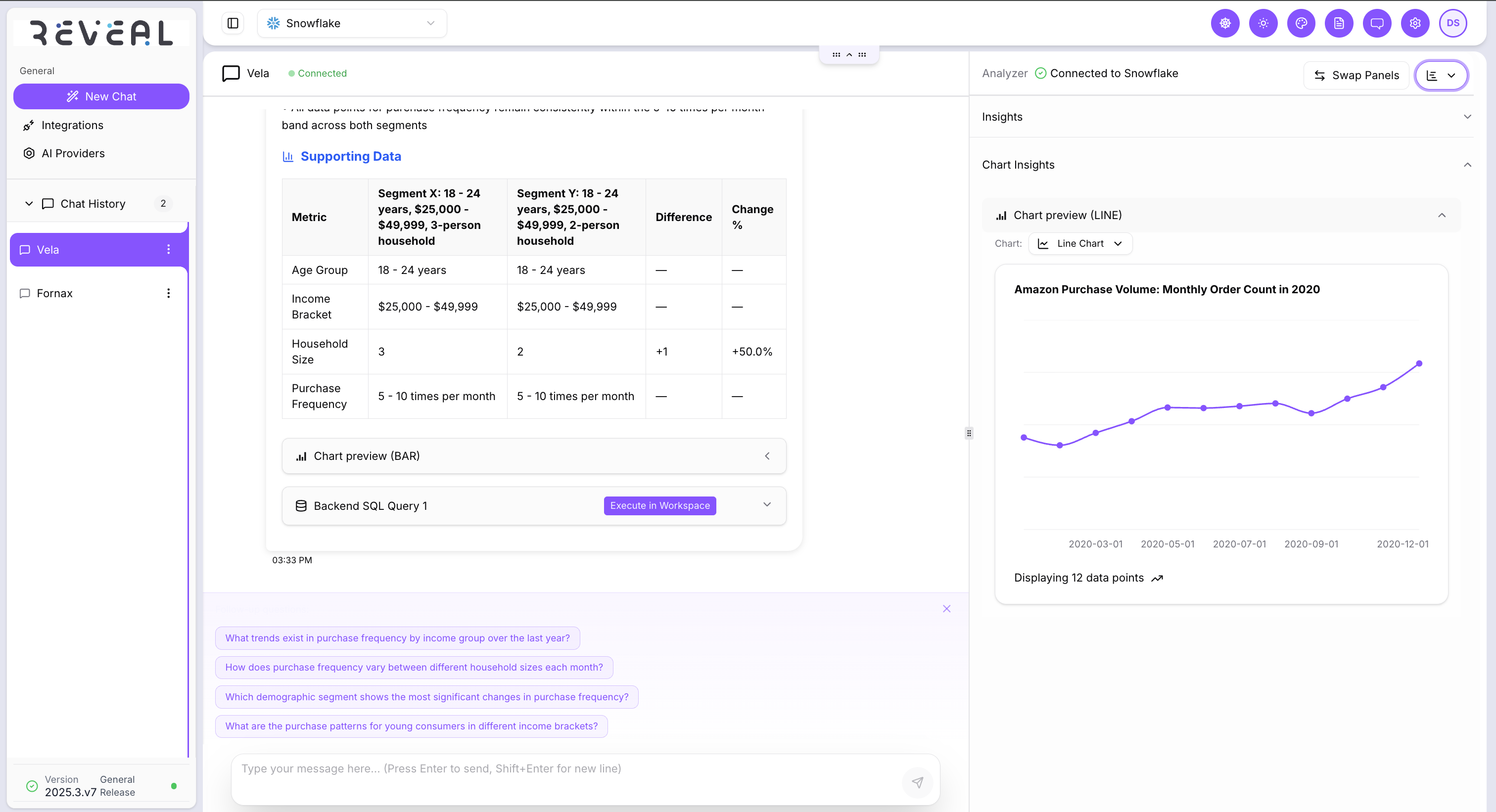
Creating a New Chat
- Click New Chat from the side navigation
- Select the Integration you want to use from the dropdown in the header
- Type your question in plain English (for example, “Show me revenue by region for Q3”)
- Reveal will generate insights and visualizations in the Analyzer pane
- After each query, Reveal automatically suggests follow-up questions to help you explore the data further.
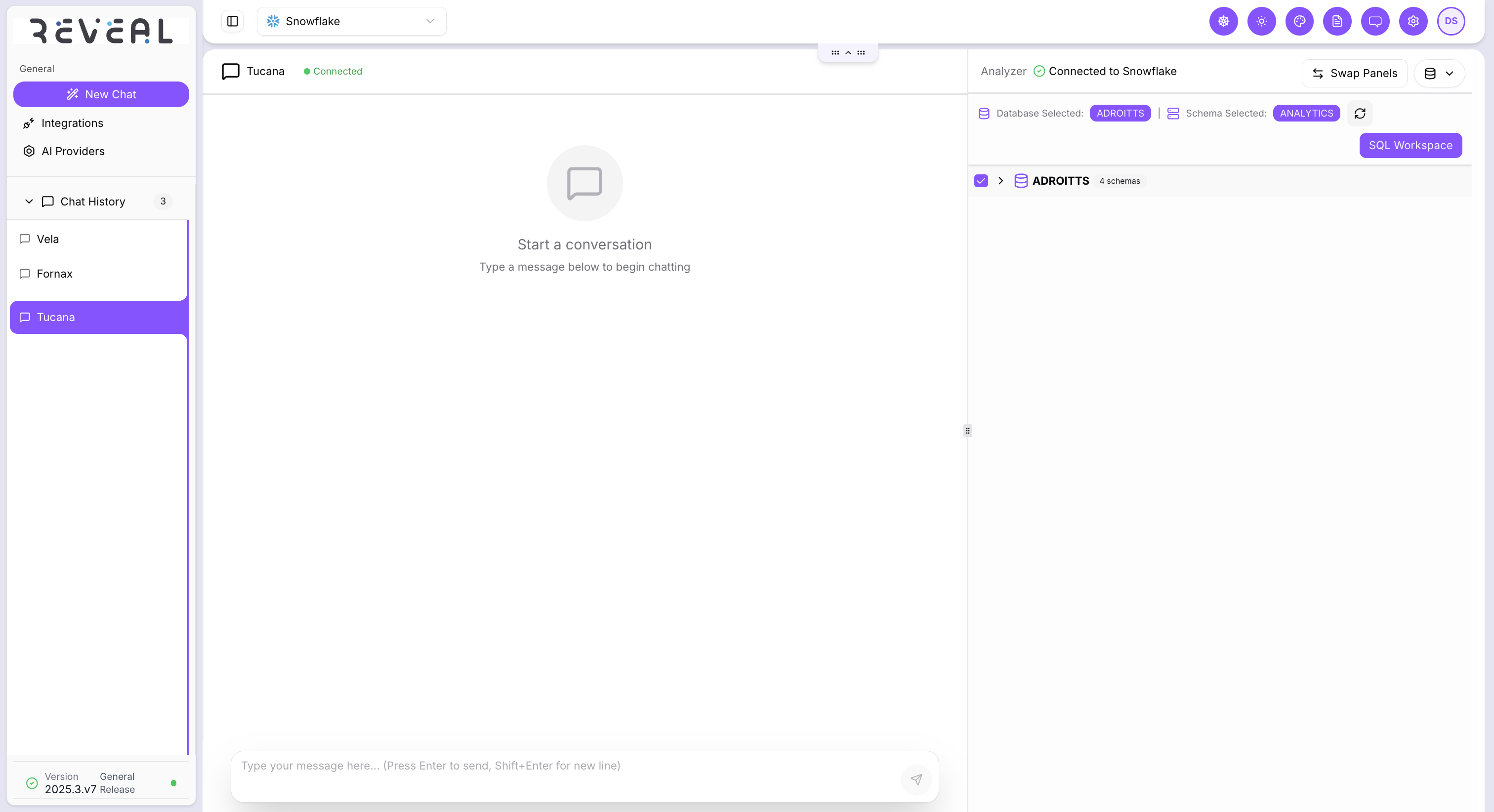
Using the Analyzer Pane
The Analyzer Pane is where Reveal delivers real-time insights and visualizations. It includes a dropdown to choose amongst the following options:
- Insights: Automatically generated charts, tables, and key metrics based on your queries
- Dashboards: Interactive, metric-driven dashboards with KPI cards and business intelligence visuals for deeper analysis
- Database Catalog: A comprehensive list of available database tables with options to preview and test SQL queries directly
The dropdown also allows you to switch between insights, catalog, or dashboards seamlessly, without restarting the conversation or losing context.
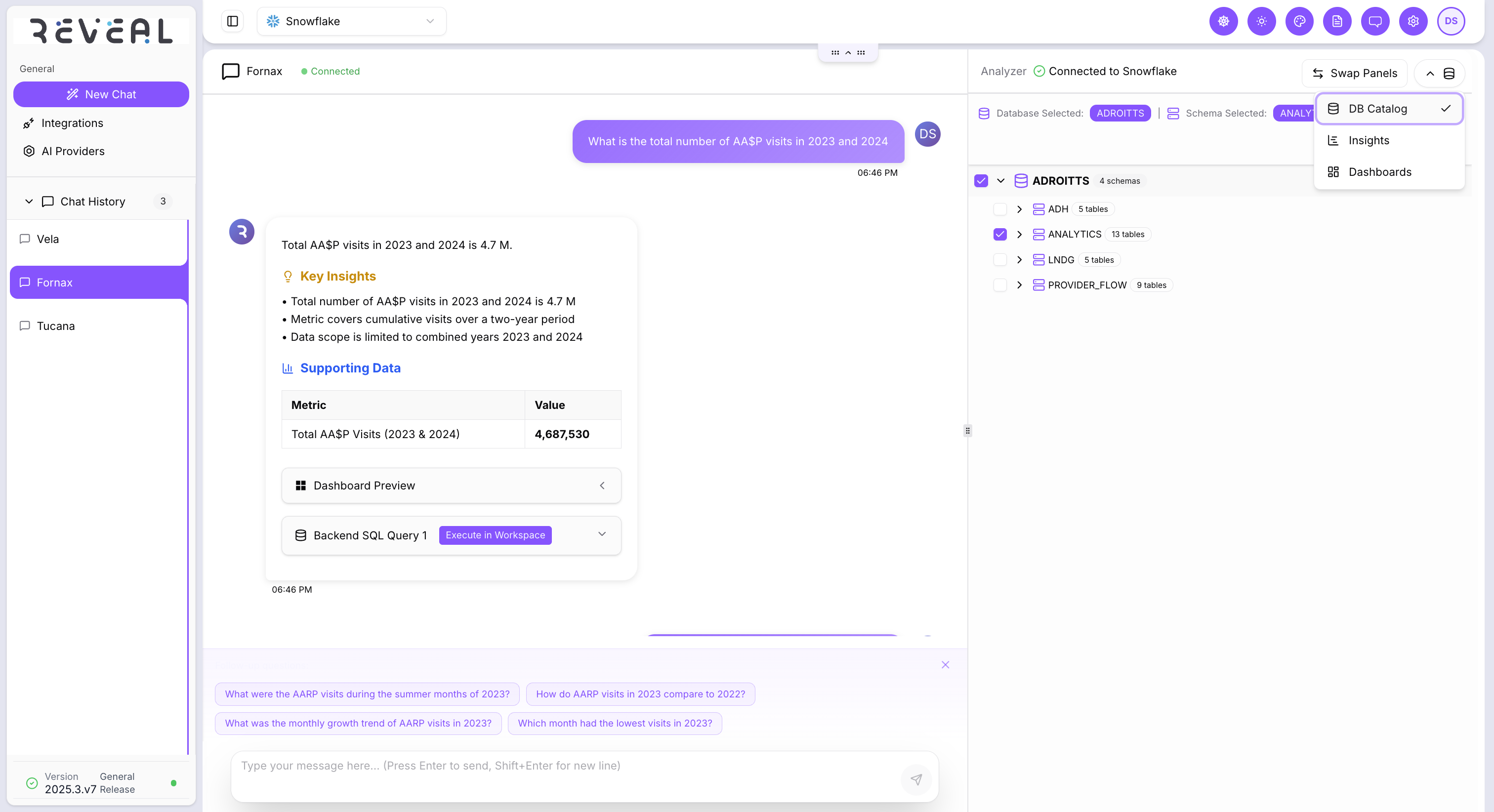
Chat History
- All queries and responses within a chat are stored in the conversation history.
- You can scroll through previous questions, review earlier insights, or pick up from where you left off.
- Each insight is tied to the specific query that generated it, making it easy to track changes and decisions.
Best Practices
- Be as specific as possible in your queries to get precise insights.
- Switch between integrations using the header dropdown instead of opening new tabs.
- Refer back to previous chat sessions if you want to build on earlier insights.
Troubleshooting
If you experience issues while using the Chat component, review the common scenarios below:
- No response or delayed insights
- Check your internet connection and refresh the page.
- Verify that the selected integration is active and properly configured.
- Re-run the query or simplify the prompt.
- Incorrect or incomplete insights
- Refine your query to be more specific.
- Ensure the correct data source is selected in the integration dropdown.
- Dashboards or catalog not loading
- Switch between views (Insights / Dashboard / Catalog) and reload the pane.
- Check if the integration is still connected.
- Clear filters or try a different integration to isolate the issue.
- SQL queries not running in the catalog
- Verify the syntax of the query.
- Check permissions for the connected database.
- Reconnect the integration and try again.
If problems continue after these steps, contact your platform administrator or support team with the error details and a screenshot of the issue.