AI Providers
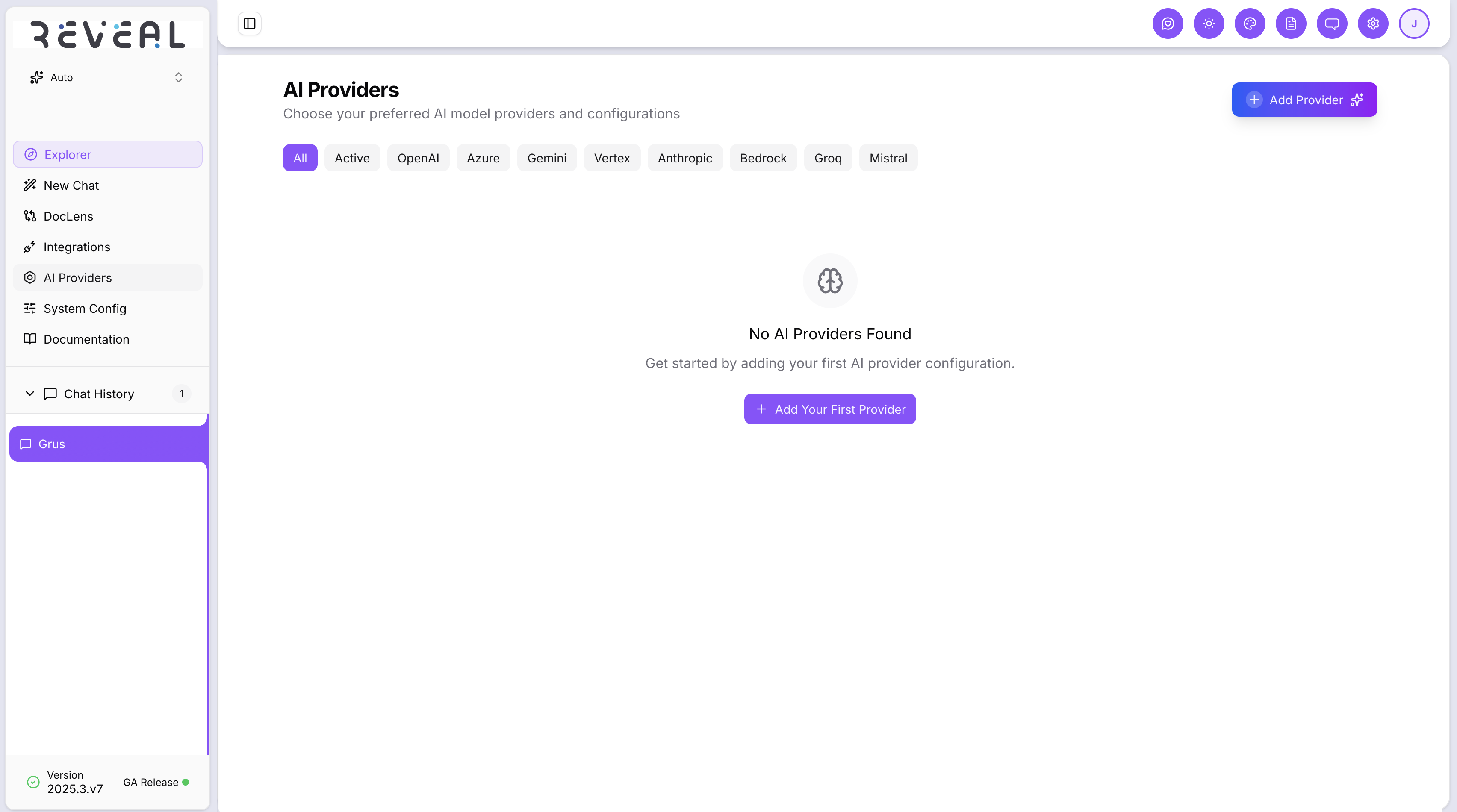
AI Providers is where administrators connect and configure the AI models that power Reveal's chat, analysis, and document intelligence features. Multiple providers can be configured and switched between without restarting the application.
Click AI Providers in the left navigation to open the page.
Supported providers
Use the filter tabs to browse by provider type: All, Active, OpenAI, Azure, Gemini, Vertex, Anthropic, Bedrock, Groq, Mistral.
| Provider | Description |
|---|---|
| Azure OpenAI | Recommended for enterprise — data stays within your Azure subscription |
| OpenAI | OpenAI API — GPT-4o, GPT-4, and other OpenAI models |
| Google Gemini | Google Gemini API — Gemini Pro, Gemini Flash |
| Google Vertex AI | Google Cloud Vertex AI — service-account based access |
| Anthropic | Anthropic Claude API — Claude 3, Claude 3.5 Sonnet |
| AWS Bedrock | AWS managed AI — Claude, Titan, Llama via Bedrock |
| Groq | Groq API — fast inference for Llama, Mixtral models |
| Mistral | Mistral AI API — Mistral Large, Mistral 7B |
Adding a provider
Click Add Provider to open the Create AI Provider form.
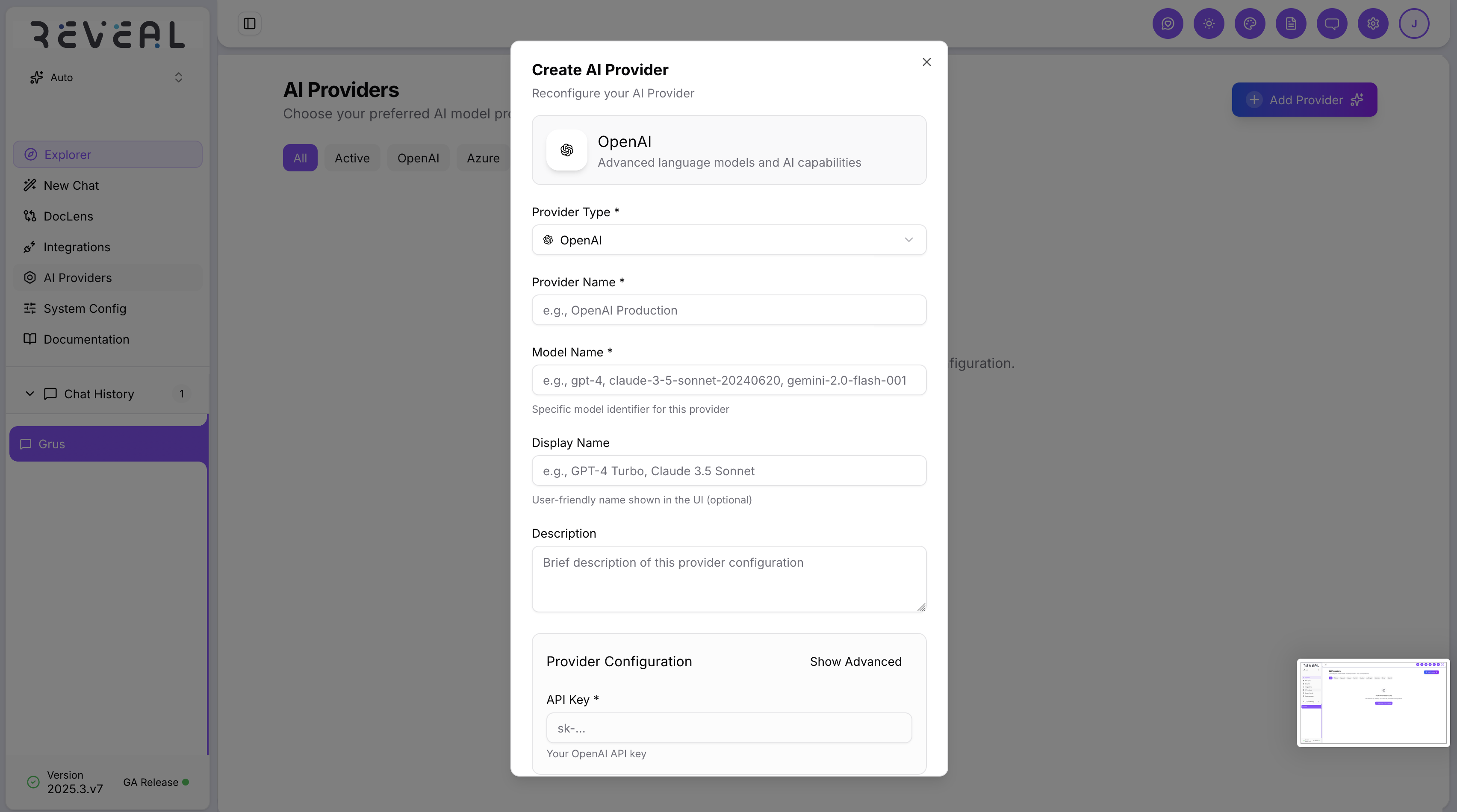
Fill in:
| Field | Description |
|---|---|
| Provider Type | Select from the 8 supported provider types (cannot be changed after creation) |
| Provider Name | A unique label for this configuration (e.g. OpenAI Production) |
| Model Name | The specific model identifier (e.g. gpt-4, claude-3-5-sonnet-20241022, gemini-2.0-flash-001) |
| Display Name | Optional user-friendly name shown in the UI |
| Description | Optional notes about this configuration |
Under Provider Configuration, enter the credentials for your chosen provider type:
| Provider | Required fields |
|---|---|
| OpenAI | API Key |
| Azure OpenAI | API Key, Endpoint, Deployment Name, API Version |
| Google Gemini | API Key |
| Vertex AI | Project ID, Location, Service Account JSON |
| Anthropic | API Key |
| AWS Bedrock | AWS Region, Model ID (Access Key ID and Secret optional if using IAM role) |
| Groq | API Key |
| Mistral | API Key |
Click Show Advanced to configure optional fields such as base URL, organisation ID, or additional provider-specific parameters.
Click Create Provider to save. The provider appears in the list and can be enabled immediately.
Enabling and disabling providers
Each provider has an Active toggle. Disabled providers are not used for generating responses. You can configure multiple providers and switch between them without deleting any.
Editing a provider
Click the edit icon on a provider card to update its name, model, credentials, or active status. The provider type cannot be changed after creation — create a new provider instead.
Deleting a provider
Click Delete on a provider card and confirm to remove it permanently.
Model Configuration panel
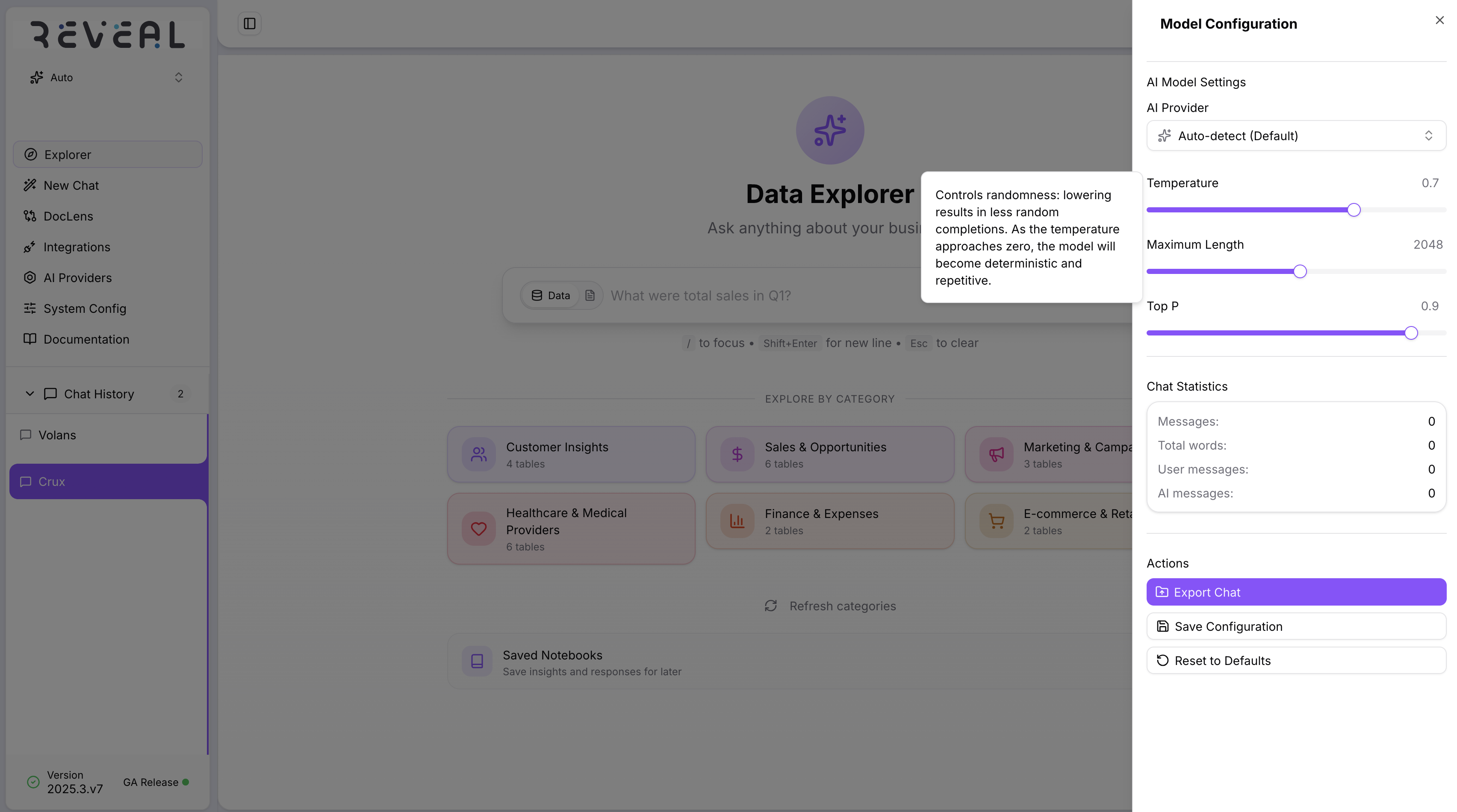
Users can adjust AI behaviour per session from the Model Configuration panel — accessible via the settings icon in the top navigation bar.
| Setting | Description |
|---|---|
| AI Provider | Select which configured provider to use, or leave on Auto-detect (Default) |
| Temperature | Controls randomness — lower values give more deterministic responses, higher values more creative |
| Maximum Length | Maximum tokens in the AI response (default: 2048) |
| Top P | Nucleus sampling threshold — controls diversity of token selection |
The panel also shows Chat Statistics for the current session — total messages, total words, and a breakdown of user vs. AI messages.
Available Actions at the bottom of the panel:
- Export Chat — download the current conversation
- Save Configuration — persist the current model settings
- Reset to Defaults — revert temperature, length, and Top P to default values
Azure OpenAI is the recommended provider for enterprise deployments. It keeps your data within your Azure subscription and supports private networking.