DocLens
DocLens compares two versions of a document and tells you exactly what changed — and what it means. Upload an original and a revised file, and Reveal automatically identifies every change, categorises each one by type and severity, writes an executive summary, and lets you ask follow-up questions about the differences.
When to use DocLens
- Reviewing a revised contract before signing
- Comparing two versions of a policy or agreement
- Auditing amendments to regulatory or compliance documents
- Checking any two versions of a text document for differences
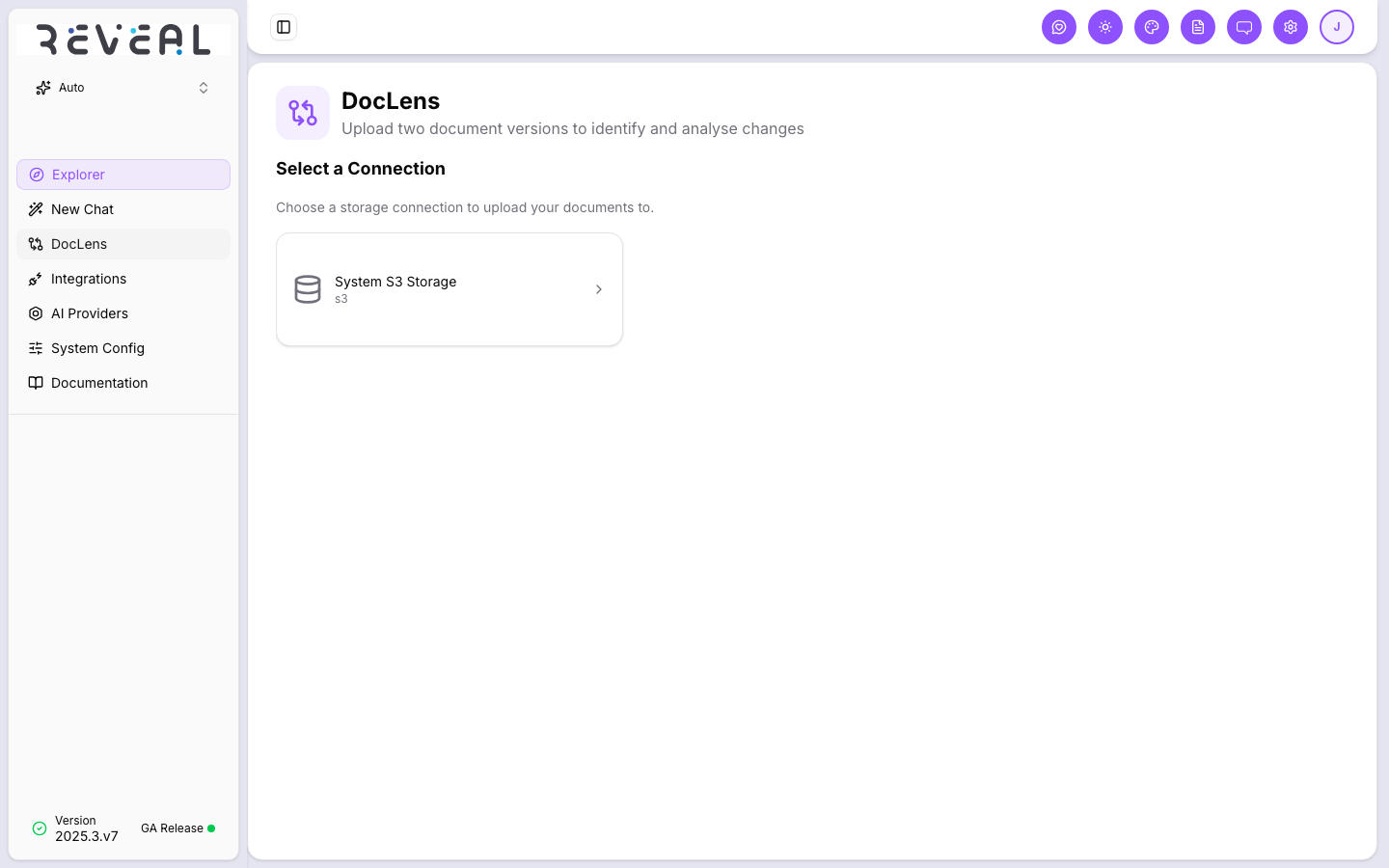
Step 1 — Select a storage connection
DocLens uses a storage connection to hold your uploaded files. When you open DocLens, Reveal shows the available connections — select the one you want to use.
Step 2 — Upload your documents
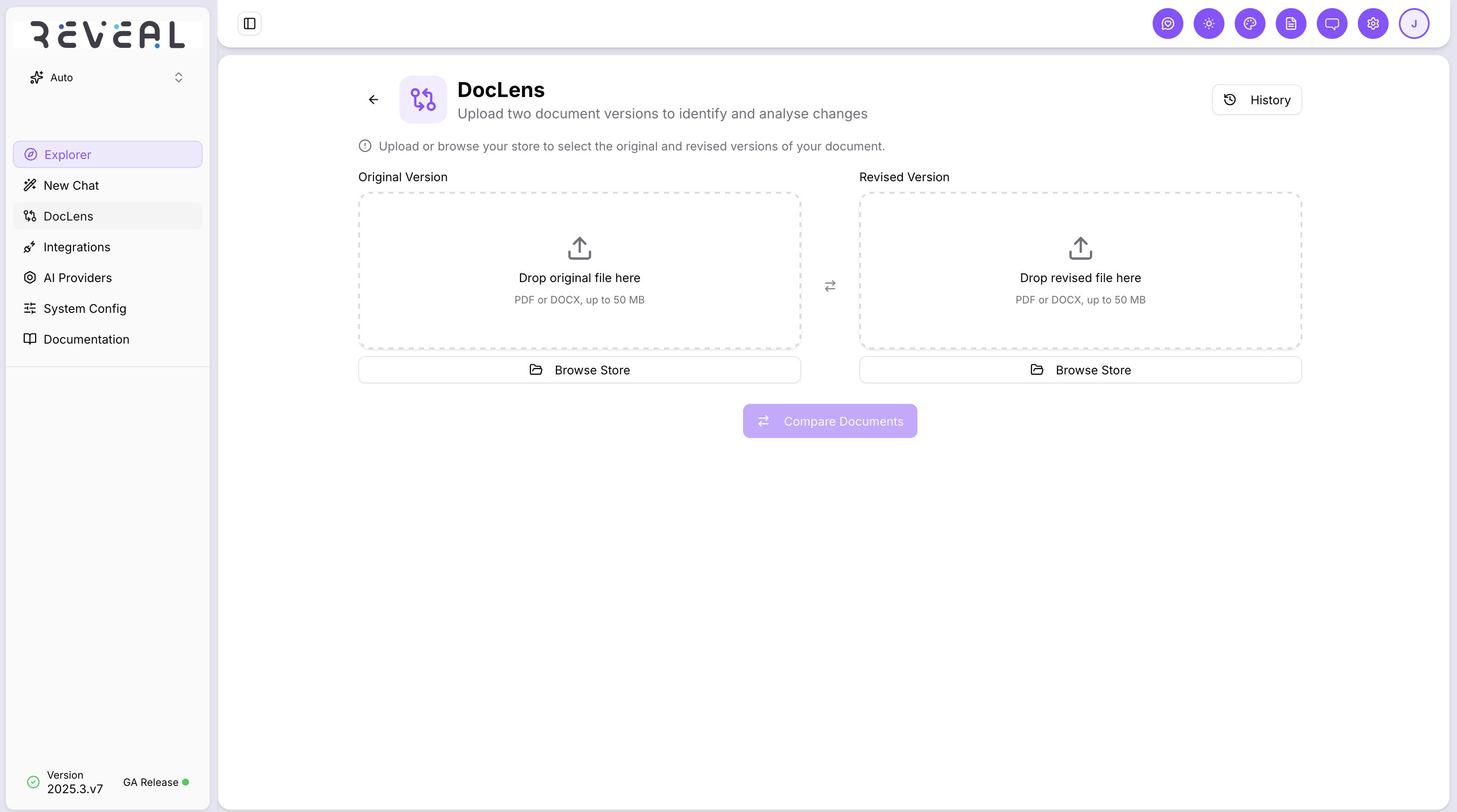
After selecting a connection, the upload screen appears. Drag and drop your files into the two upload zones, or click Browse Store to select files already in your connected storage.
- Original Version — the earlier or baseline document (left zone)
- Revised Version — the updated document you want to compare against (right zone)
Use the swap button between the two zones if you need to switch them around.
Supported formats: PDF and DOCX, up to 50 MB per file. PDFs must be text-based — scanned or image-only PDFs are not supported.
Once both files are selected, click Compare Documents.
Step 3 — Processing
Reveal processes both documents through a multi-phase pipeline. A progress bar shows where things are:
Uploading files → Extracting text → Parsing sections → Aligning sections → Computing diffs → AI analysis
This usually takes a few minutes depending on document size.
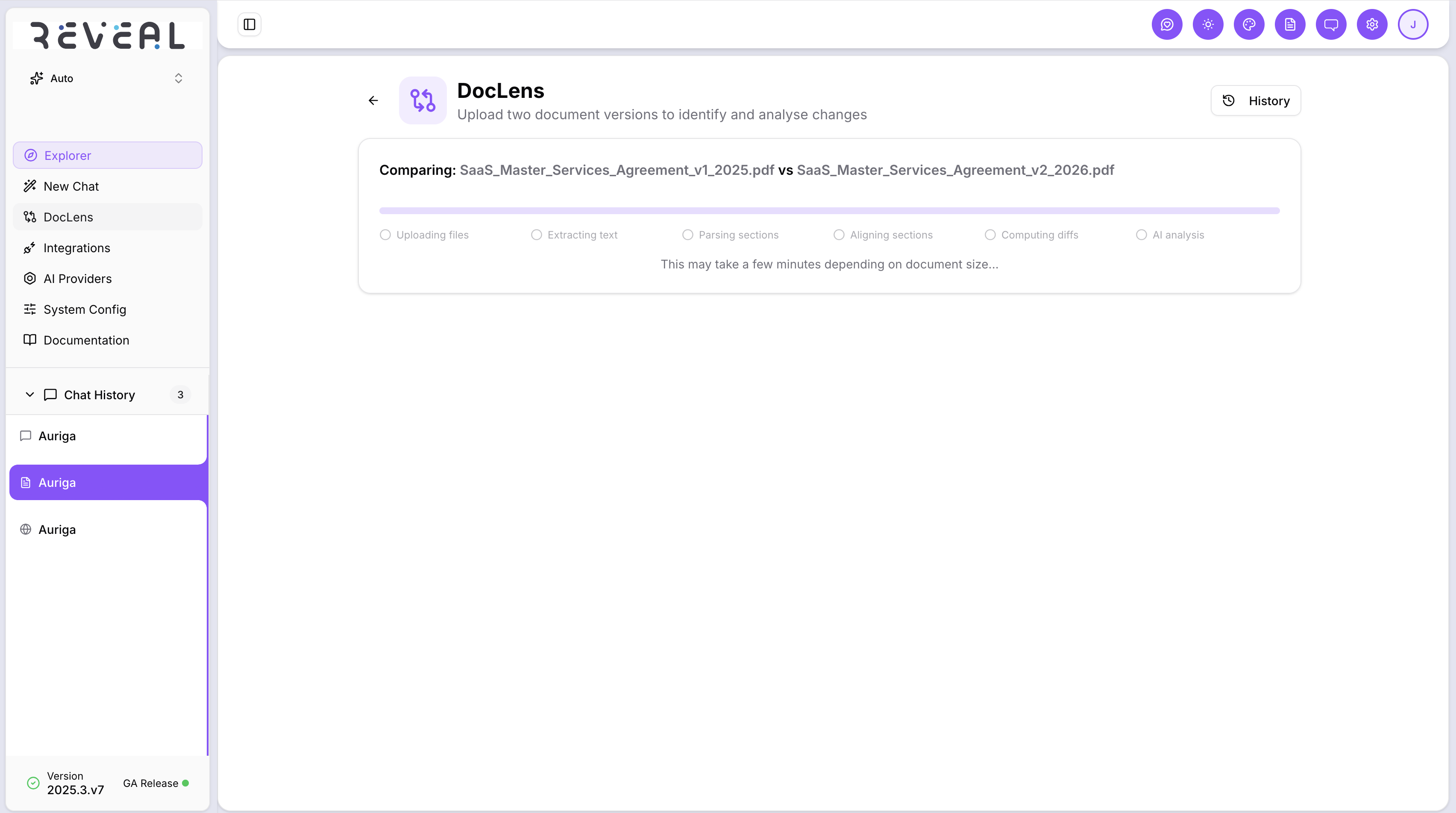
Each phase does something specific:
- Uploading files — both files are staged to storage
- Extracting text — content is pulled from the PDF or DOCX with page and paragraph boundaries preserved
- Parsing sections — the document is split into logical sections, clauses, and articles
- Aligning sections — matching sections between the two documents are identified, even if headings changed slightly
- Computing diffs — word-level differences are calculated for every matched section
- AI analysis — changed sections are sent to the AI to categorise, assess severity, and generate plain-language summaries
Reading the results
Once processing is complete, results appear across three tabs.
Summary tab
The Summary tab is the main view. At the top, an AI-generated executive summary gives you a plain-language overview of the most significant changes — what shifted, what was added or removed, and what the key impacts are. You can copy the summary to your clipboard.
Below the summary, a changes filter bar shows the total number of changes broken down by severity:
| Severity | What it means |
|---|---|
| Critical | High-impact changes — for example, "shall" changed to "may", a liability clause added or removed, or monetary terms altered |
| Major | Significant changes to obligations, new requirements added, or meaningful wording shifts |
| Minor | Clarifications or wording changes that don't alter the core meaning |
| Cosmetic | Formatting, punctuation, capitalisation, or whitespace only |
Click any severity label to filter the list to only those changes.
Each change card in the list shows:
- The severity and category of the change (financial, liability, obligation, termination, compliance, IP/ownership, confidentiality, indemnification)
- A plain-language summary of what changed
- A risk note if the change carries a specific red flag
- A Show diff button that expands to show the original and revised text side by side for that clause
Side-by-Side tab
The Side-by-Side tab shows both documents in full, in two columns with synchronised scrolling.
- Red with strikethrough — text that was removed from the original
- Green — text that was added in the revised version
- Yellow with strikethrough on the left, green on the right — text that was replaced
Scroll either column and the other follows automatically, keeping both documents in sync.
Chat tab
The Chat tab lets you ask questions about the comparison in plain language. Several suggested questions are pre-loaded to get you started:
- "What are the financial implications of these changes?"
- "Summarise all liability changes"
- "Is this revision favourable to our side?"
- "What are the main risks in this revision?"
Type your own question or click any suggestion. Reveal answers based on the full comparison — the changes, the original and revised text, and the AI analysis — so you can go deeper on any specific clause or topic without reading through every diff manually.
Comparison history
Every comparison is saved automatically. Click History in the top right to see all past comparisons.
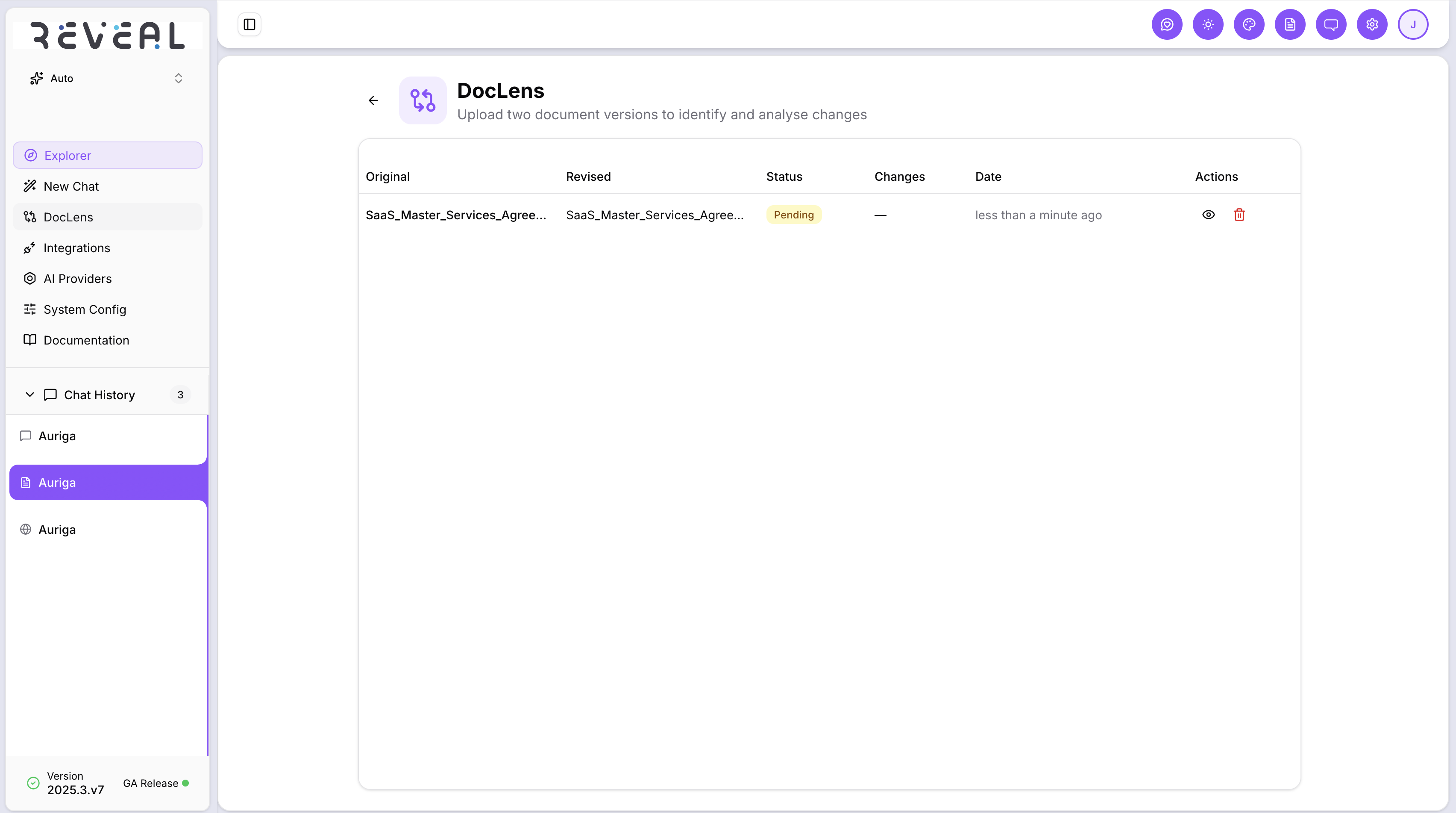
The history table shows:
- The original and revised filenames
- Status — Pending, Processing, Complete, No Changes, or Failed
- Changes — the total number of changes found
- Date — when the comparison was created
- Actions — view the comparison again (eye icon) or delete it (trash icon)
Click the view icon on any past comparison to reload the full results. Processing comparisons update their status automatically — you do not need to refresh the page.
Use the Chat tab after comparing to surface the changes that matter most for your specific situation — rather than reading every diff manually. Questions like "what are the payment term changes?" or "are there any new indemnity obligations?" give you focused answers immediately.