Sentient Security
Sentient Security scans your infrastructure for security vulnerabilities. It includes two scan types — cloud infrastructure scanning powered by Prowler and SSL/TLS certificate scanning powered by SSLyze — plus scheduling so scans run automatically on a recurring basis.
SSL/TLS Scanning
The SSL/TLS scanner checks your websites and domains for certificate and protocol security issues.
Running an SSL scan
Click Create SSL Scan in the top right to open the scan creation form.
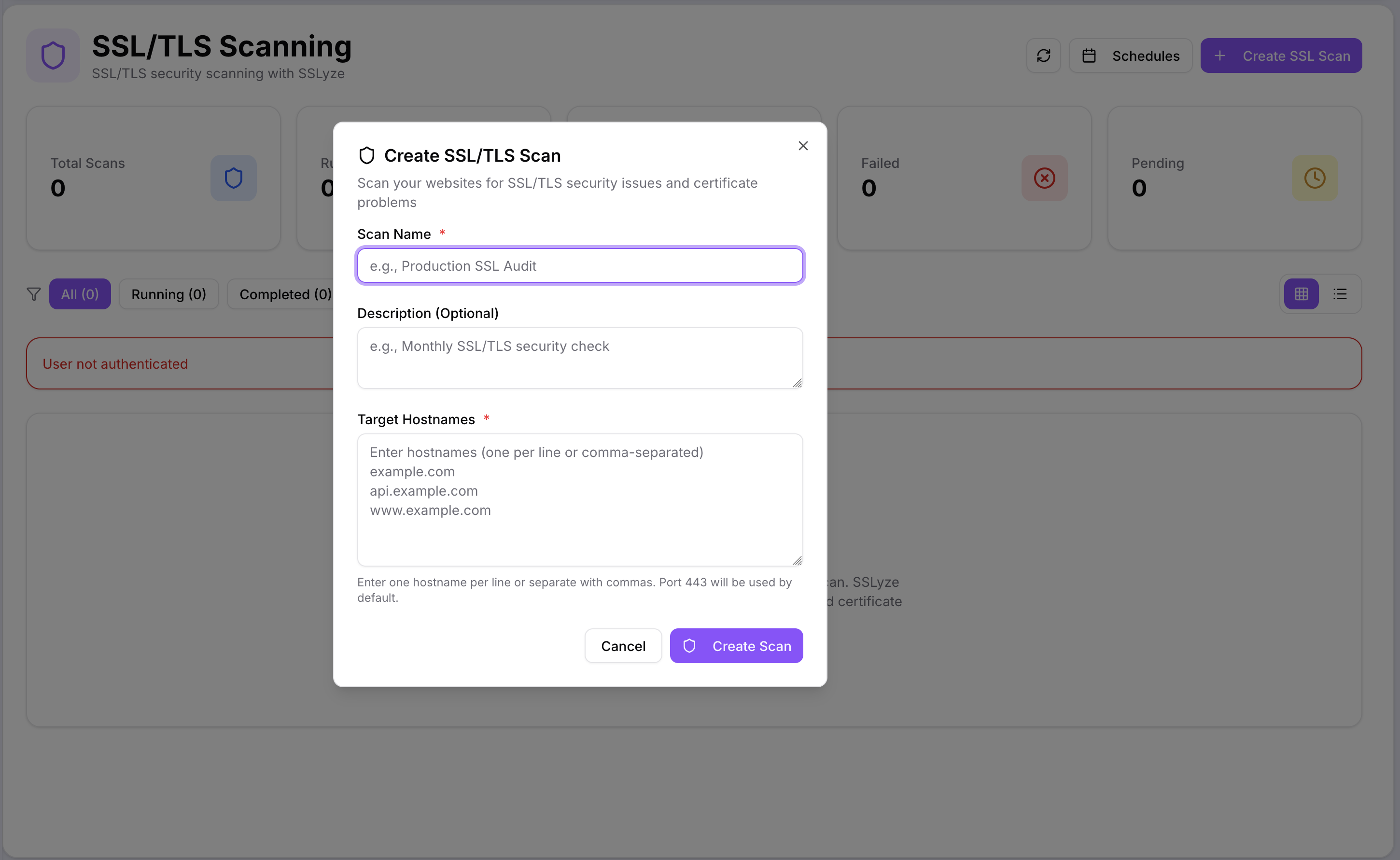
Fill in:
| Field | Description |
|---|---|
| Scan Name | A label for this scan, e.g. Production SSL Audit |
| Description | Optional note describing the scan's purpose |
| Target Hostnames | One hostname per line, or comma-separated — e.g. example.com, api.example.com |
Port 443 is used by default. Click Create Scan to start.
Scan dashboard
The SSL/TLS Scanning page shows a summary of all your scans — total, running, completed, failed, and pending.
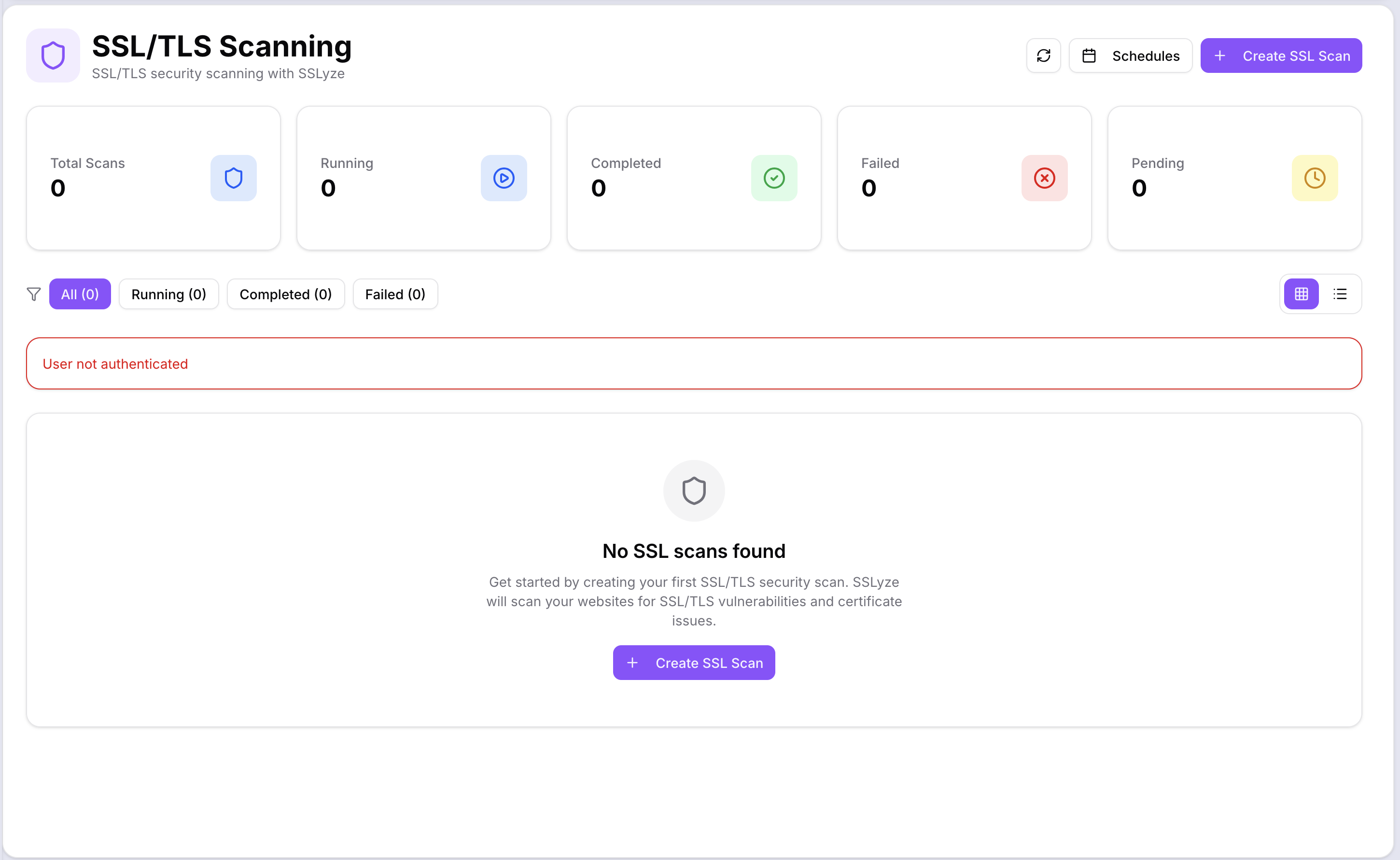
Filter the list by Running, Completed, or Failed using the tab bar. Use the grid/list toggle in the top right to switch views.
Each completed scan shows what was found across the target hostnames — certificate expiry dates, chain validity, cipher suite strength, and TLS protocol versions. Results include actionable recommendations for any issues found.
Scheduled Scans
Scheduled Scans let you run security scans automatically on a recurring schedule, so you don't have to trigger them manually.
Click Schedules in the top right of the Sentient page to open the Scheduled Scans view.
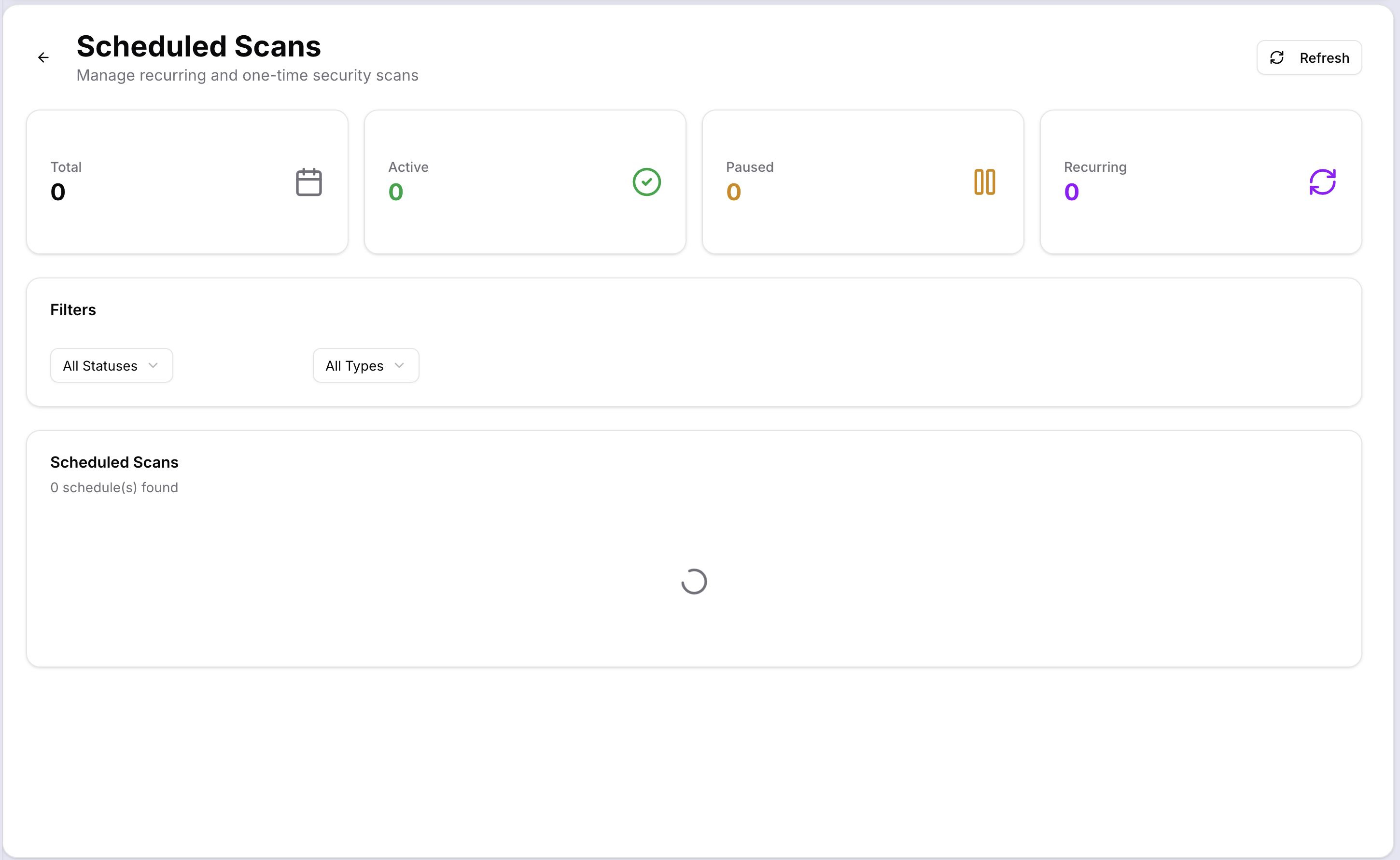
The page shows four summary counts: Total, Active, Paused, and Recurring scheduled scans. Use the All Statuses and All Types filters to find specific schedules.
To create a schedule, click Add Schedule and configure the frequency, scan type, and target — then save. Scheduled scans appear in the main scan list when they complete, just like manually triggered scans.
Sentient Dashboard
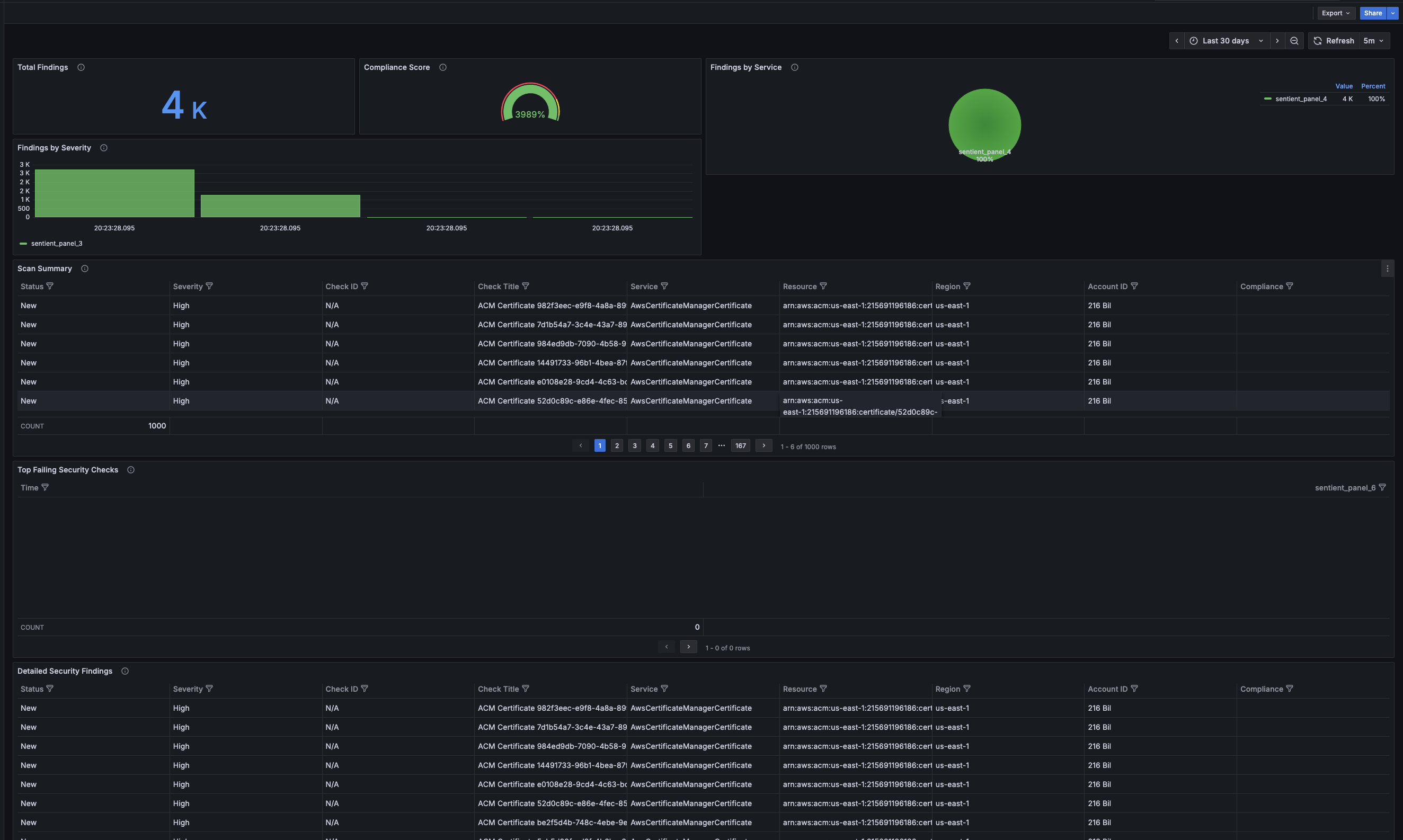
After a scan completes, click the scan card to open the Sentient Dashboard — a full view of your security posture for that scan run.
The dashboard includes:
- Total Findings — overall count of issues detected across all checks
- Compliance Score — a percentage based on passed vs. failed checks
- Findings by Service — which cloud services (IAM, S3, EC2, etc.) have the most findings
- Findings by Severity — a severity breakdown (Critical, High, Medium, Low, Informational) for prioritising remediation
- Scan Summary — each check, its severity, affected resource, region, and account
- Top Failing Security Checks — the checks with the highest failure rate across your infrastructure
- Detailed Security Findings — a paginated table with full details for every finding
Admin panel
Administrators can monitor and manage all scans from the Sentient Admin panel.
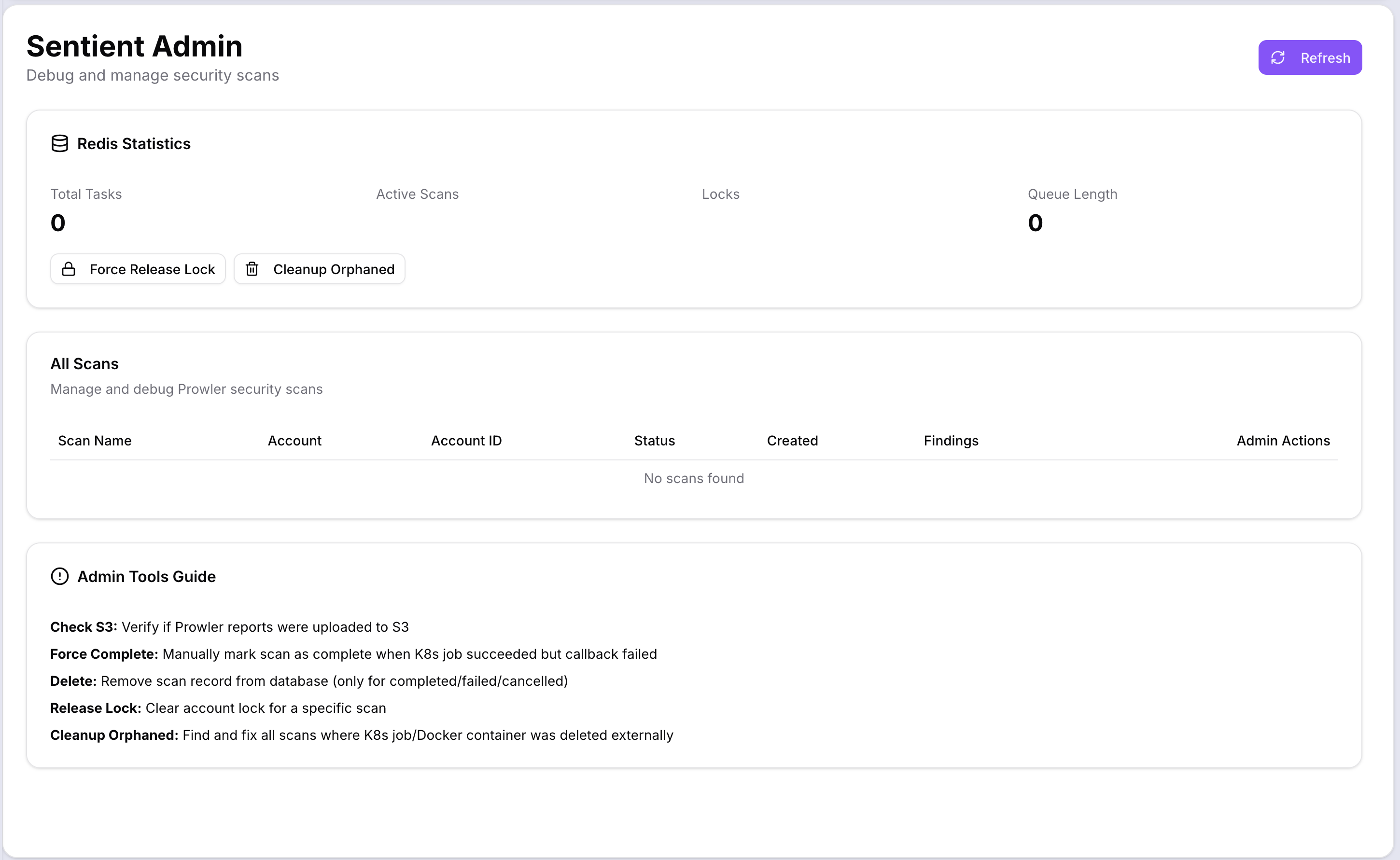
The admin panel shows:
- Redis Statistics — task queue health: total tasks, active scans, locks, and queue length
- All Scans — a table of every scan across all accounts with Scan Name, Account, Account ID, Status, Created date, Findings count, and Admin Actions
Admin actions available for each scan:
- Check S3 — verify that Prowler reports were uploaded to S3
- Force Complete — manually mark a scan as complete when the job succeeded but the callback failed
- Delete — remove the scan record (completed, failed, or cancelled scans only)
- Release Lock — clear the account lock for a specific scan
- Cleanup Orphaned — find and fix scans where the Kubernetes job or Docker container was deleted externally
Use Force Release Lock and Cleanup Orphaned buttons at the top of the panel for bulk operations.
Sentient Security is a licensed feature. Contact your administrator if it is not visible in the navigation.