Integrations
Integrations is where you connect Reveal to your data sources. Once connected, a data source becomes available across Chat, Data Explorer, and the SQL Query Editor — ready to query without any additional setup.
The Integrations page
Click Integrations in the left navigation to see all your configured connections. Each connection shows its name, provider, type (Application or Database), status, and the date it was created.
Use the toggle in the top right to switch between Grid view and List view.
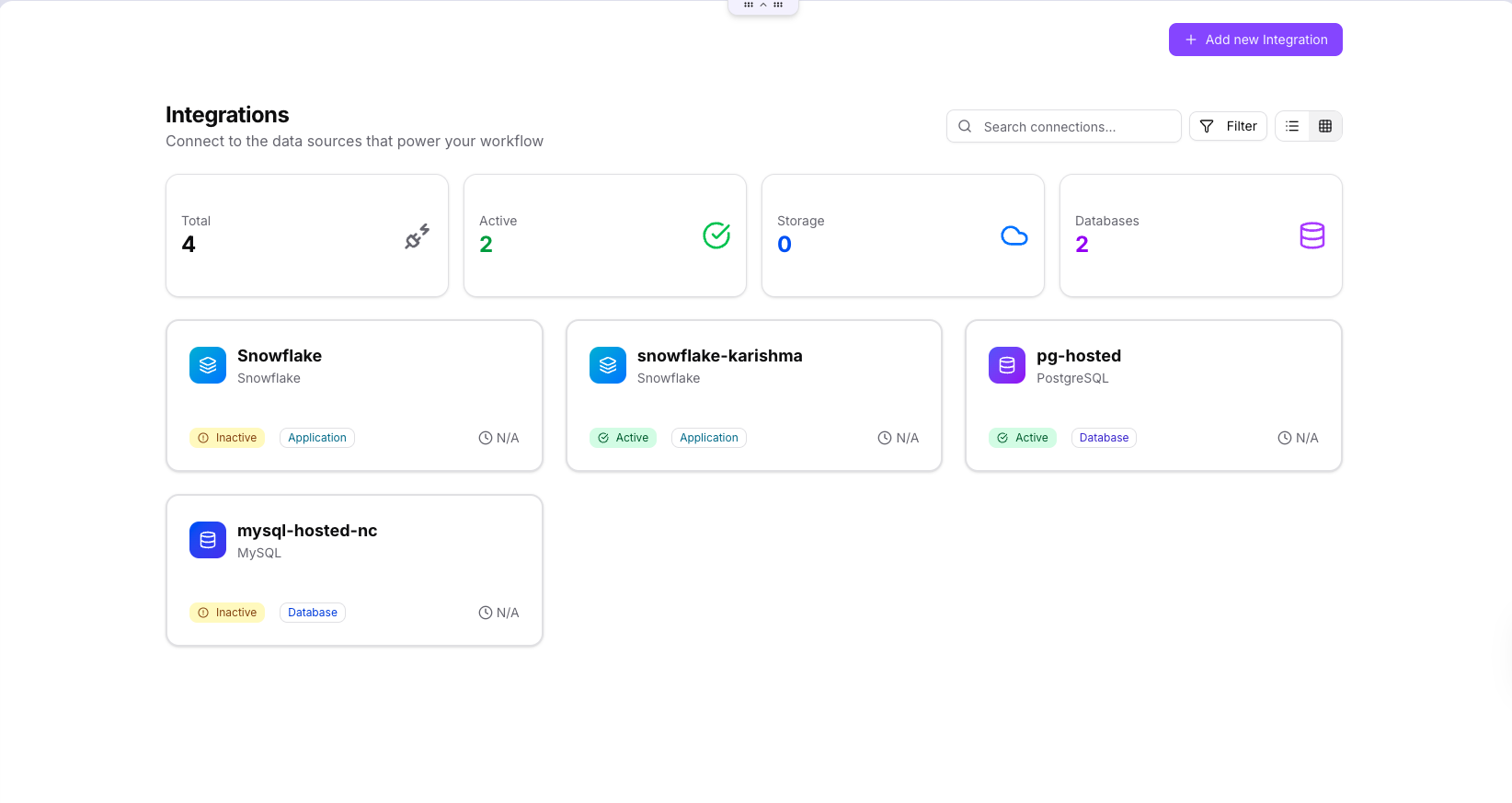
The stats bar at the top gives you a quick summary: total connections, how many are active, and how many are Storage vs. Database connections.
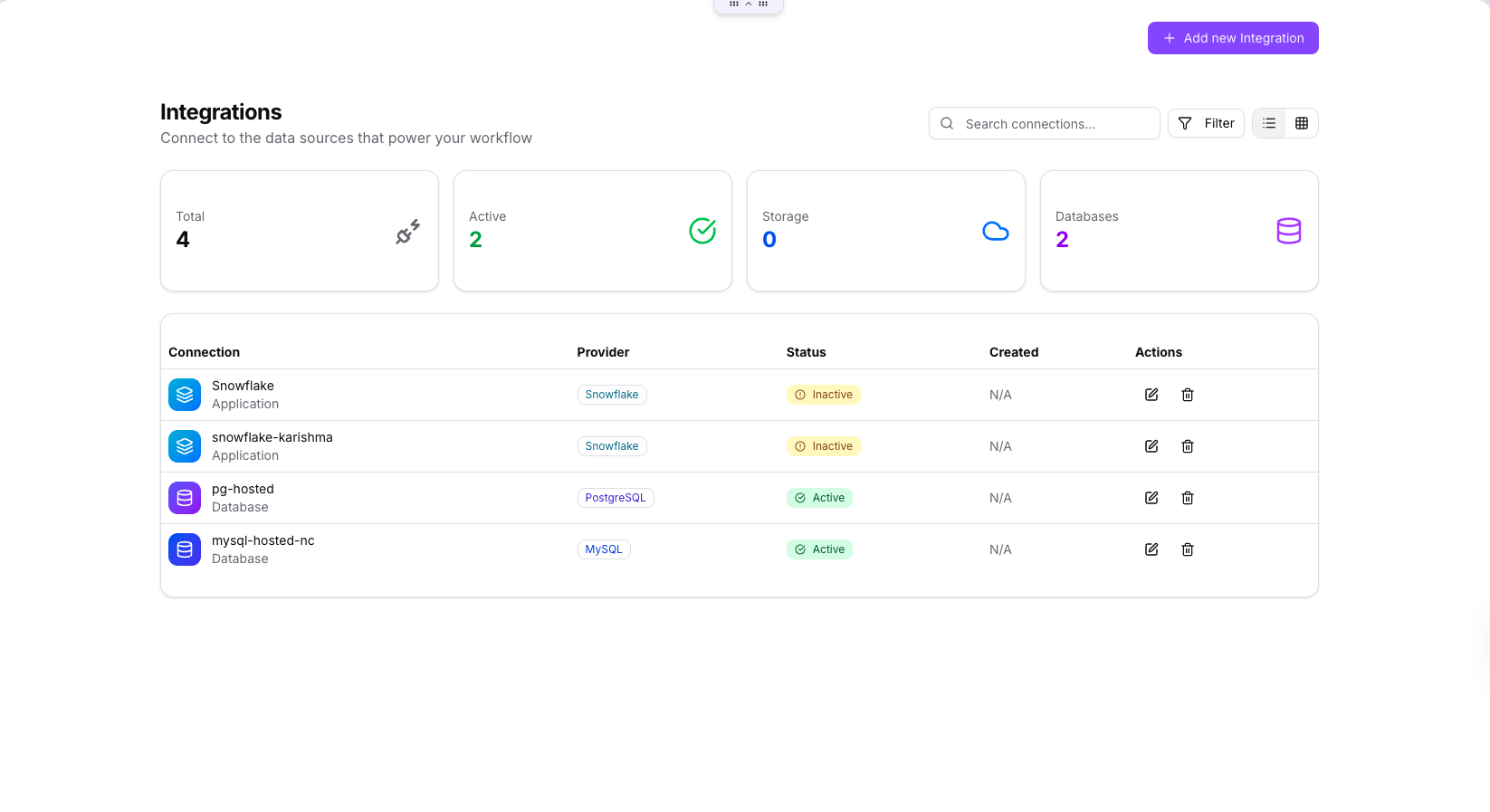
Each connection shows a status badge — green for Active, yellow for Inactive — so you can see at a glance what is available.
Supported providers
Click Add new Integration to open the provider selection screen. Use the filter tabs — All, Storage, Database, Application — to browse by category.
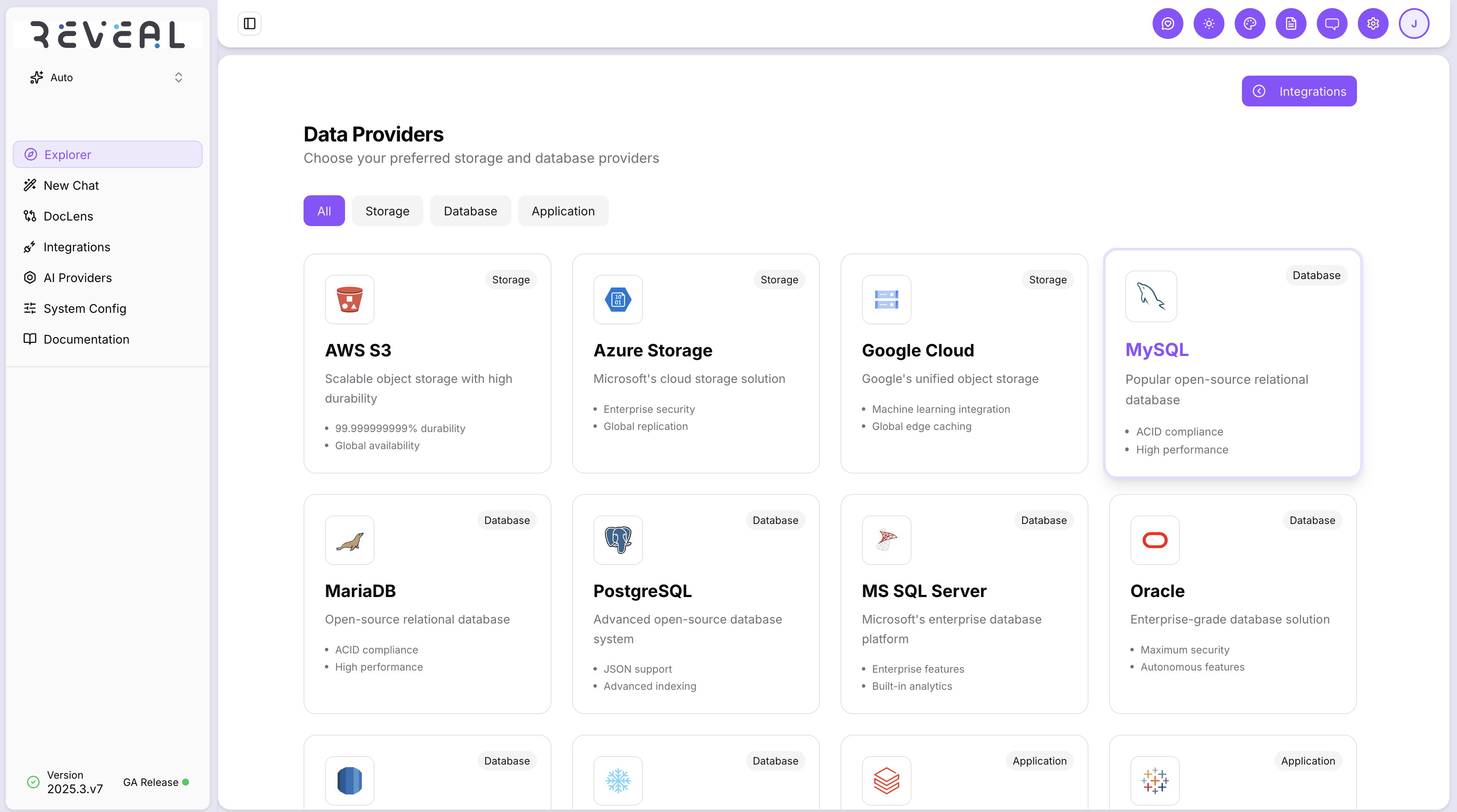
Storage
| Provider | Description |
|---|---|
| AWS S3 | Scalable object storage with high durability |
| Azure Storage | Microsoft's cloud storage solution |
| Google Cloud | Google's unified object storage |
Database
| Provider | Description |
|---|---|
| MySQL | Popular open-source relational database |
| MariaDB | Open-source relational database |
| PostgreSQL | Advanced open-source database system |
| MS SQL Server | Microsoft's enterprise database platform |
| Oracle | Enterprise-grade database solution |
| AWS RDS | Managed relational database service |
| Snowflake | Cloud-native data warehouse platform |
| Amazon Redshift | Fully managed petabyte-scale data warehouse |
| BigQuery | Google's serverless, scalable data warehouse |
| MongoDB | NoSQL document database with flexible schema |
| DuckDB | Fast in-process analytical database |
Application
| Provider | Description |
|---|---|
| Salesforce | CRM for customer data and sales automation |
| GitHub | Repositories, code, and project data |
| Google Docs | Access and analyse your Google Documents |
| OneDrive Business | Microsoft OneDrive for Business files |
| SharePoint | Microsoft SharePoint sites and document libraries |
| Outlook | Microsoft Outlook emails and calendars |
| Slack | Slack workspace channels and messages |
| Microsoft Teams | Teams chat and collaboration |
| Jira | Atlassian Jira for project and issue tracking |
| Confluence | Atlassian Confluence for documentation |
| ServiceNow | IT service management and workflow automation |
| Notion | Notes, databases, and project management |
| Databricks | Unified analytics platform for big data and ML |
| Tableau | Business intelligence and analytics platform |
| RESTful API | Connect to any REST API endpoint |
| OpenEMR | Patient and clinical data via SMART on FHIR |
Adding a connection
- Click Add new Integration in the top right
- Select a provider tile from the provider grid
- Fill in the connection details for that provider
- Click Save — the connection appears in your list
Example — Snowflake
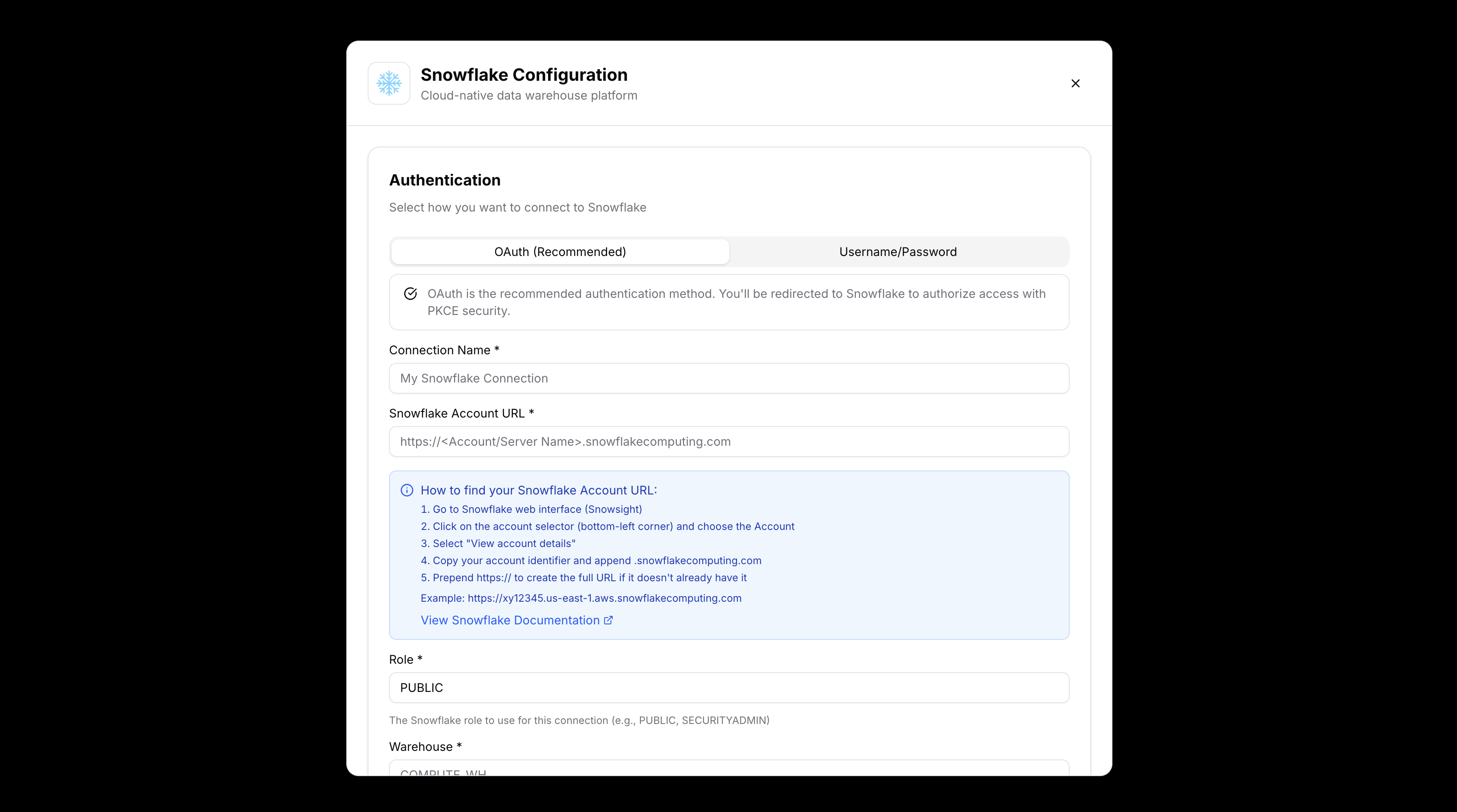
Snowflake connections support two authentication methods:
- OAuth (Recommended) — Reveal redirects you to Snowflake to authorise access using PKCE. No credentials are stored in Reveal.
- Username / Password — Enter your Snowflake username and password directly.
The configuration form asks for:
| Field | Description |
|---|---|
| Connection Name | A label for this connection shown across Reveal |
| Snowflake Account URL | Your full account URL, e.g. https://<account>.snowflakecomputing.com |
| Role | The Snowflake role to use for queries (e.g. PUBLIC, SECURITYADMIN) |
| Warehouse | The compute warehouse to run queries against |
Managing connections
From the Integrations list, each connection row has two action icons:
- Edit (pencil icon) — update the connection name, credentials, or settings
- Delete (trash icon) — remove the connection from Reveal (does not affect the underlying data source)
Use the Search connections bar and Filter button to find specific connections when you have many configured.
Using a connection
Once a connection is saved, it appears in the connection selector at the top of the Chat page and in Data Explorer. Select it to start querying — the Analyzer panel updates to show the schema, file browser, or catalog for that connection.
You can switch between connections at any time in Chat without losing your conversation history.