Personalization
Reveal lets you tailor the interface to your preferences and your organisation's branding — choose a theme, pick a colour palette, and take a guided tour if you are new.
Theme
Toggle between Light, Dark, and System mode using the theme icon in the top navigation bar.
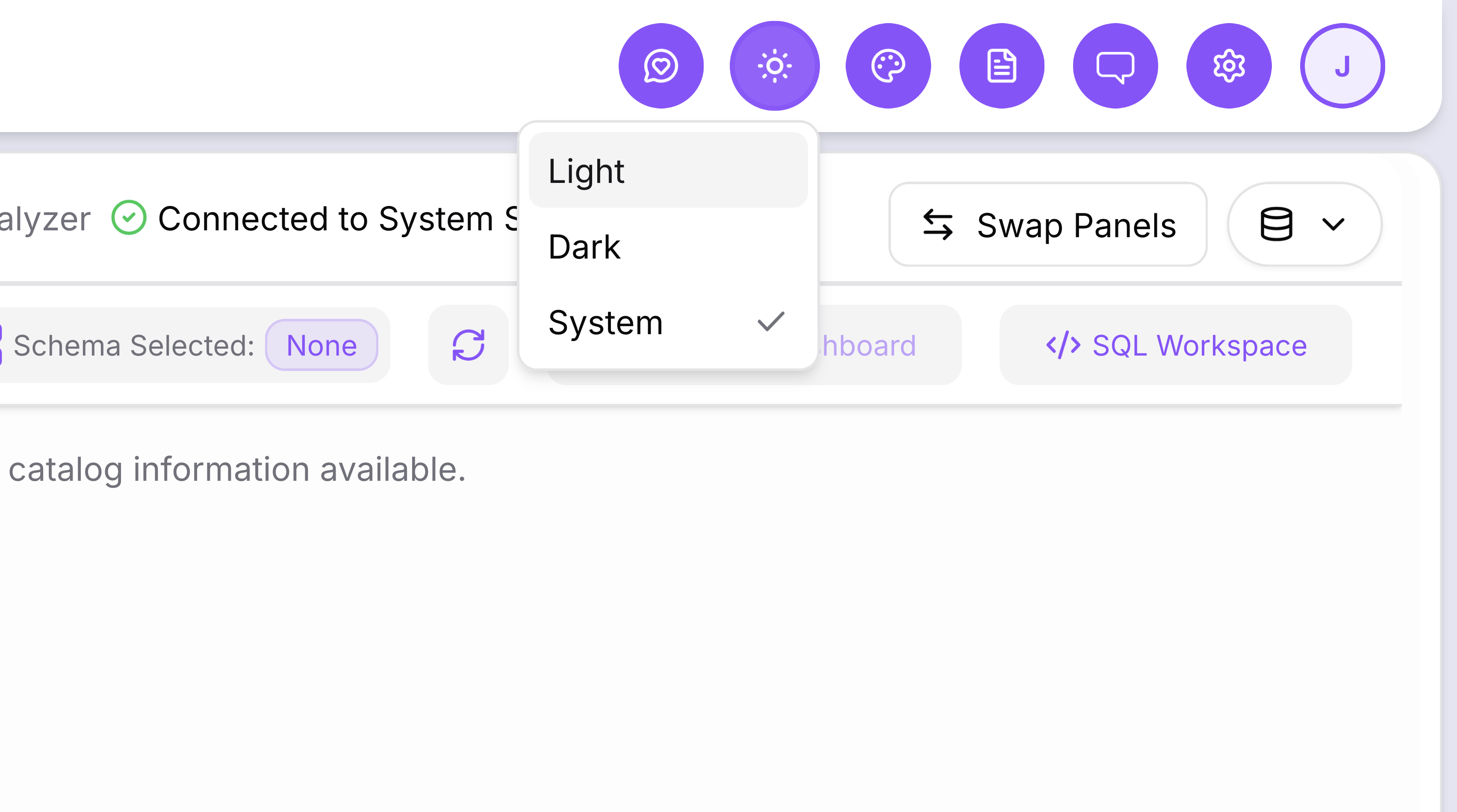
The setting is saved to your account automatically.
Colour Palette
Choose from several preset colour palettes to change the accent colours throughout the interface — useful for aligning Reveal's appearance with your organisation's visual identity.
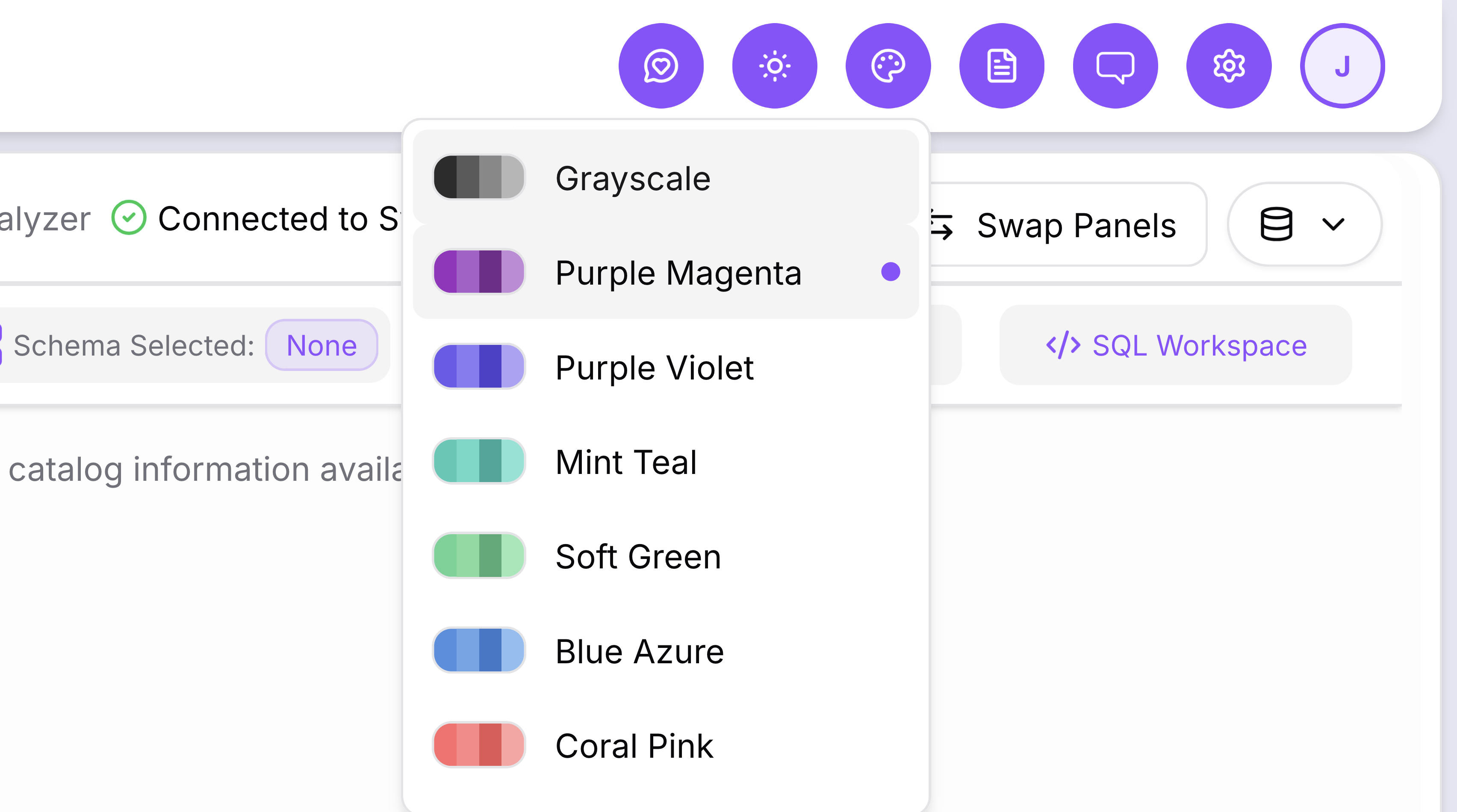
Available palettes:
- Grayscale
- Purple Magenta (default)
- Purple Violet
- Mint Teal
- Soft Green
- Blue Azure
- Coral Pink
Click the palette icon in the top navigation bar to open the selector. The change applies immediately.
Account Settings
Access your account details by clicking your profile avatar in the top right corner.
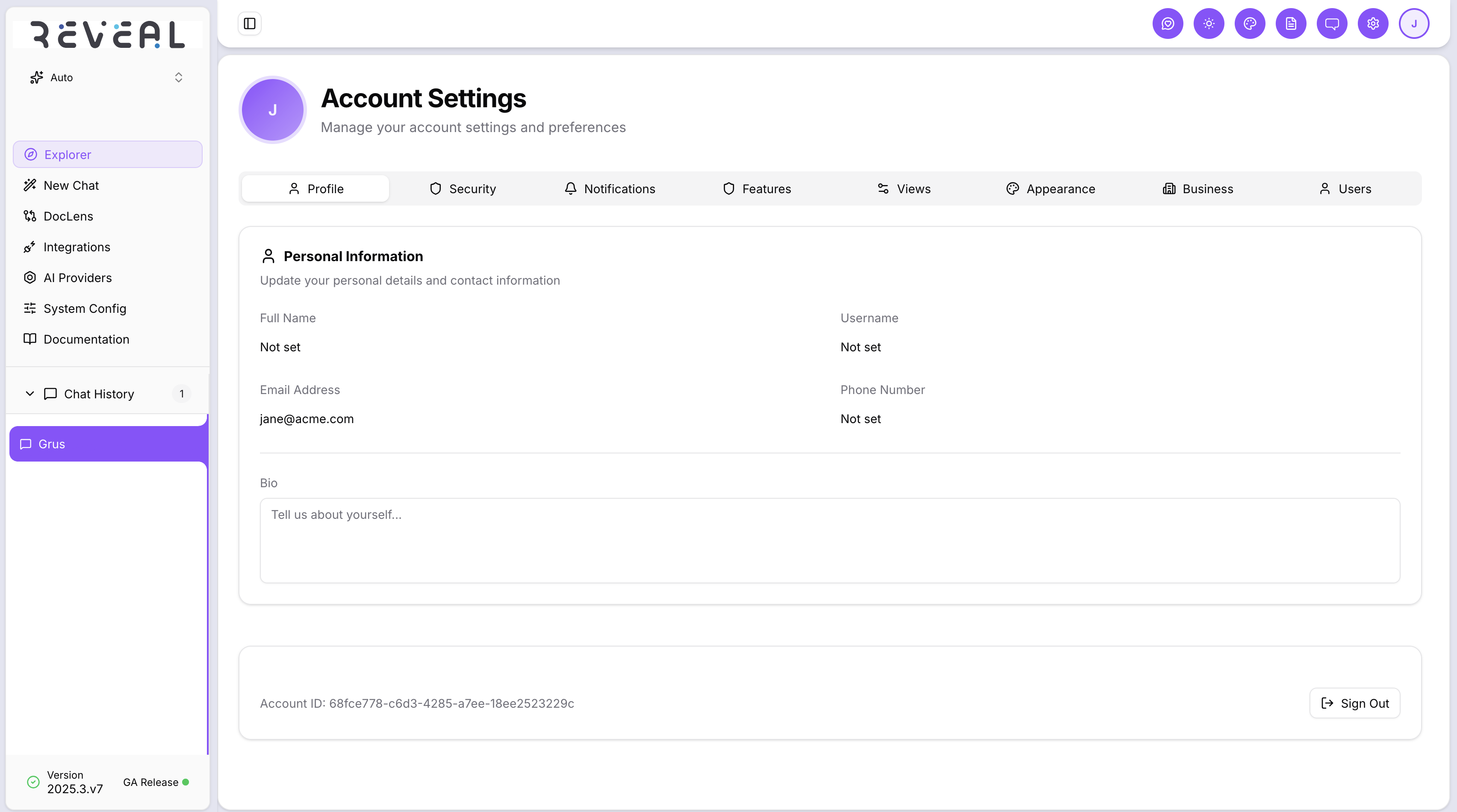
The Account Settings page has several tabs:
| Tab | What you can do |
|---|---|
| Profile | Update your full name, username, email, phone number, and bio |
| Security | Change your password (local accounts) |
| Notifications | Configure notification preferences |
| Features | Enable or disable optional features for your account |
| Views | Manage saved views |
| Appearance | Theme and colour palette settings |
| Business | Organisation-level settings |
| Users | User management shortcuts |
Guided Tour
The interactive guided tour walks new users through Reveal's key features. Enable or disable it from the Features tab in Account Settings.
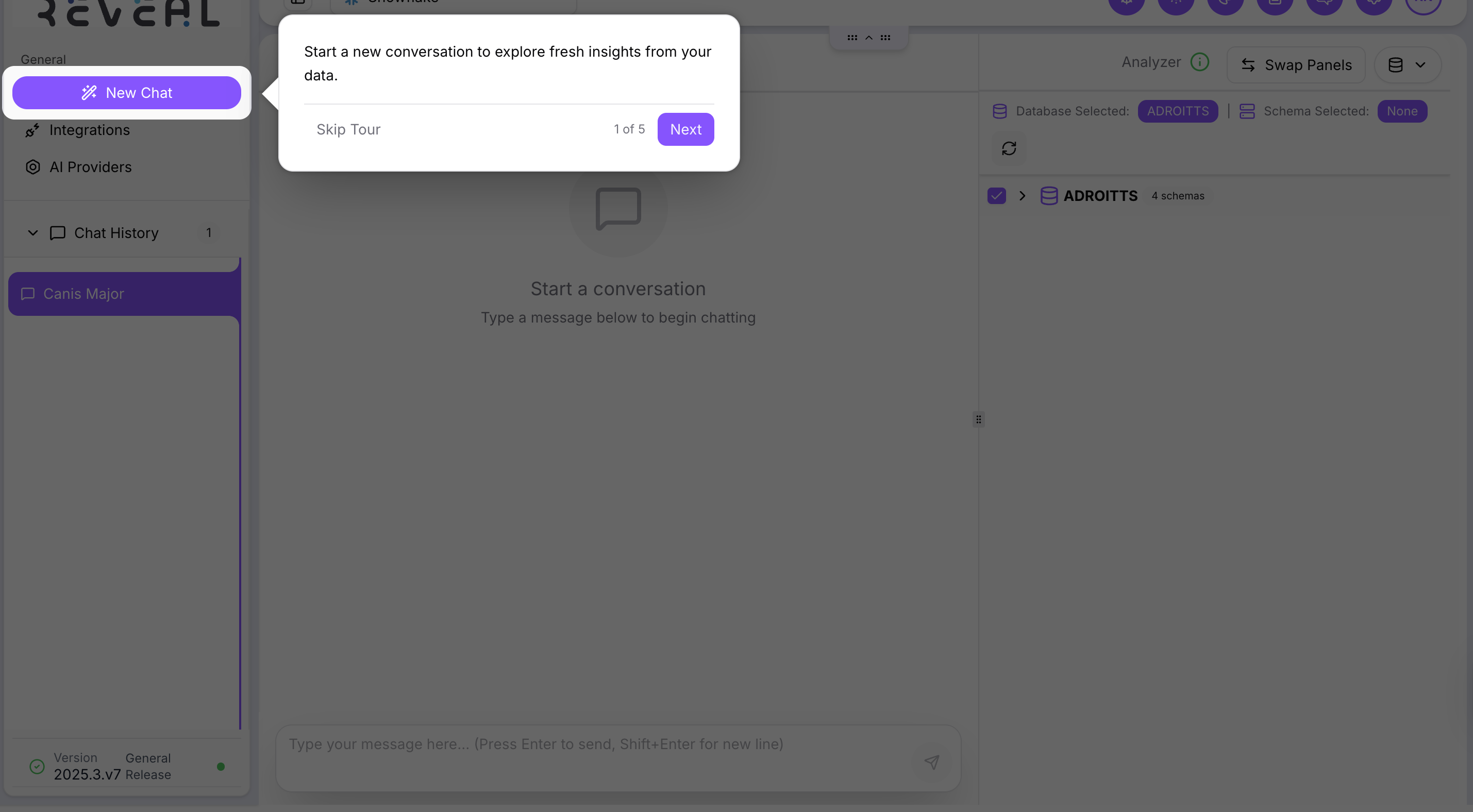
The tour highlights key areas of the interface step by step — including the Chat panel, Analyzer, Integrations, and Settings. You can pause or exit the tour at any time and resume it later.
Troubleshooting
| Issue | Resolution |
|---|---|
| Theme or palette not applying | Refresh the page; clear browser cache if it persists |
| Guided tour not starting | Check that browser pop-ups are not blocked; log out and back in to reset preferences |