Prompt Configurations
Prompt Configurations let administrators control how Reveal's AI processes and responds to queries — defining tone, domain focus, which roles can access which configurations, and custom instructions that apply in specific contexts. When no custom configuration matches a session, the baseline configuration is used as the system default.
What is a prompt configuration?
Each configuration ties together four settings:
| Field | Description |
|---|---|
| Connection | The data source this configuration applies to — or Baseline (All Connections) to apply globally |
| Role | The user role that triggers this configuration |
| Tone | The style of AI responses (e.g. analytical insight, formal, concise) |
| Domain | The business context (e.g. general, finance, healthcare) |
When a user runs a query, Reveal matches their session (connection + role) to the most specific active configuration. The matched configuration's prompts and feature flags govern how the query is processed.
Configurations tab
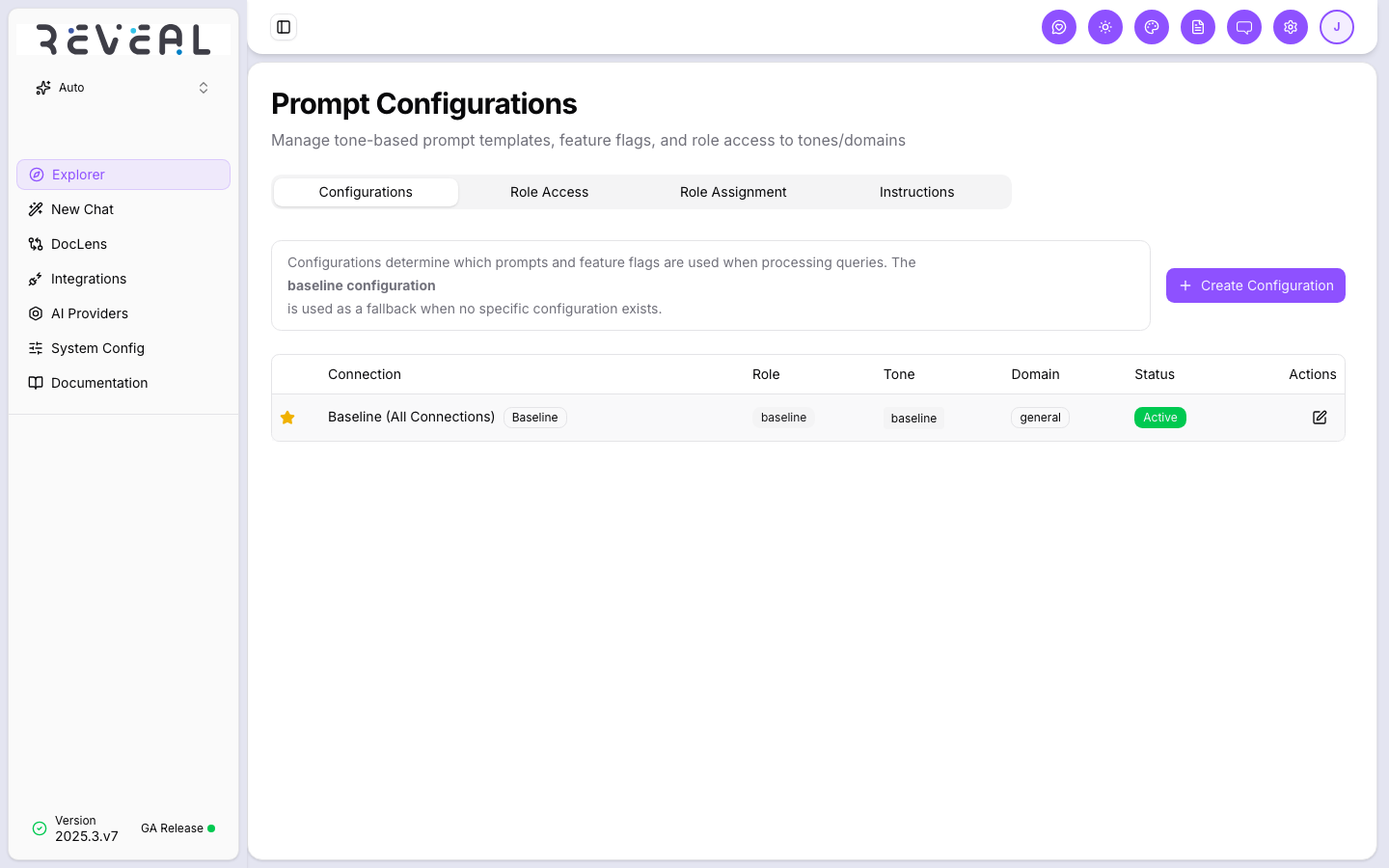
The main tab lists all prompt configurations with their Connection, Role, Tone, Domain, Status, and an edit action. The starred Baseline (All Connections) row is the fallback used when no other configuration matches.
Creating a configuration
Click Create Configuration to open the configuration form.
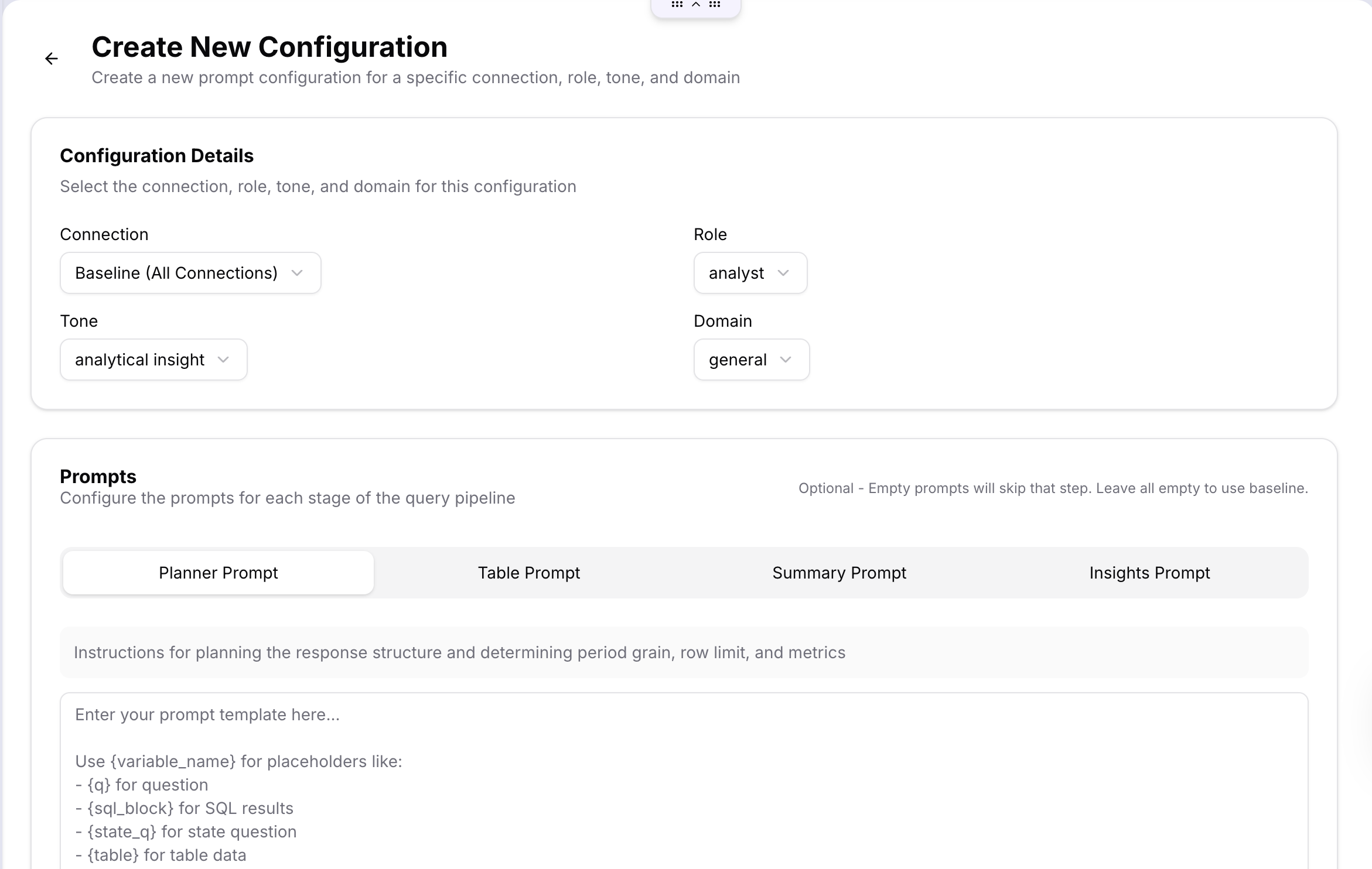
Select the Connection, Role, Tone, and Domain, then configure the prompts for each stage of the query pipeline (see below). Leave a prompt stage empty to fall back to the baseline for that stage.
Feature flags
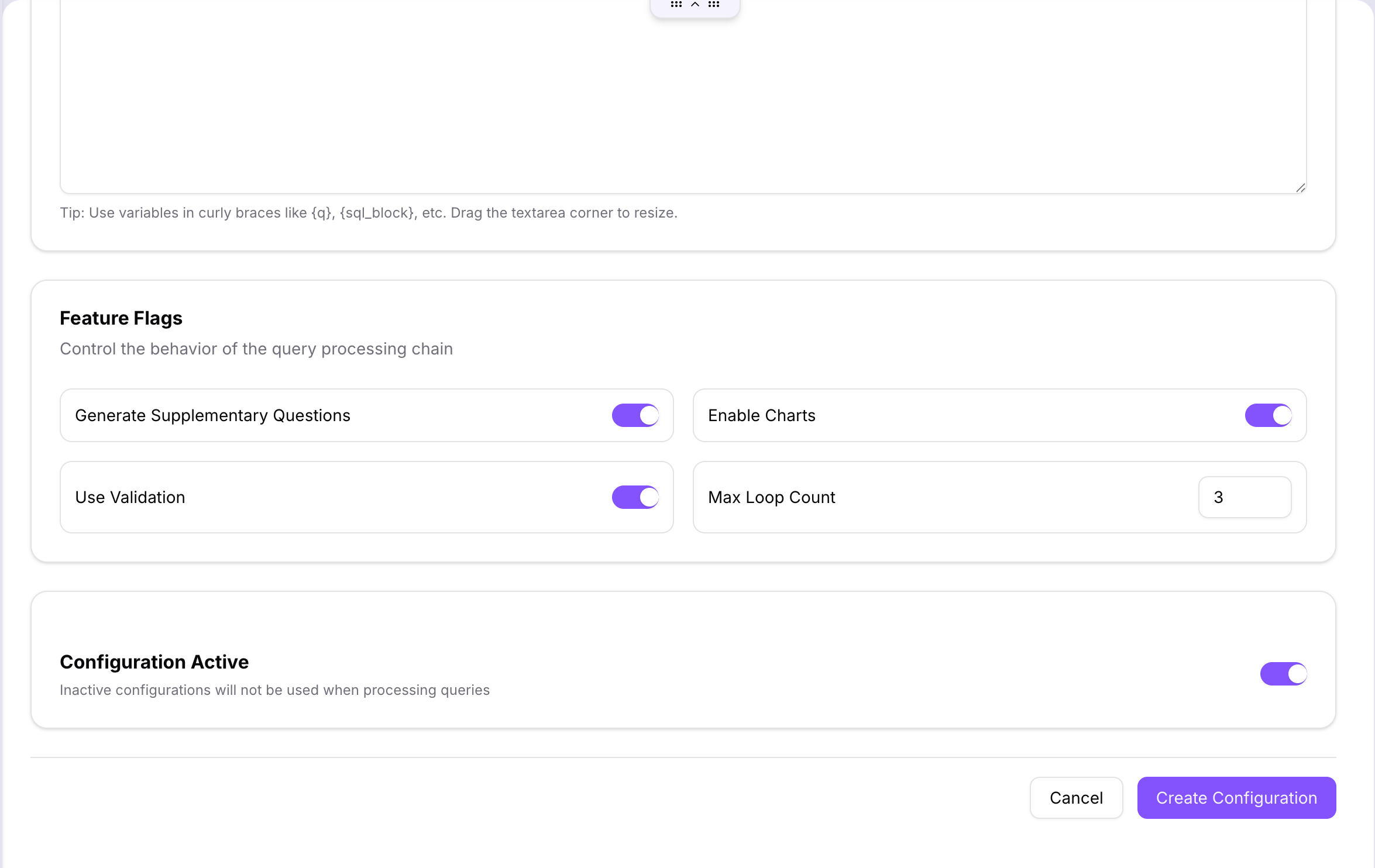
At the bottom of the configuration form, the Feature Flags section controls the behaviour of the query processing chain:
| Flag | Effect |
|---|---|
| Generate Supplementary Questions | Whether to generate follow-up question suggestions after each response |
| Enable Charts | Whether chart visualisations are produced alongside query results |
| Use Validation | Whether query results are validated before being returned |
| Max Loop Count | Maximum number of retry loops the AI can use to refine a query (default: 3) |
Toggle the Configuration Active switch to activate or deactivate the configuration. Inactive configurations are not used even if they match the current session.
Editing a configuration
Click the edit icon on any row to open the Edit Configuration form.
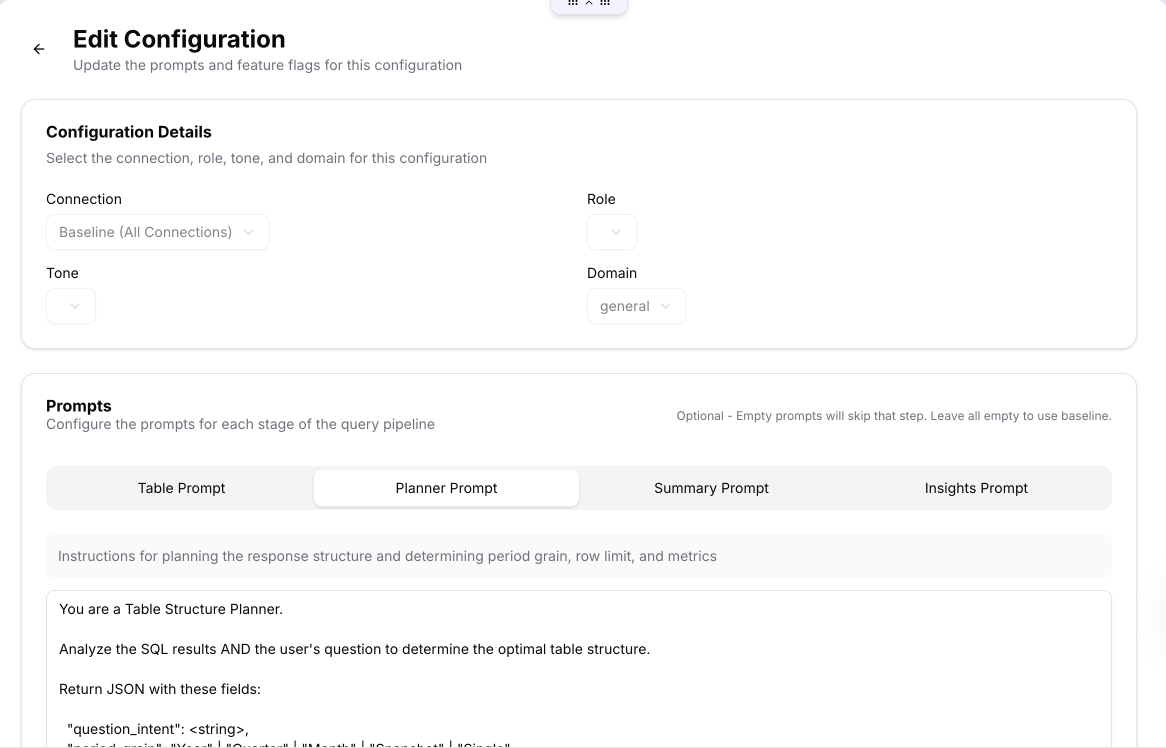
The edit form shows the same Configuration Details and the four prompt stage tabs. Modify any stage and save.
Prompt stages
Each configuration has four prompt stages that cover the full query pipeline. Each stage has its own tab in the configuration form:
Planner Prompt
Instructions for planning the response structure — determines period grain (Year/Quarter/Month/Snapshot/Single), row limits, and which metrics to extract from the query result.
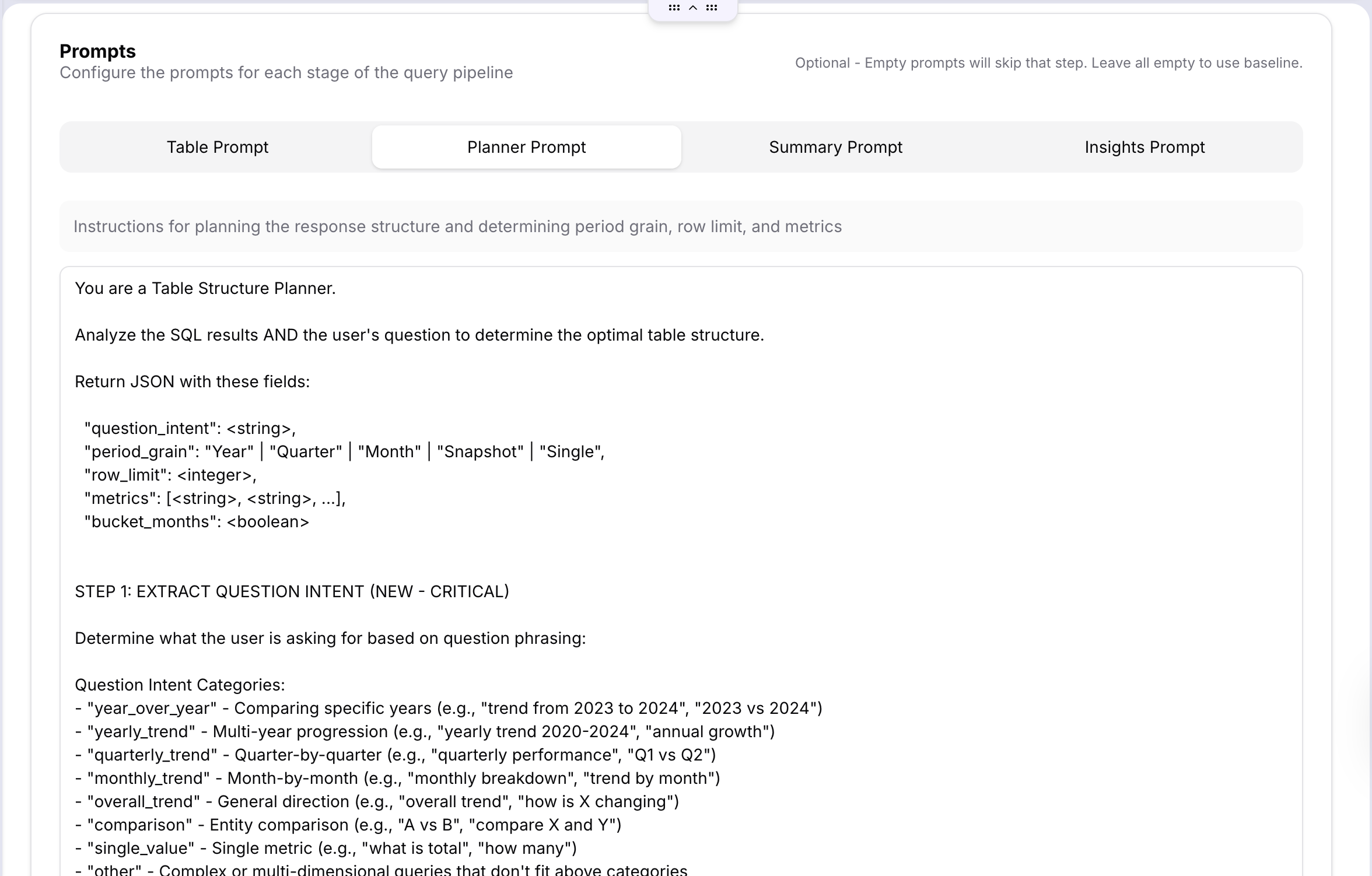
The planner runs first and its output (question intent, period grain, row limit, metrics) is passed to all subsequent stages.
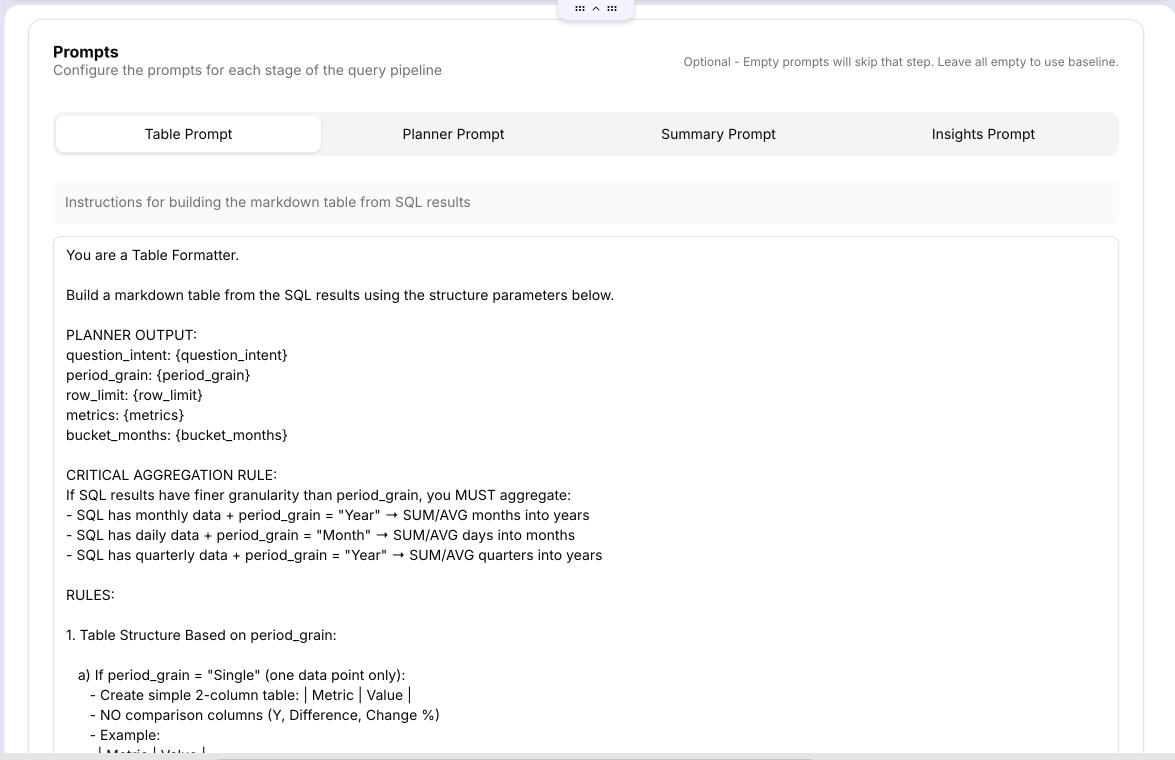
Table Prompt
Instructions for building the markdown table from SQL results. Controls aggregation rules — for example, rolling up monthly data into yearly totals if the period grain is Year.
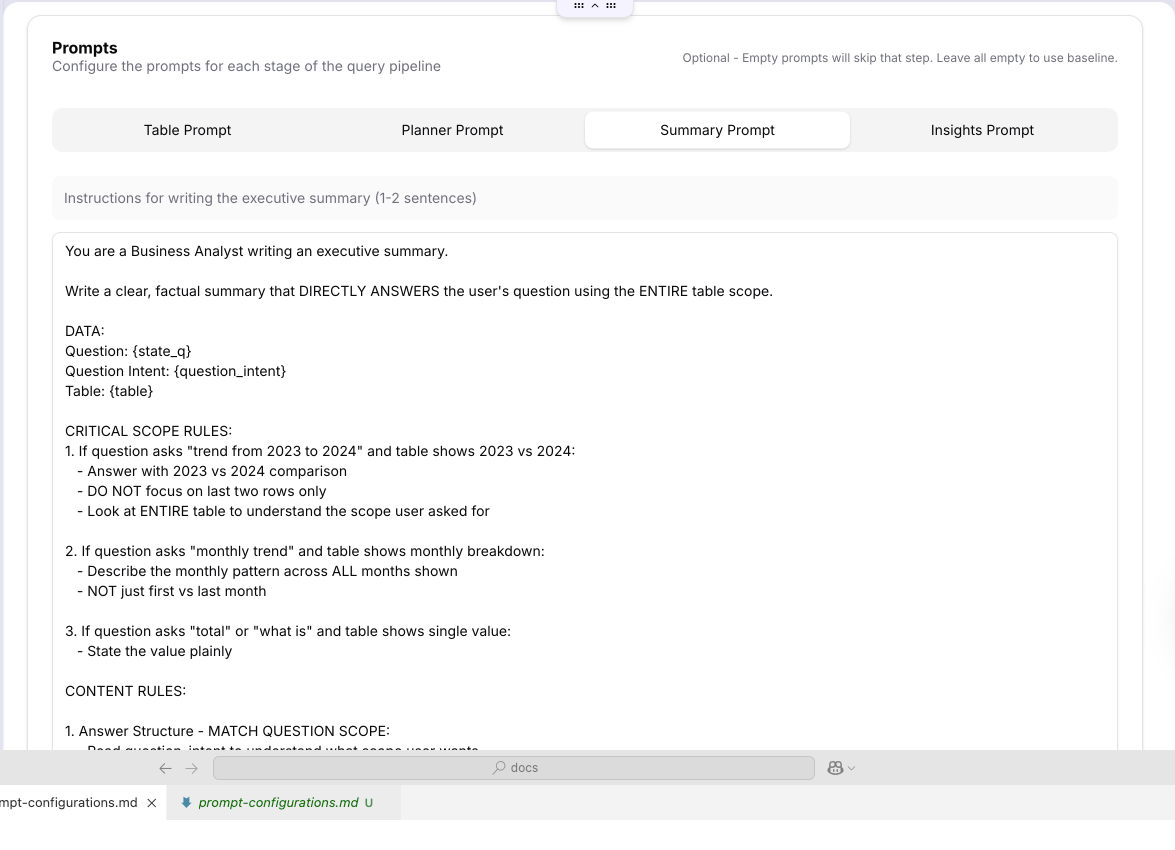
Summary Prompt
Instructions for writing the executive summary — 1 to 2 sentences that directly answer the user's question based on the full scope of the table data.
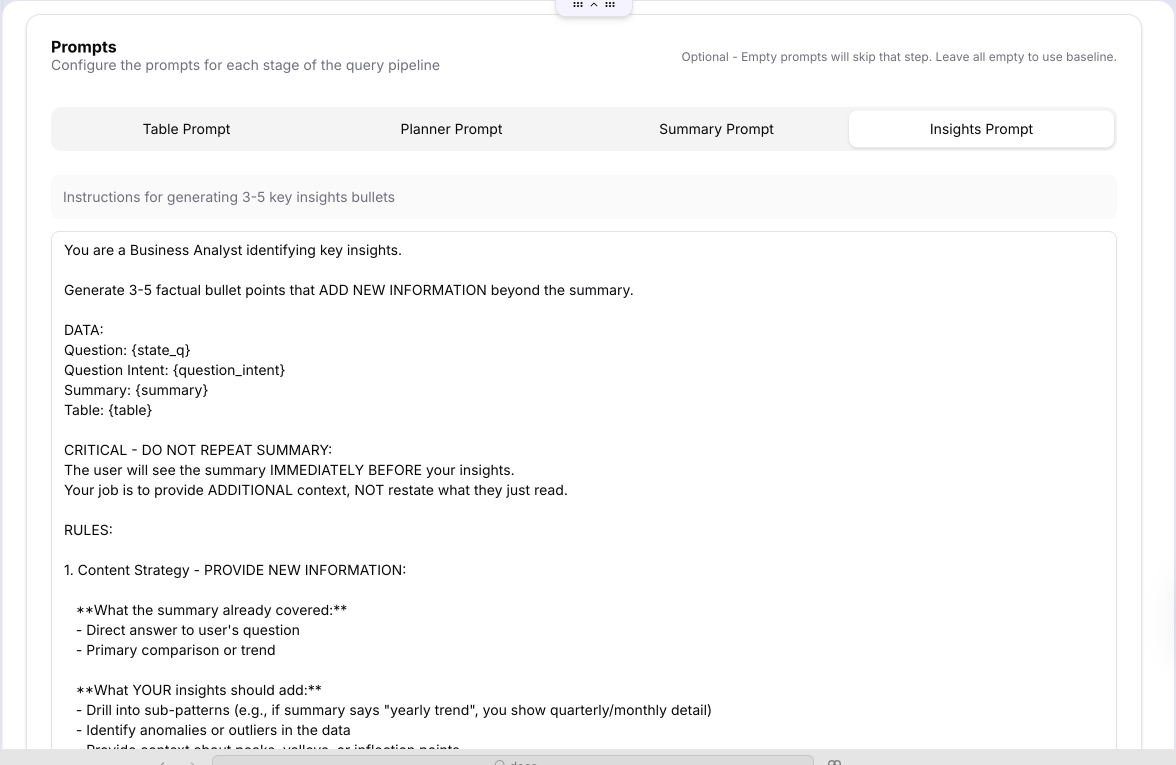
Insights Prompt
Instructions for generating 3 to 5 key insight bullets that go beyond what the summary already states — identifying sub-patterns, anomalies, and notable values in the data.
Leave any prompt stage empty to use the baseline prompt for that stage. You only need to customise the stages where you want different behaviour.
Role Access tab
Controls which tones and domains are available to each user role. Use this to restrict sensitive or specialised response styles to authorised roles only.
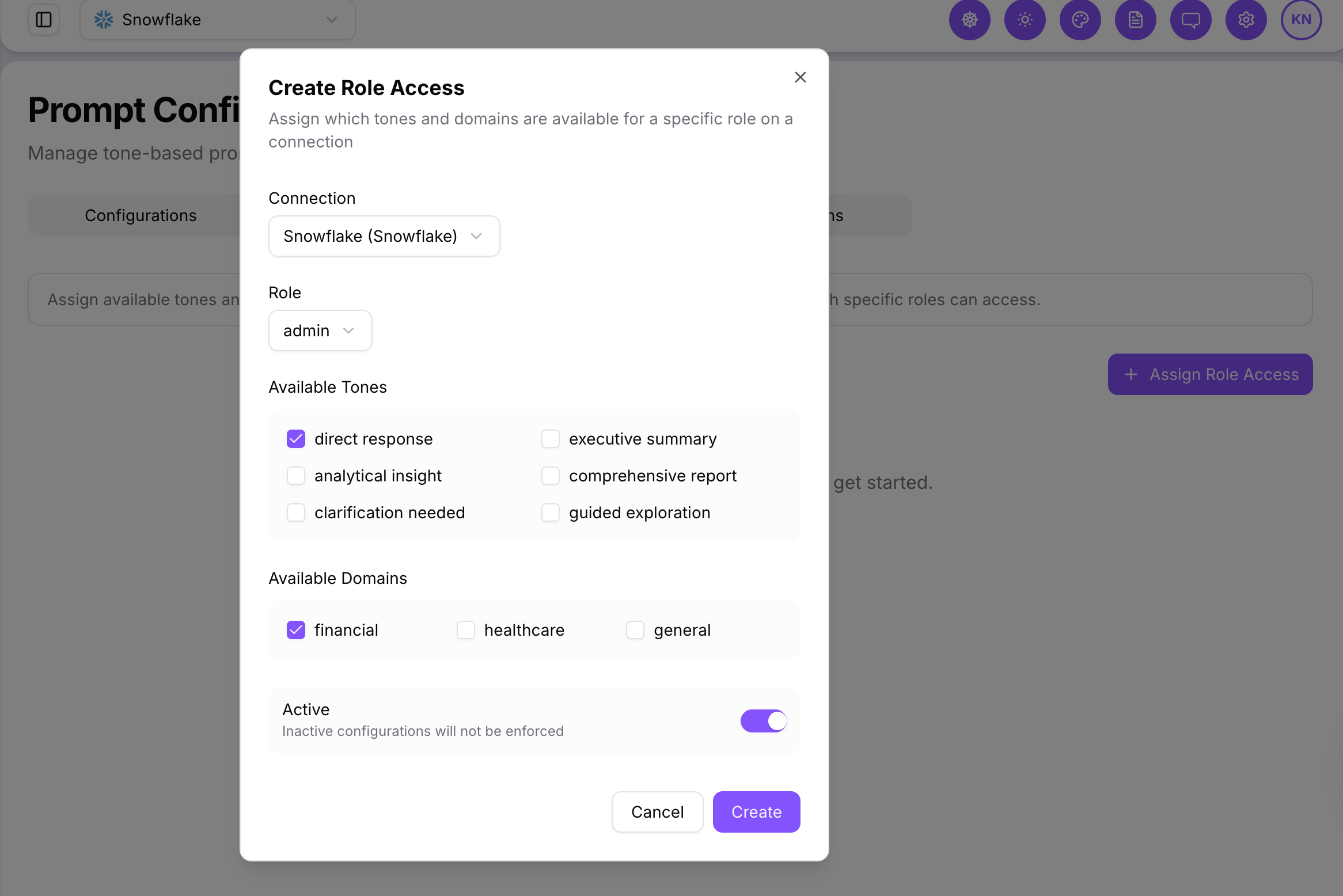
Add or remove tone/domain access per role from this tab. Users whose role does not have access to a particular tone will not see it as an option.
Instructions tab
Instructions are additional text injected into the AI prompt when a specific condition is met. Three types are available:
| Type | When it applies |
|---|---|
| Tone Instructions | When the active configuration uses a specific tone |
| Domain Instructions | When the active configuration matches a business domain |
| Keyword Instructions | When a specific keyword appears in the user's question |
Each instruction has a priority — lower numbers take precedence when multiple instructions match simultaneously.
Tone Instructions
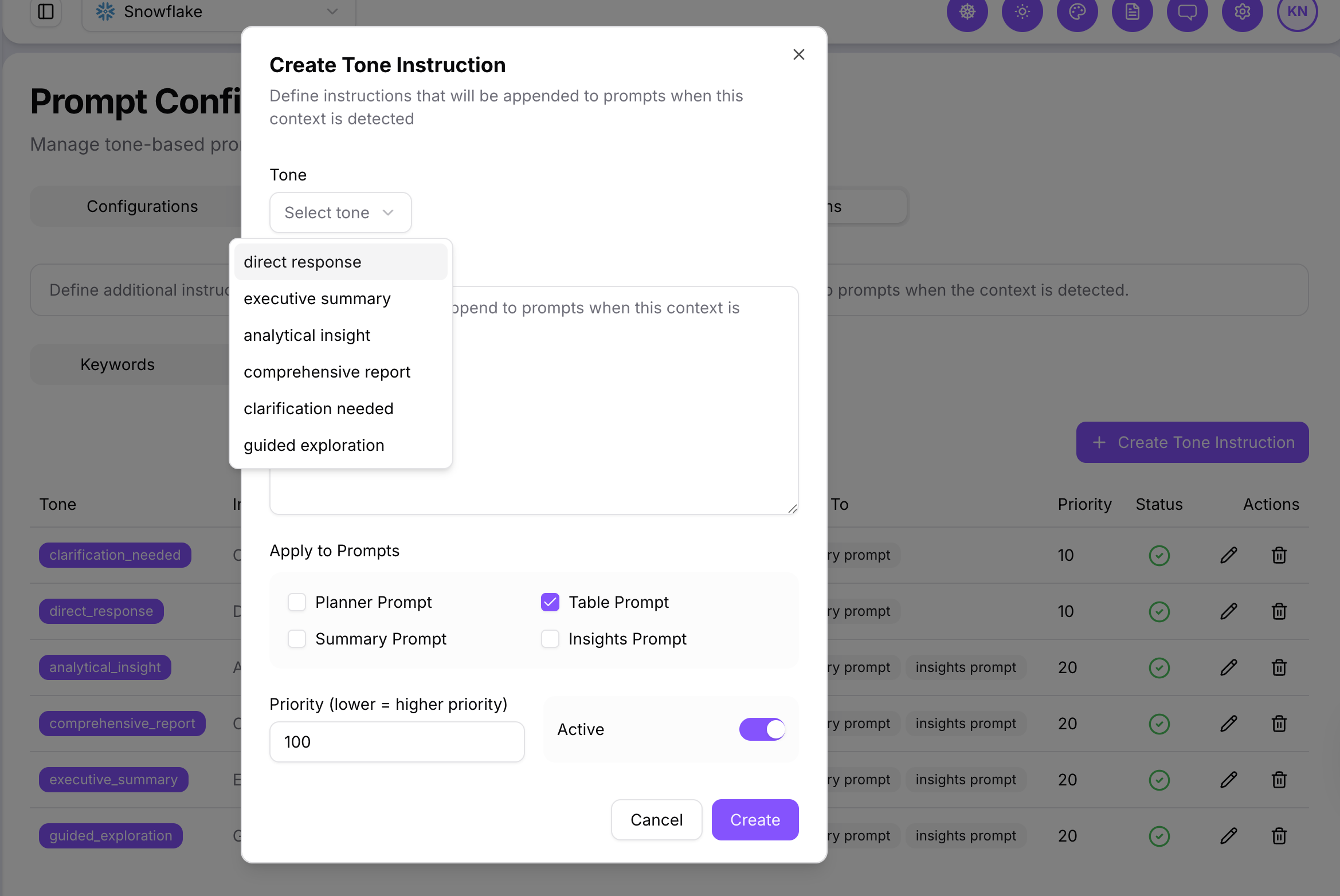
Set the tone, write the instruction text, assign a priority, and choose which prompt stage it applies to.
Domain Instructions
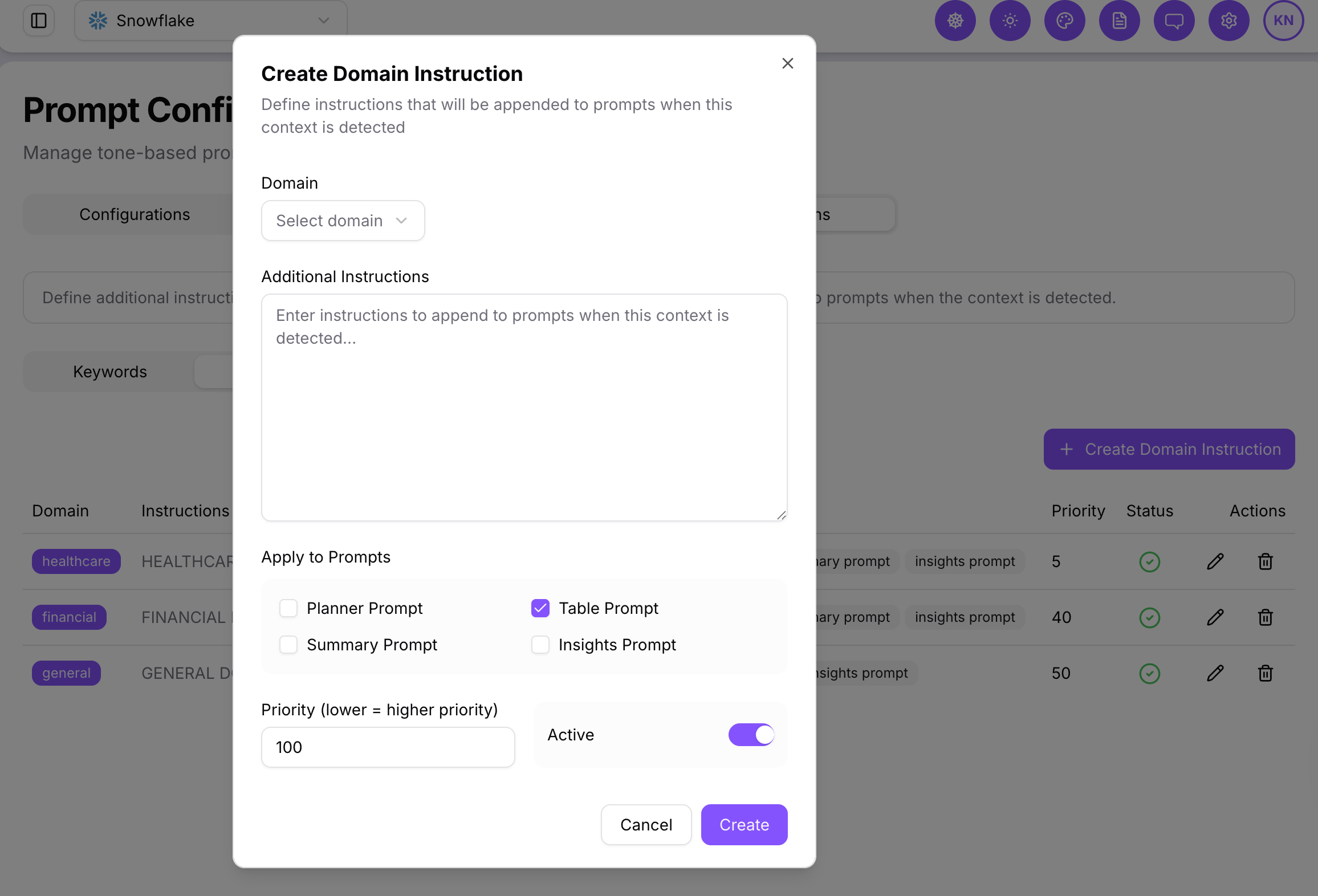
Associate the instruction with a business domain (e.g. finance, healthcare) and define the text to inject when that domain is active.
Keyword Instructions
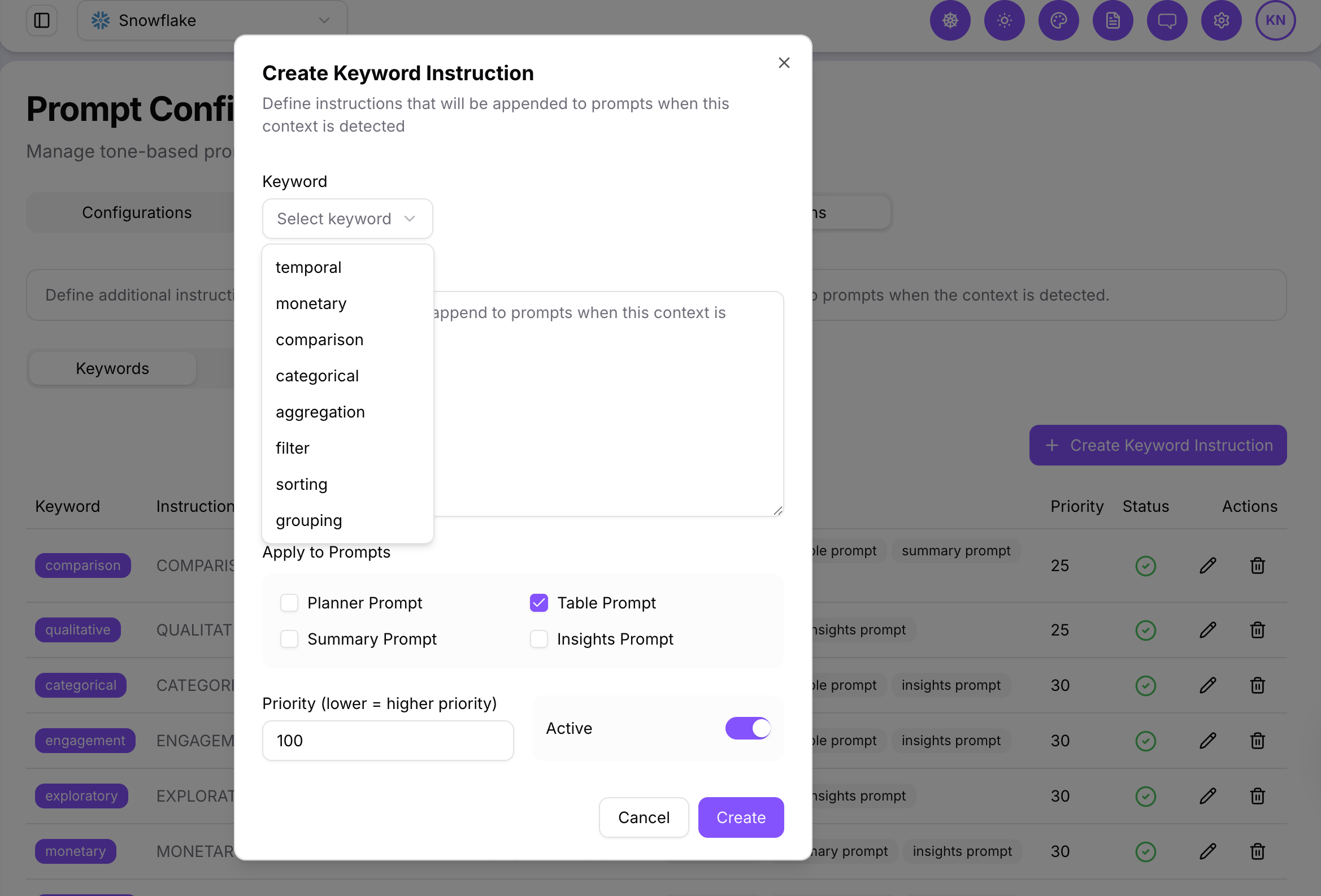
Define one or more trigger keywords. When any keyword appears in the user's question, the instruction is injected automatically into the matching prompt stage.
The Baseline (All Connections) configuration is the system default and cannot be deleted.