SQL Query Editor
The SQL Query Editor is a full workspace for writing and running SQL queries directly against your connected databases — without leaving Reveal. Use it when you want to write queries by hand, explore a schema in depth, or run something outside the Chat interface.
Opening the editor
From the Chat interface, click SQL Workspace in the DB Catalog view of the Analyzer panel. The editor opens in the right panel.
The editor layout
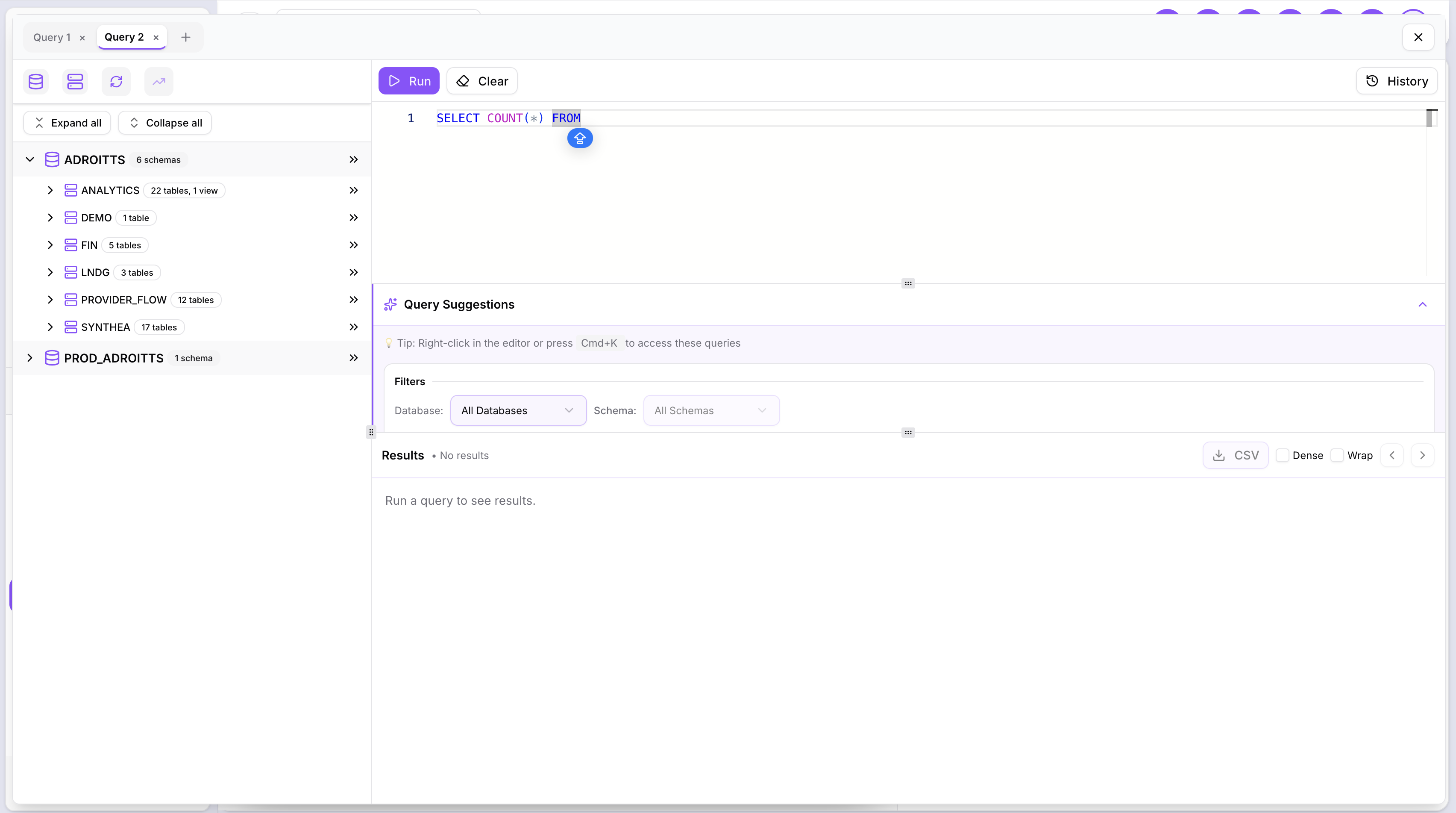
The editor is split into three areas:
- Left — Schema browser: Shows all databases and schemas for your active connection. Expand a database to see its schemas, tables, and row counts. Use Expand all and Collapse all to navigate large schemas quickly.
- Centre — Query editor: A code editor where you write SQL. Tabs at the top let you work on multiple queries simultaneously — each tab keeps its own query and result set independently.
- Bottom — Results: The result set from your last query run, with export and display options.
Writing and running queries
Type your SQL in the editor and click Run (or press Ctrl+Enter / Cmd+Enter) to execute it.
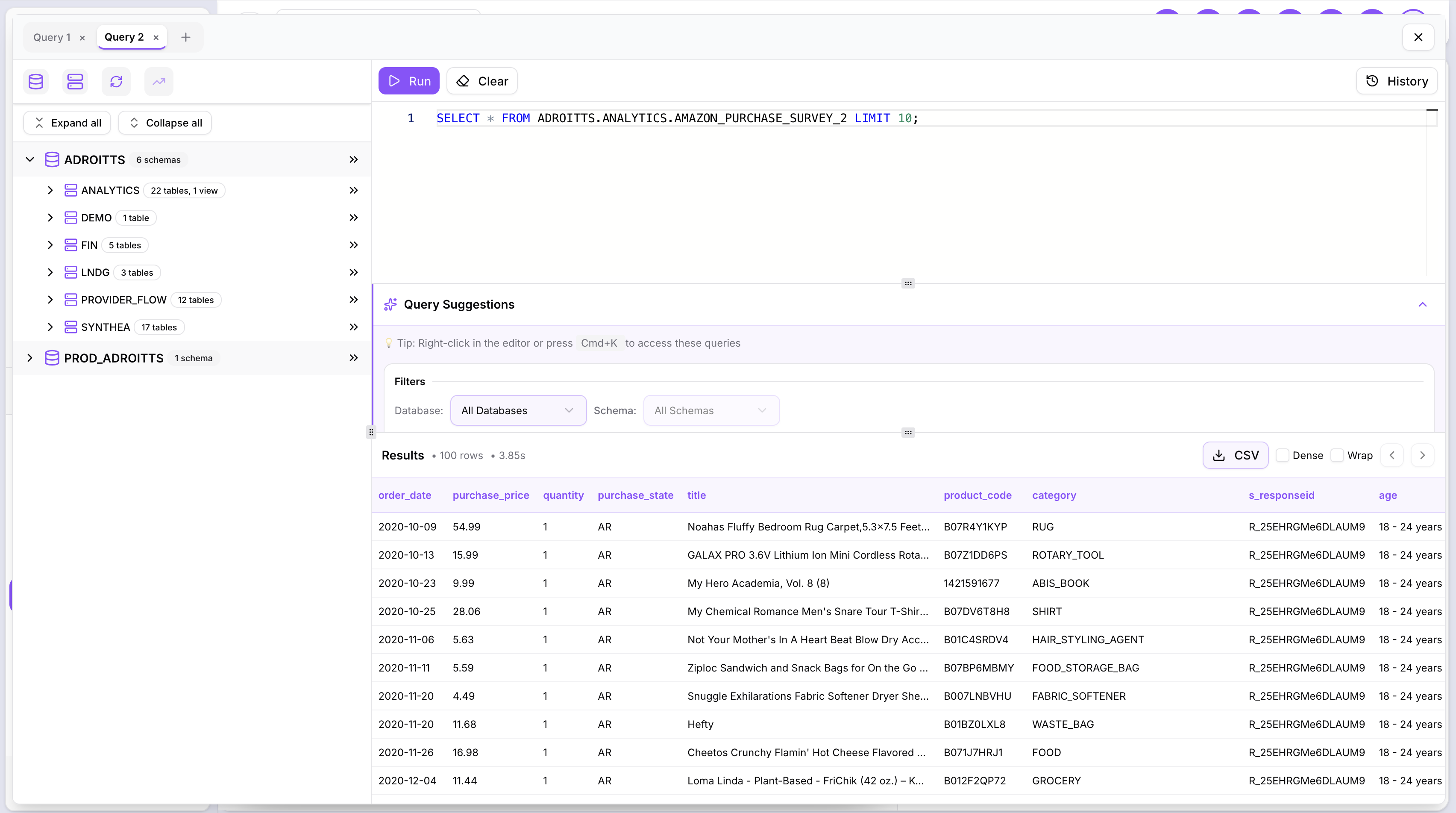
The results panel shows the returned rows with column headers. Use the Database and Schema dropdowns in the Filters bar to scope the query to a specific schema before running.
Query Suggestions
Below the editor, Reveal surfaces suggested queries based on your active connection and schema. Click any suggestion to load it into the editor — useful for getting started quickly or exploring what a table contains.
Multi-tab editing
Click + in the tab bar to open a new query tab. Each tab is independent — switch between tabs to compare queries or work on different parts of an analysis at the same time.
Results
After a query runs, the results panel shows:
- A paginated, sortable table of the returned rows
- A CSV button to download the result set
- Dense and Wrap toggle buttons to control how results are displayed
Query history
Click History in the top right to see previously run queries for this session. Click any past query to load it back into the editor.
Right-click anywhere in the editor or press Cmd+K to access quick actions and query shortcuts.