Research Agent
Research Agent lets you connect to your S3 bucket and ask questions across your documents and scientific literature — all from the Chat interface. Select an S3 connection and choose how broadly you want to search: a single file, a set of files, your entire bucket, or the Research Agent mode that combines your documents with live results from OpenAlex, PubMed, and ClinicalTrials.gov.
How it works
When you select or upload a file, Reveal processes it in the background:
- Text is extracted from the document
- The content is split into chunks and converted into vector embeddings
- Embeddings are stored in the S3 Vector Bucket
- When you ask a question, Reveal searches the vector index for the most semantically relevant chunks and generates a cited answer
This means questions are matched by meaning — not just keywords — so you get accurate results even when your exact words don't appear in the document.
Accessing Research Agent
Select an S3 connection from the connection selector at the top of the Chat page. The Analyzer panel on the right switches to the S3 browser, showing your connected bucket with Browse, Upload, and Refresh controls.
The Query Mode toggle at the top of the Analyzer panel lets you switch between four modes.
Query Mode — Single File
Select Single File to focus your question on one specific document. Navigate through folders in the S3 browser and click a file to select it. Your chat questions will only search that file.
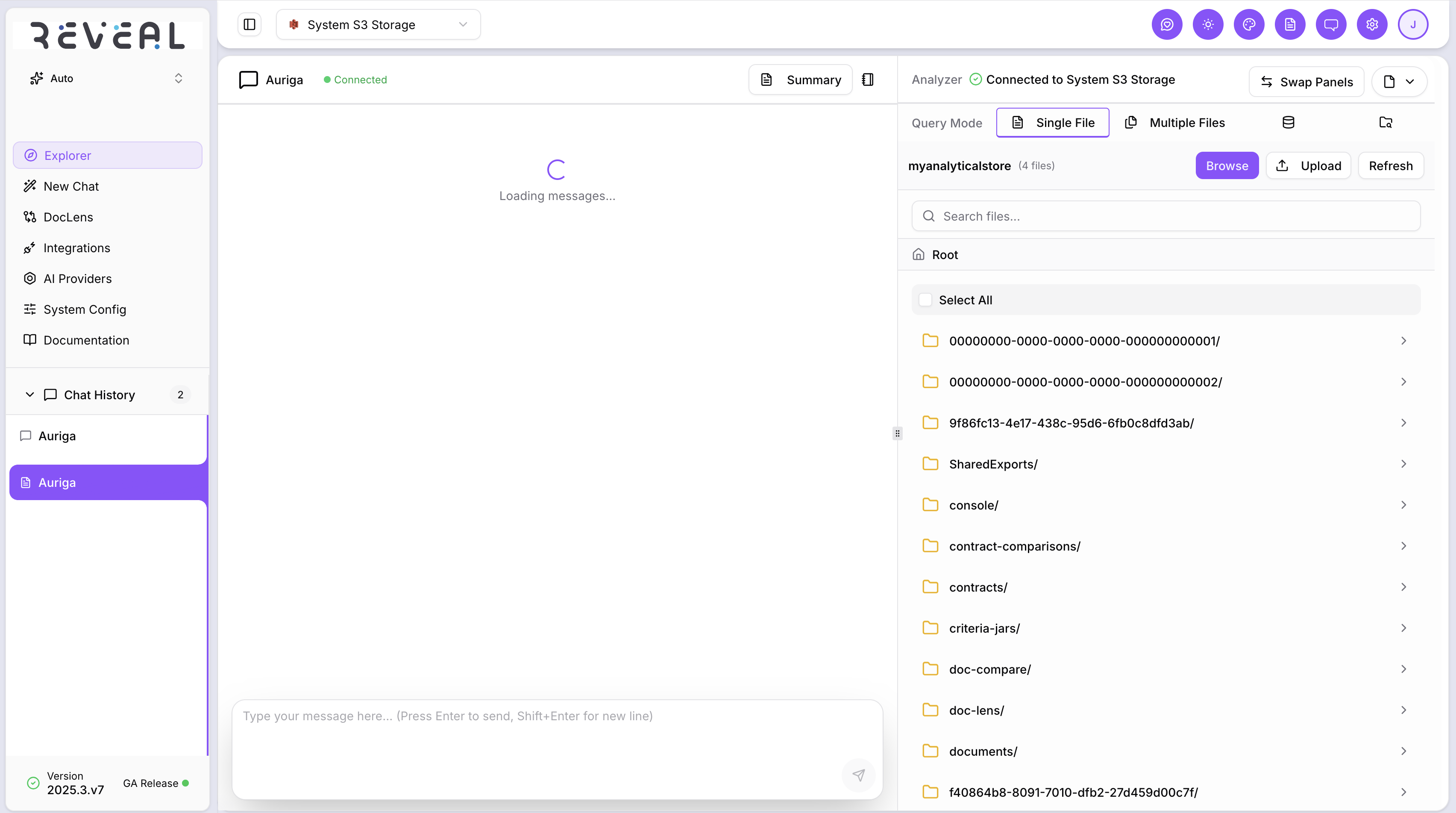
Use Single File mode when you know exactly which document contains the information you need. The search is faster and more precise because it is scoped to that file only.
Query Mode — Multiple Files
Select Multiple Files to search across a specific set of documents you choose. Select files from the S3 browser and they appear in the Active Files in Chat panel on the left, showing which files are loaded and contributing to answers.
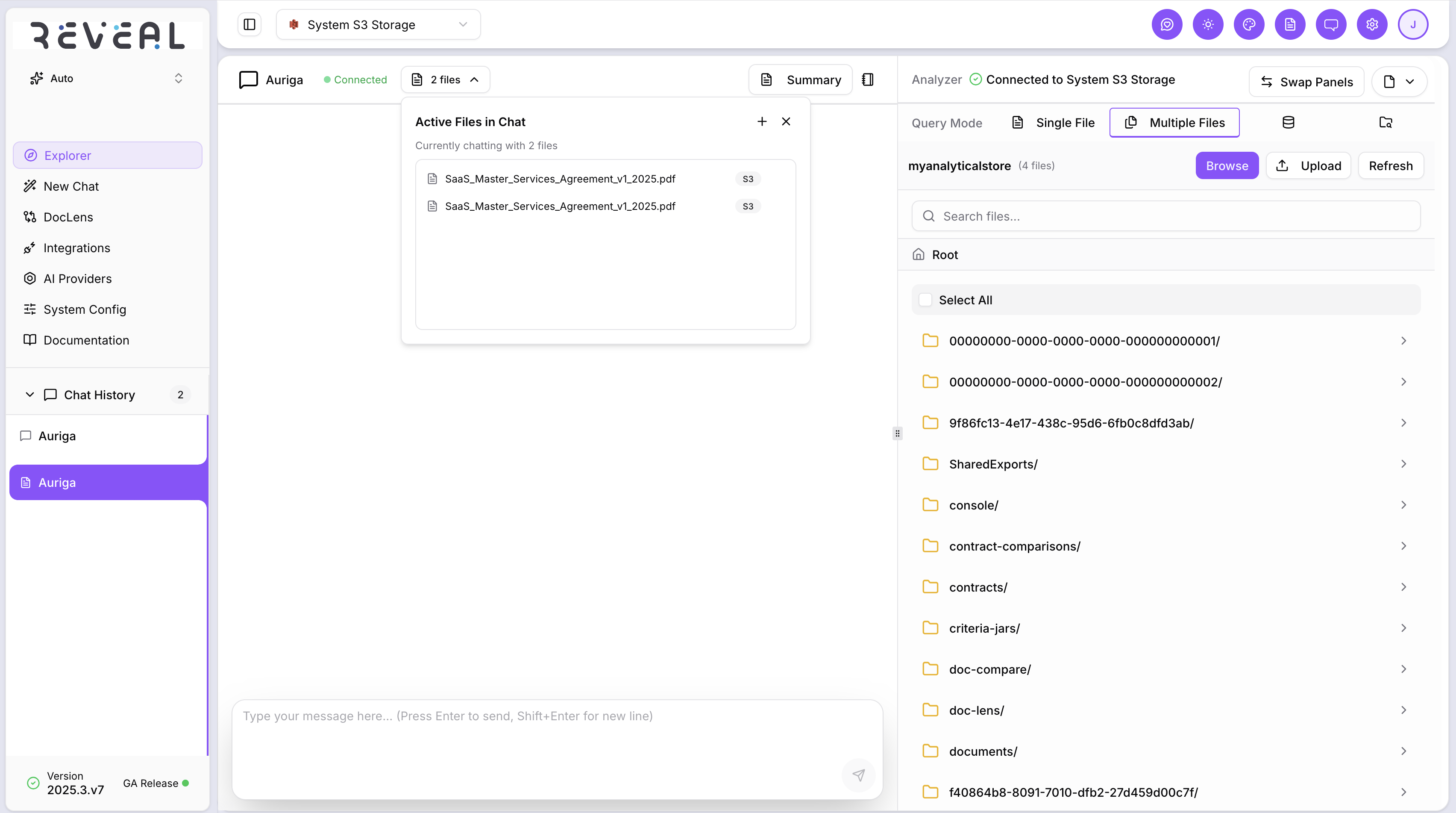
You can add or remove files without leaving the conversation. Use this mode when you want to compare documents or combine information from a known set of files.
Query Mode — Full Bucket Search
Select Full Bucket Search to search semantically across every document in your S3 bucket at once — no file selection needed. Reveal automatically finds the most relevant documents for each question.
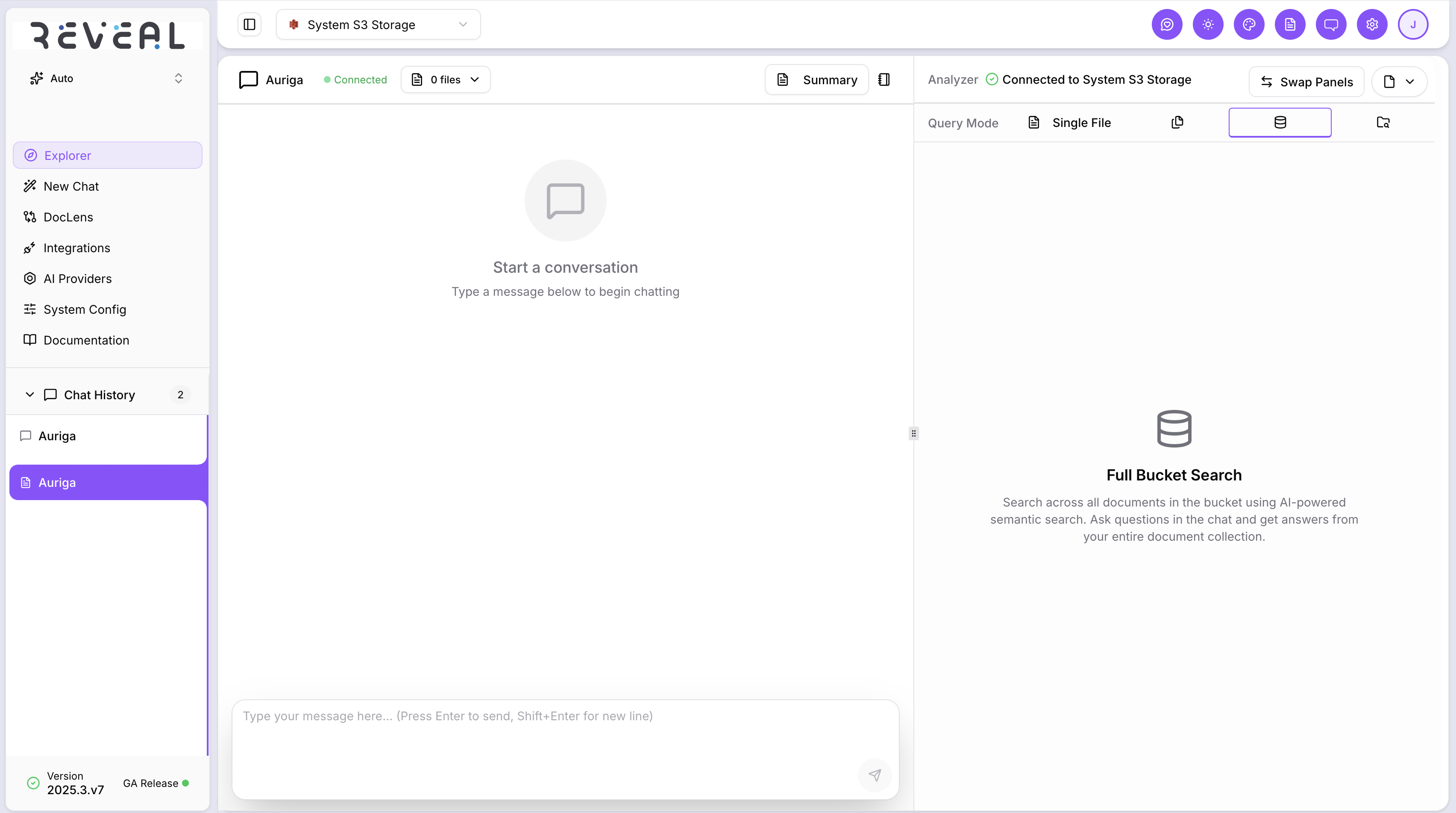
Use Full Bucket Search when you are not sure which document contains the answer, or when you want to draw on your entire document library in one question.
Full Bucket Search must be enabled on the connection by an administrator. If this tab is not visible, contact your administrator to enable it on the S3 connection.
Query Mode — Research Agent
Select Research Agent to search across your documents and live scientific literature simultaneously. Research Agent queries your S3 bucket alongside three external academic databases in parallel — OpenAlex, PubMed, and ClinicalTrials.gov — and returns a single synthesised answer with citations from all sources.
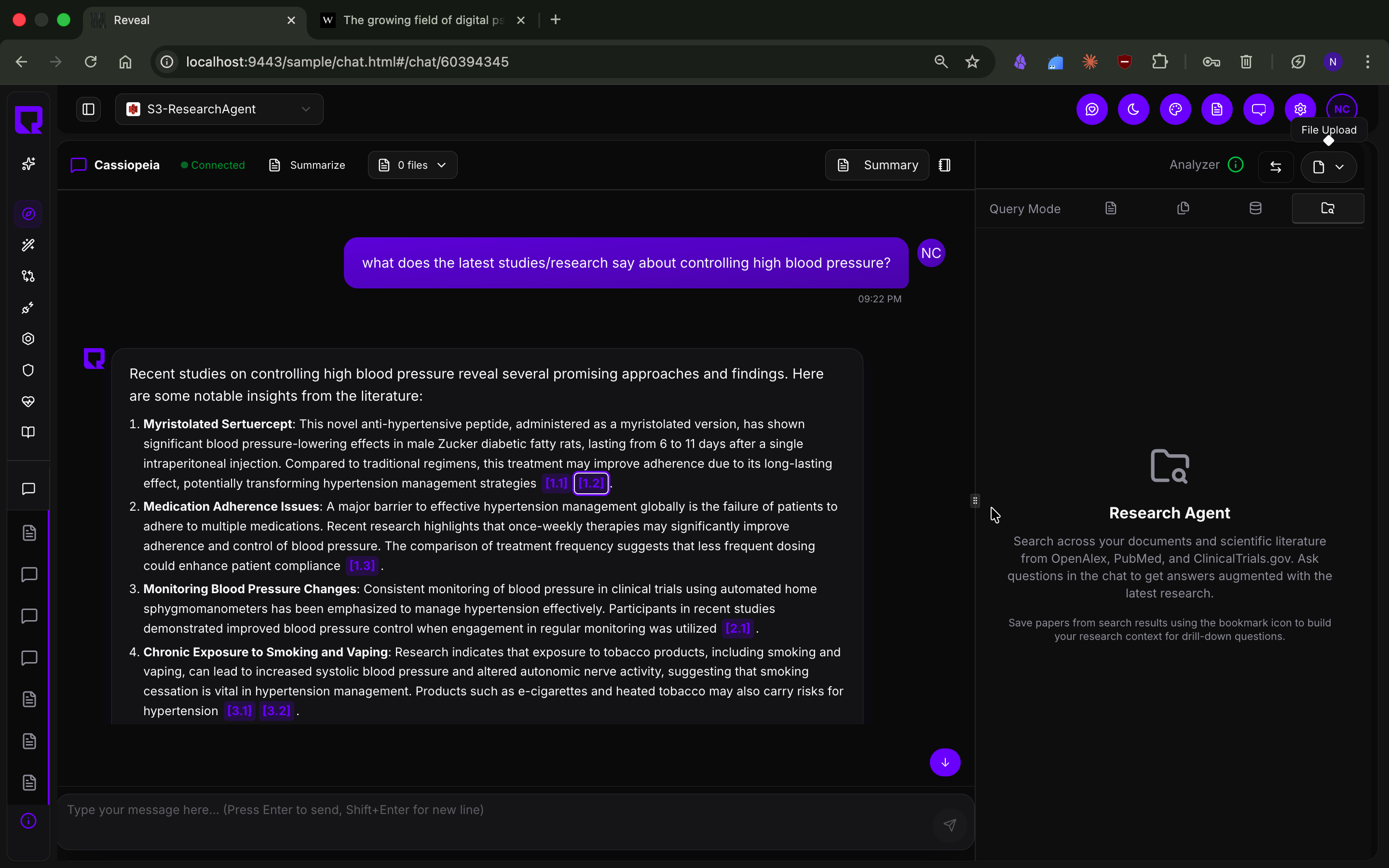
The answer includes inline citations in [N.M] format — for example [1.1], [2.1], [3.2] — where each number refers to a specific source document or paper. Citations link to the exact passage, page, or paper.
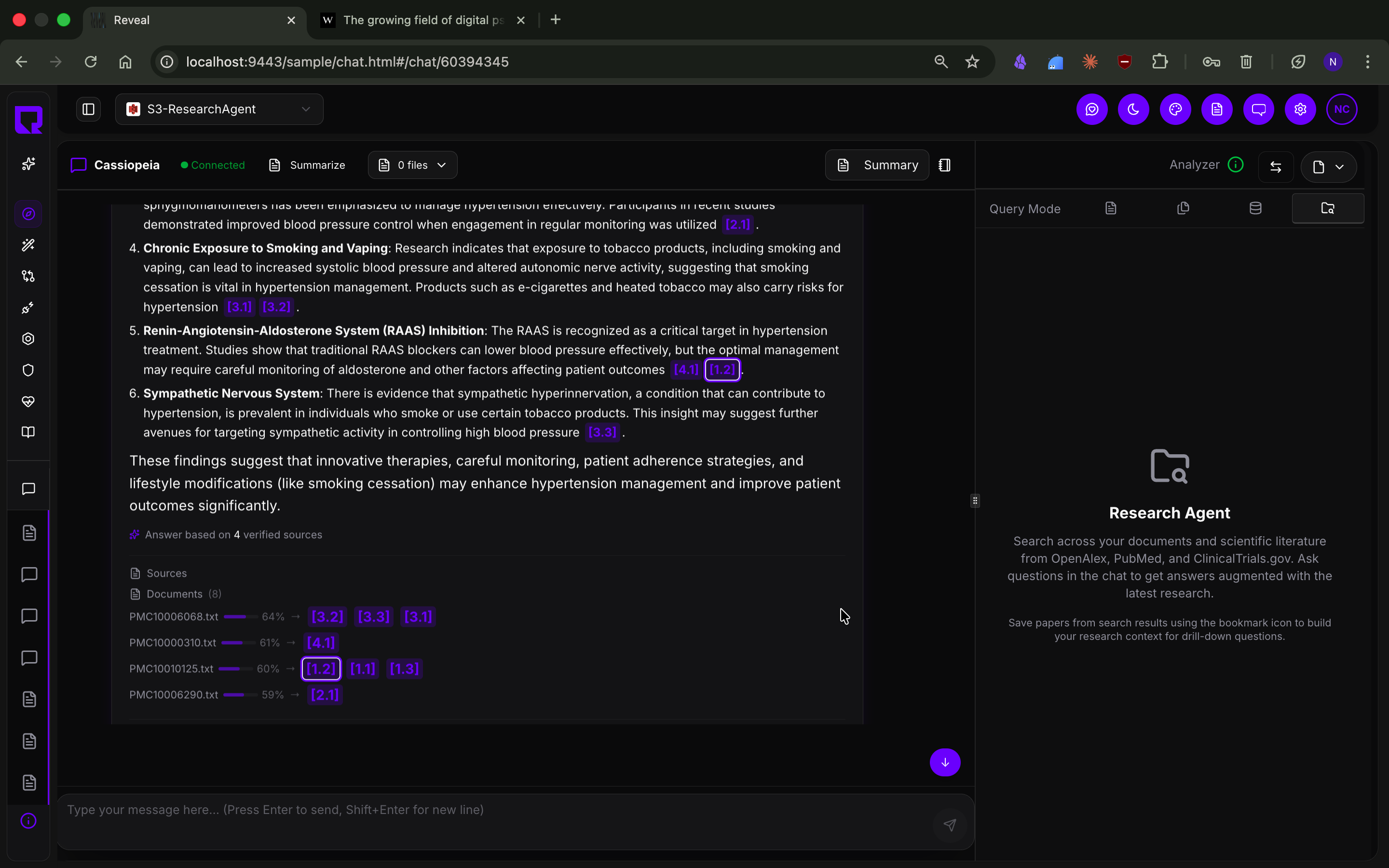
The sources panel at the bottom of the response shows every paper and document that contributed to the answer — including PubMed IDs, relevance scores, and direct links to the source material.
What Research Agent searches
| Source | What it covers |
|---|---|
| Your S3 documents | Files you have uploaded to your connected S3 bucket |
| OpenAlex | Comprehensive index of open-access academic papers |
| PubMed | Biomedical and life science literature from NCBI |
| ClinicalTrials.gov | Clinical trial data — conditions, interventions, and outcomes |
All three external sources are searched in parallel. Results are deduplicated by DOI and ranked by a composite score that weighs keyword relevance, citation count, recency, and abstract quality. Only papers published after 2020 with abstracts in English are included.
When to use Research Agent
- You want to check what the latest research says about a topic in your documents
- You are reviewing clinical or scientific documents and need peer-reviewed context
- You want answers grounded in both your private data and published literature
Research Agent requires Full Bucket Search to be enabled on the S3 connection. Contact your administrator if the tab is not visible.
Uploading documents
Click Upload in the Analyzer panel to upload new files directly to your S3 bucket. Select the destination bucket and folder, then drag files into the drop zone or click Browse Files to select from your computer.
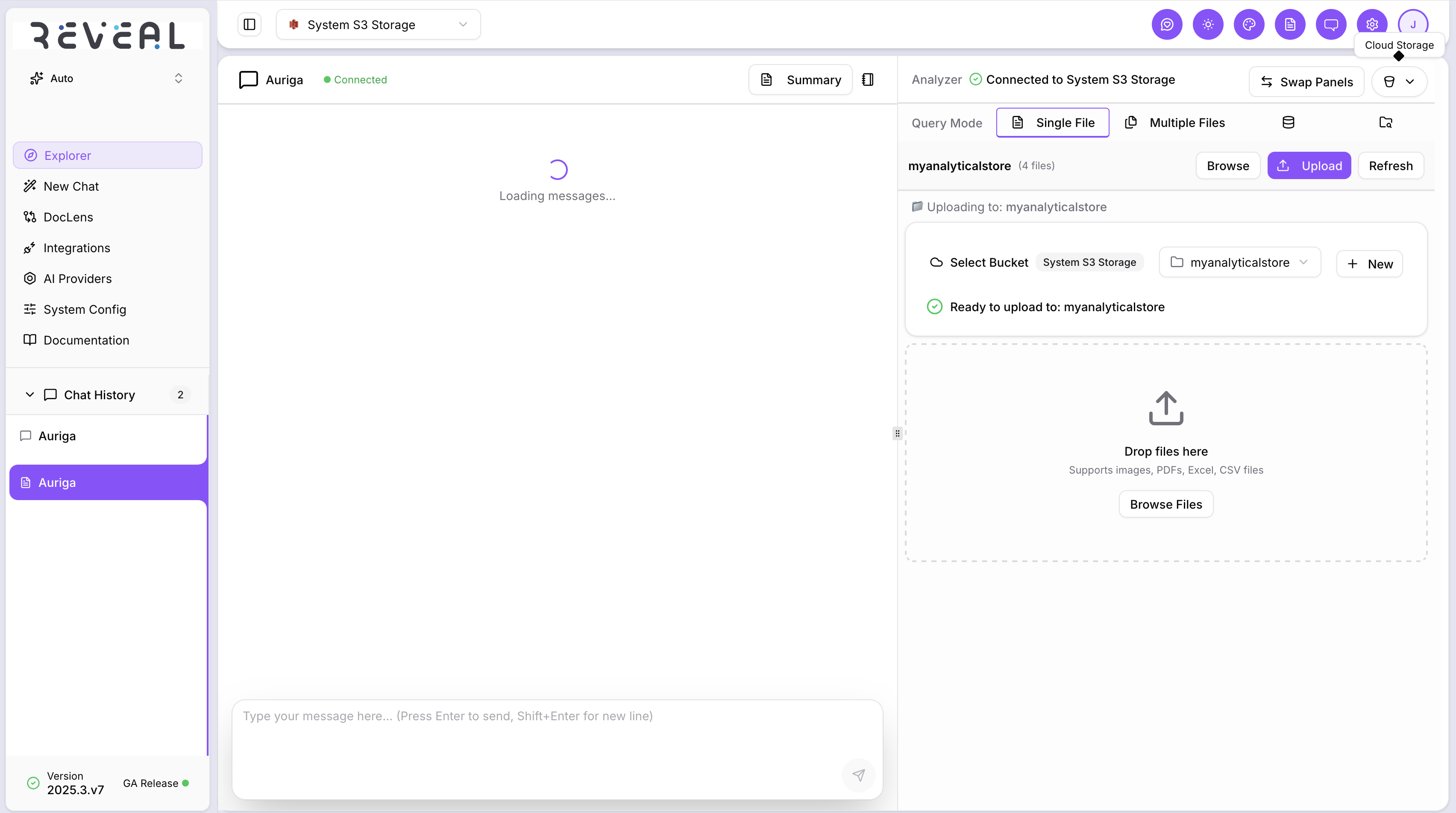
- Supported formats: PDF, images, Excel, CSV files
- Maximum file size: 32 MB per file
Once uploaded, Reveal processes the file automatically — extracting text, chunking, and indexing it. The file becomes available to query as soon as processing completes. Click Refresh in the browser to see newly uploaded files.
Asking questions
Type your question in the chat input. Reveal searches the indexed content for the most relevant chunks across your selected files, entire bucket, or combined document and literature sources, and returns a plain-language answer with inline citations — for example [1.1], [1.2], [2.1] — where each citation links to the exact page and passage in the source document or paper.
Each response also includes:
- Follow-up questions — suggested next questions to continue the analysis
- Documents used — which files and papers contributed to the answer
Tips for best results
- Use descriptive filenames — Reveal uses the filename as context when searching
- For large documents, specific questions about a section or topic return better results than broad ones
- Use Research Agent when you want answers that combine your private documents with the latest published research
- Use Full Bucket Search when you are not sure which document in your collection contains the answer
- Use Single File or Multiple Files when you know exactly which documents are relevant — it gives faster, more focused answers
Research Agent requires an S3 connection with a Vector Bucket configured. See the Setup Wizard for setup instructions, or ask your administrator to configure the S3 storage connection.