System Configuration
System Config is the central control panel for all of Reveal's settings. Administrators can view, edit, and audit every configuration value from here.
Click System Config in the left navigation to open it. The page shows how many of the total settings are configured, with a green All required set badge when nothing critical is missing.
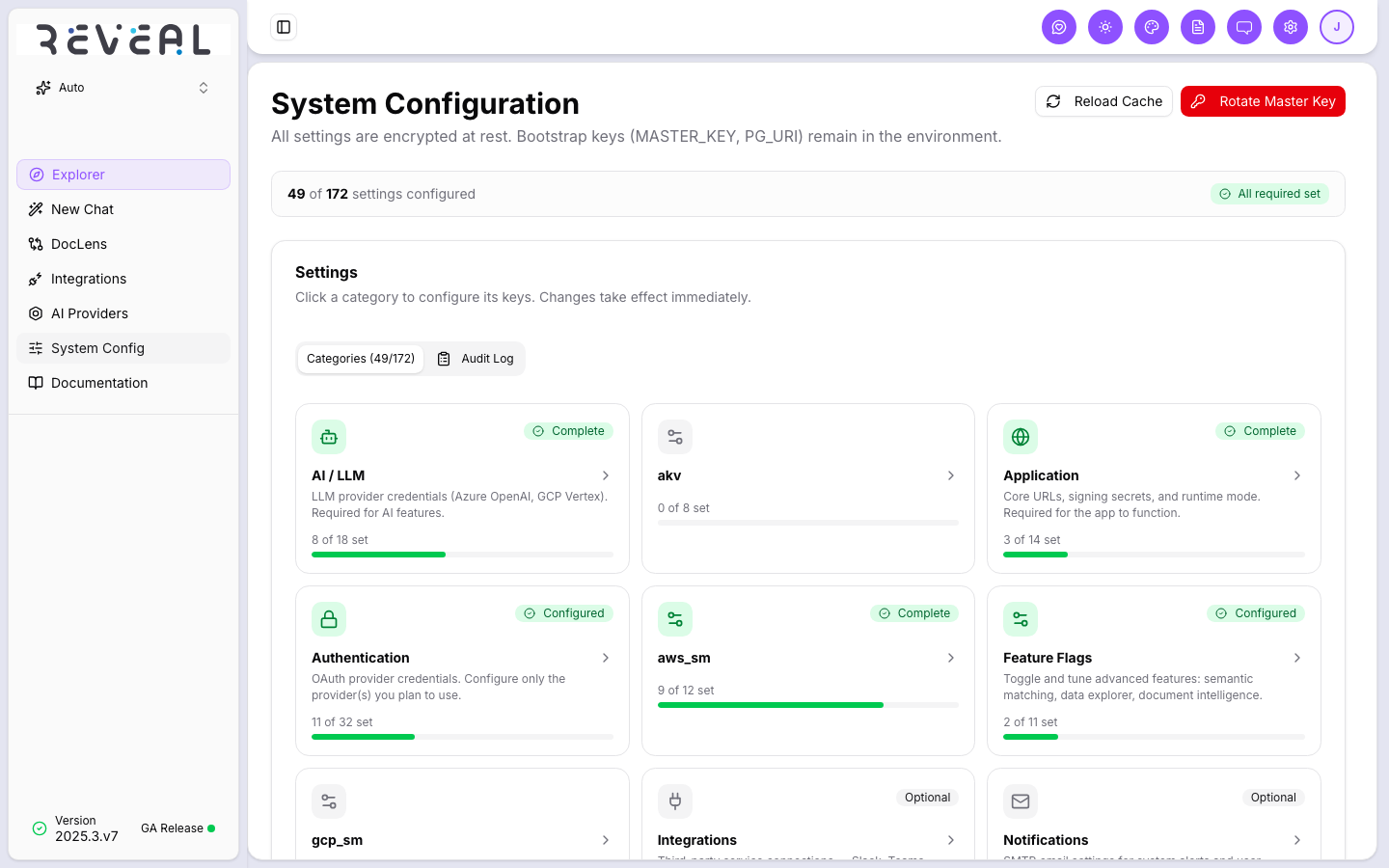
All settings are encrypted at rest. Bootstrap keys (MASTER_KEY, PG_URI) remain in the environment and are not managed here.
Two tabs
- Categories — browse and edit settings by category
- Audit Log — full history of every configuration change
Categories
Click any category card to open it and see its individual settings. Each card shows how many keys are configured out of its total, and a completion badge (Complete, Configured, or blank if not started).
| Category | What it covers |
|---|---|
| AI / LLM | LLM provider credentials (Azure OpenAI, GCP Vertex). Required for AI features. |
| Application | Core URLs, signing secrets, and runtime mode. Required for the app to function. |
| Authentication | OAuth provider credentials — configure only the provider(s) you plan to use (Cognito, OIDC, Azure AD, Google). |
| Feature Flags | Toggle and tune advanced features: semantic matching, data explorer, document intelligence. |
| Integrations | Third-party service connections — Slack, Teams, OneDrive, GitHub, Salesforce, and more. Optional. |
| Notifications | SMTP email settings for system alerts and user invitations. Optional. |
| akv | Azure Key Vault connection for secrets storage. |
| aws_sm | AWS Secrets Manager connection for secrets storage. |
| gcp_sm | GCP Secret Manager connection for secrets storage. |
Editing a setting
Click a category card to open it, then click the Edit (pencil) icon next to the setting you want to change.
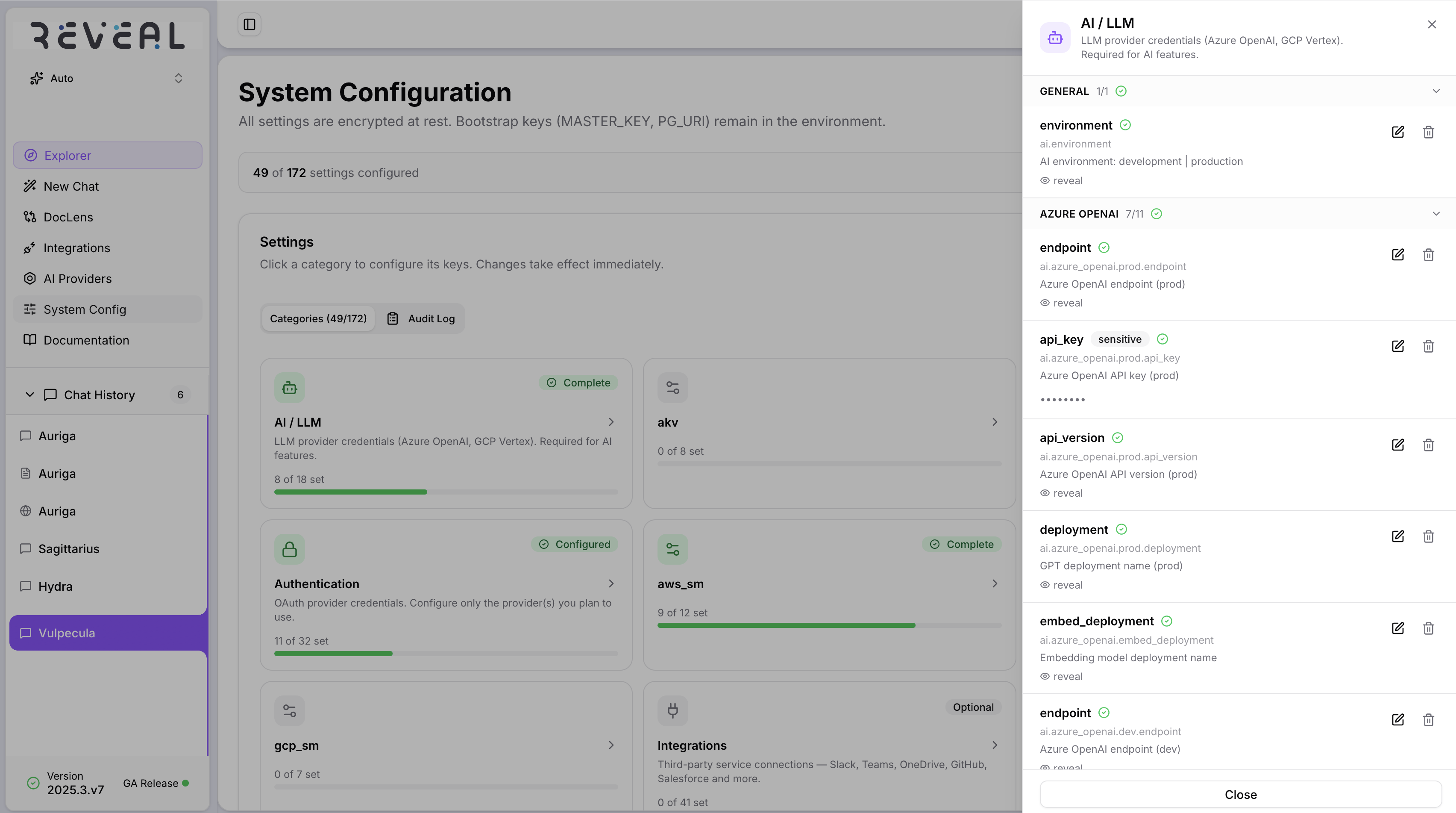
Enter the new value and click Save. Sensitive values (API keys, secrets, passwords) are encrypted at rest and displayed masked. Settings include a description and example value to guide you.
Dangerous settings
Settings marked Dangerous can break functionality or affect all users if set incorrectly. These require you to type CONFIRM before saving.
Audit Log
Click the Audit Log tab to see a full history of every configuration change.
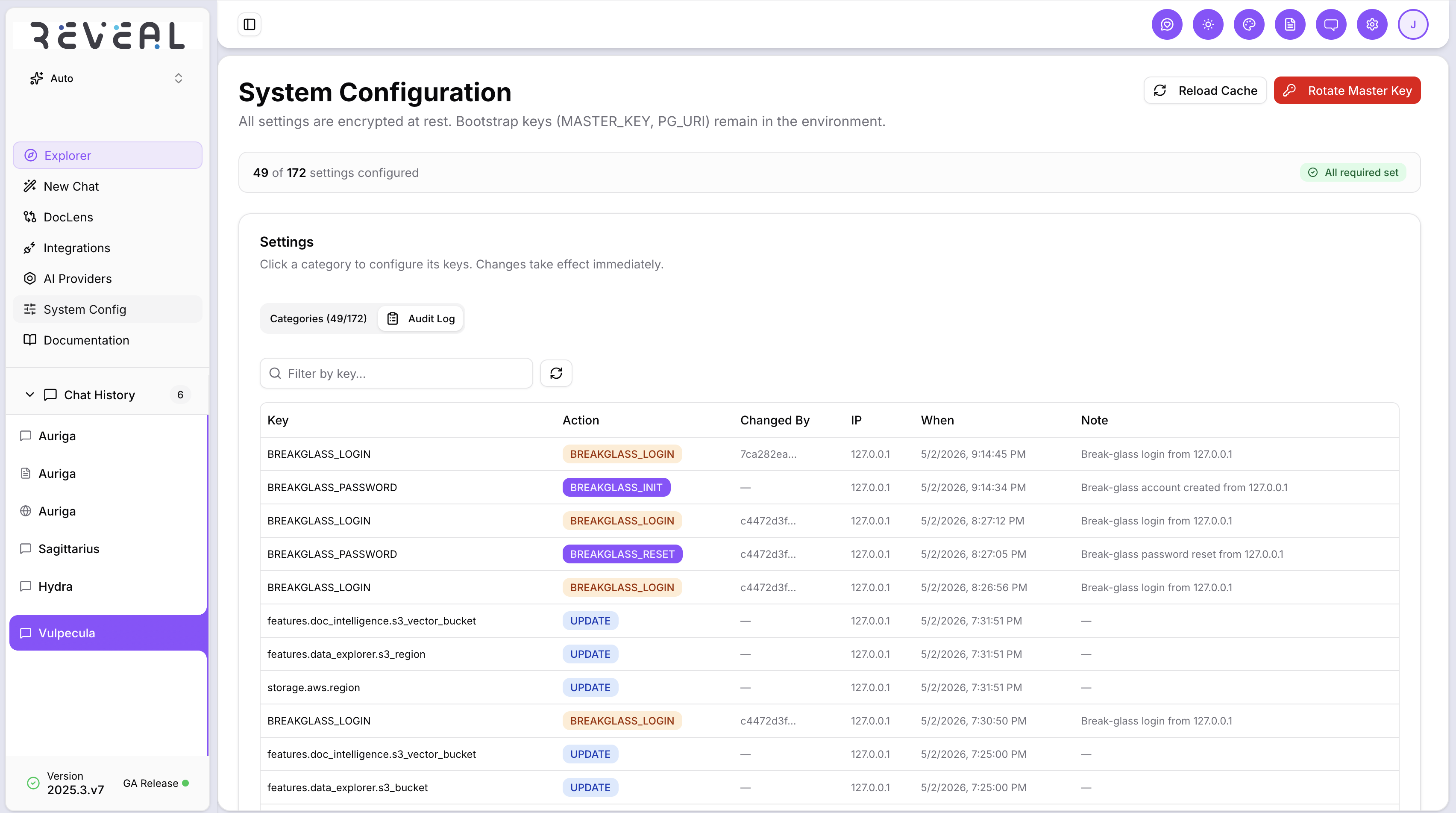
The log shows:
- Key — the configuration key that was changed
- Action — what happened (e.g. UPDATE, BREAKGLASS_LOGIN, BREAKGLASS_PASSWORD_SET)
- Changed By — the user who made the change
- IP — the IP address of the request
- When — timestamp of the change
- Note — any system-generated note about the action
Use the Filter by key search bar to find changes for a specific setting.
Reload configuration
After making changes, click Reload Cache at the top right to apply them without restarting the service. Some changes (such as vault configuration) may require a full service restart.
Master key rotation
This is an advanced operation. Only use this if instructed by your security team.
Click Rotate Master Key to rotate the master encryption key. All encrypted values are decrypted with the current key and re-encrypted with the new one. This runs as a background task and can take several minutes depending on the number of settings.