Document Explorer
Document Explorer lets you upload documents and ask questions across them in plain language. Reveal indexes every file, groups them into AI-generated categories, and returns answers with inline citations — every claim linked back to the exact page and paragraph in the source document.
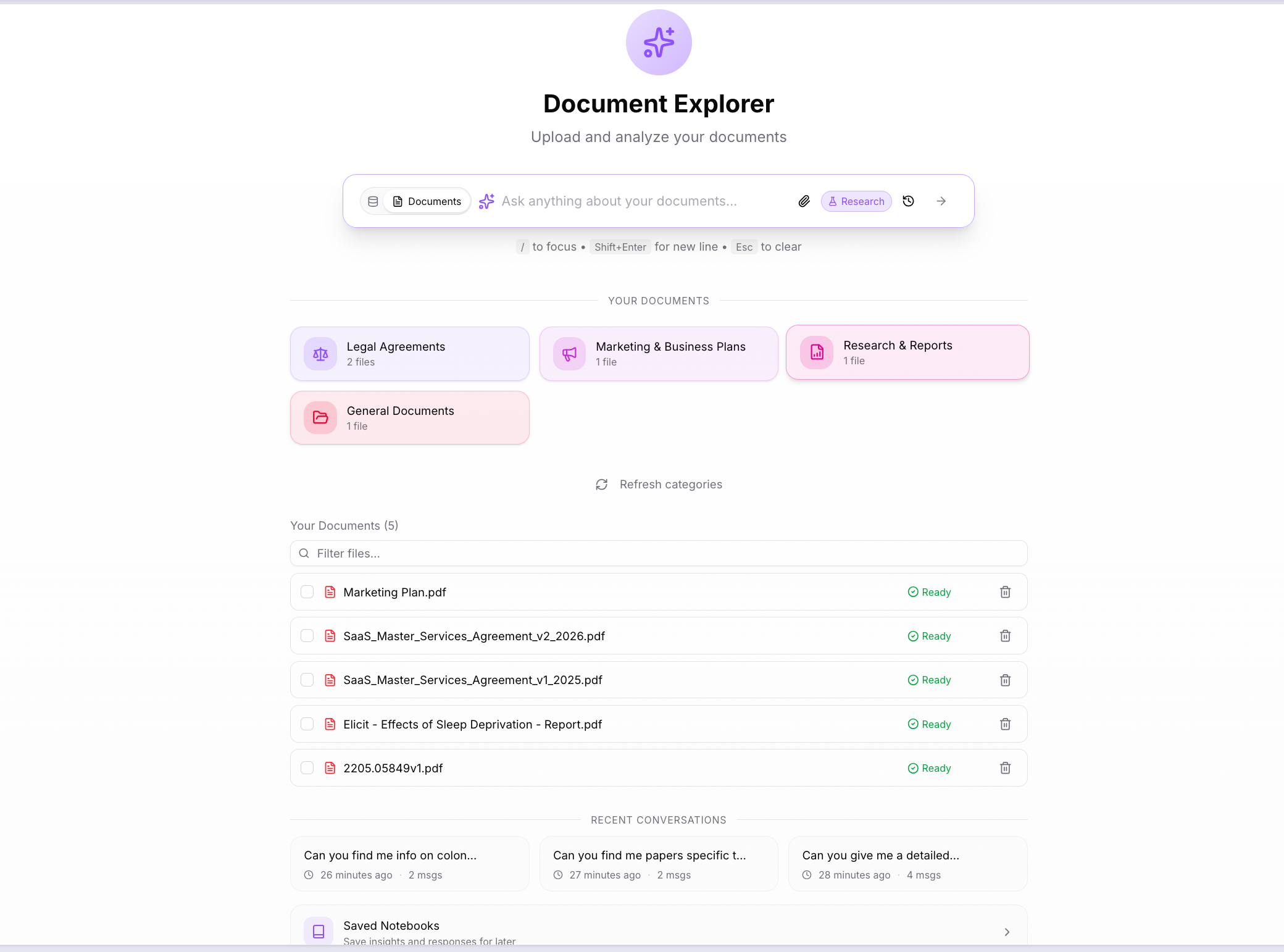
The home screen shows your uploaded files grouped into category bubbles — for example, Legal Agreements, Marketing & Business Plans, Research & Reports, General Documents — generated automatically from the content of your files. Below the categories, your individual documents are listed with their processing status. Recent Conversations at the bottom let you jump back into a previous session.
Uploading documents
Click the paperclip icon in the search bar or drag files directly onto the page.
- Supported formats: PDF, TXT, Markdown
- Maximum file size: 32 MB per file
After upload, Reveal processes each file through an extraction, chunking, and embedding pipeline. The status column shows Ready when a file is fully indexed and available to query. You can upload multiple files and query them together or individually.
Once two or more files are ready, Reveal automatically generates category bubbles from the content — grouping related documents together and suggesting questions for each group. Click Refresh categories to regenerate them manually if you add new files.
Asking questions
Type your question in the search bar and press Enter. By default, Reveal searches across all your ready documents at once.
You can also:
- Click a category bubble to scope the search to the documents in that group — the category detail panel shows the files it covers and suggested questions to start with
- Select specific files from the document list to focus the query on just those files
Cited answers
Every answer includes inline citations in [N.M] format — for example [1.1], [1.2], [2.1] — where N is the source document and M is the specific chunk within it. Each citation is a clickable link that opens the source document at the exact page and paragraph the claim came from.
Below every answer, the Sources panel lists all referenced documents with their relevance scores. Click any citation number in the answer text to jump directly to the passage in the source.
The answer also includes:
- Follow-up questions — suggested next questions to continue the analysis
- Documents used — labels showing which files were read to produce the answer
Research Mode
Toggle Research in the search bar to extend your search beyond your uploaded files to external academic and clinical literature — OpenAlex, PubMed, and ClinicalTrials.gov — simultaneously with your document search.
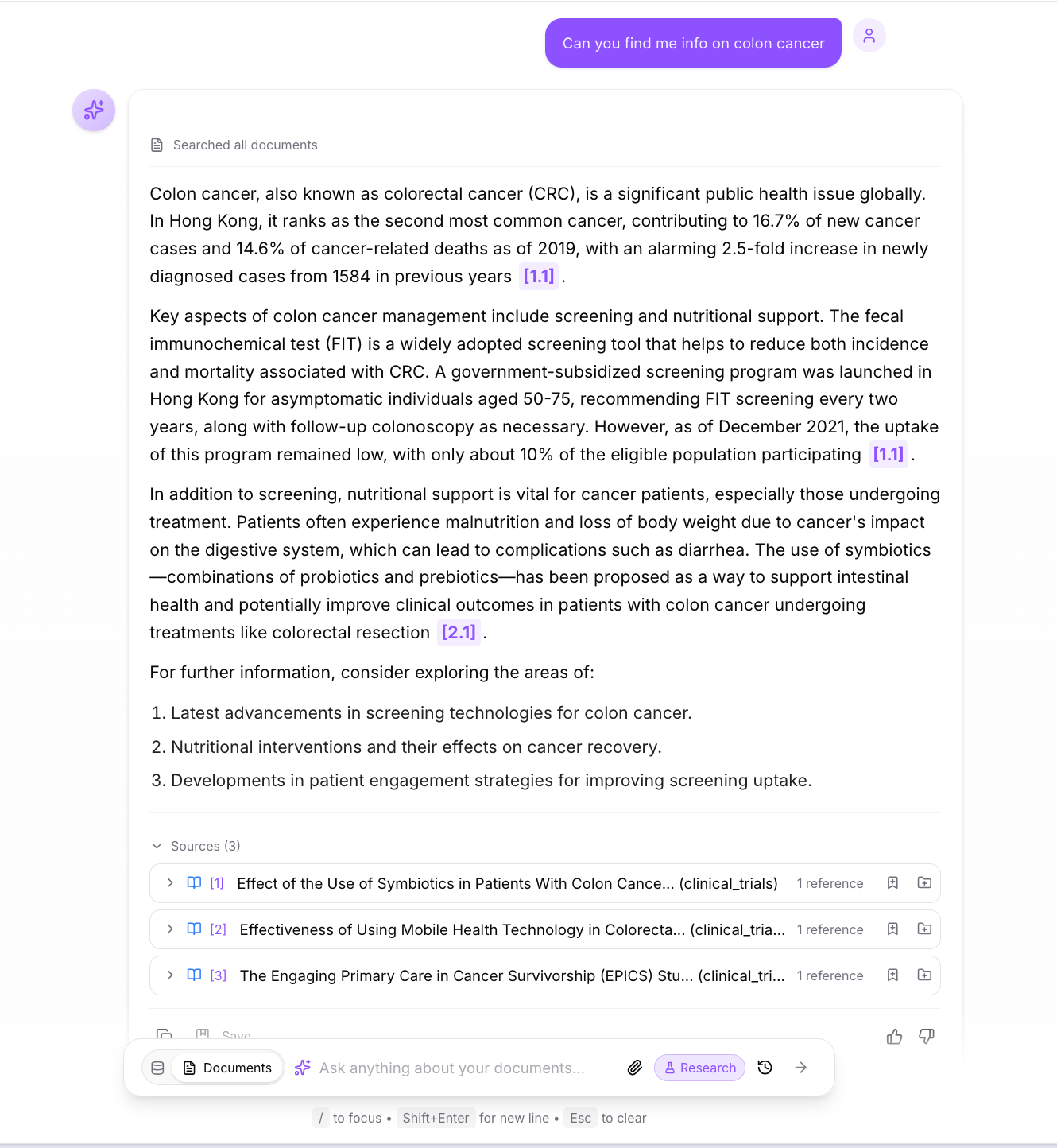
When Research Mode is on, the answer draws from both your documents and the retrieved literature. External sources appear in the Sources panel labelled by database (OpenAlex, PubMed, Clinical Trials), each with a relevance score. Literature citations open the source paper externally via DOI or URL.
Reveal also auto-enables Research Mode when it detects a medical or scientific query — keywords such as clinical, treatment, diagnosis, therapy, trial, or similar automatically trigger a literature search alongside your documents.
Saving papers to your library: Click Save on any literature result to add the paper to your document library. Saved papers are indexed like uploaded files and become searchable in future Document Explorer sessions.
Use Research Mode when you need to combine your own internal documents with published evidence — for example, comparing internal reports against peer-reviewed studies, or supplementing a policy document with clinical guidelines.
Query scope — how Reveal decides what to search
Reveal automatically picks the right search scope based on what you have selected:
| Selection | Mode | What gets searched |
|---|---|---|
| No files selected | Full bucket | All ready documents |
| 1 file selected | Single | That file only |
| 2+ files selected | Multiple | The selected files |
| Research toggle on | Research agent | All documents + OpenAlex / PubMed / ClinicalTrials |
Session history
Document Explorer maintains conversation sessions — multi-turn conversations where each follow-up question builds on the previous context. Your session persists as you ask follow-up questions, so you can drill into a topic across multiple exchanges.
Previous sessions are saved automatically and accessible via the History button at the top right. Each saved session shows the first question as its title and the number of messages it contains. Click any session to reload the full conversation.
Saved Notebooks
Click Saved Notebooks at the bottom of the home screen to save responses and insights from your conversations for later reference. Notebooks let you collect and organise findings across multiple sessions.
Deleting files
Click the delete icon next to any file in the document list to remove it. Deleting a file removes it from S3 storage, the vector index, and the database. Categories are regenerated automatically after deletion.